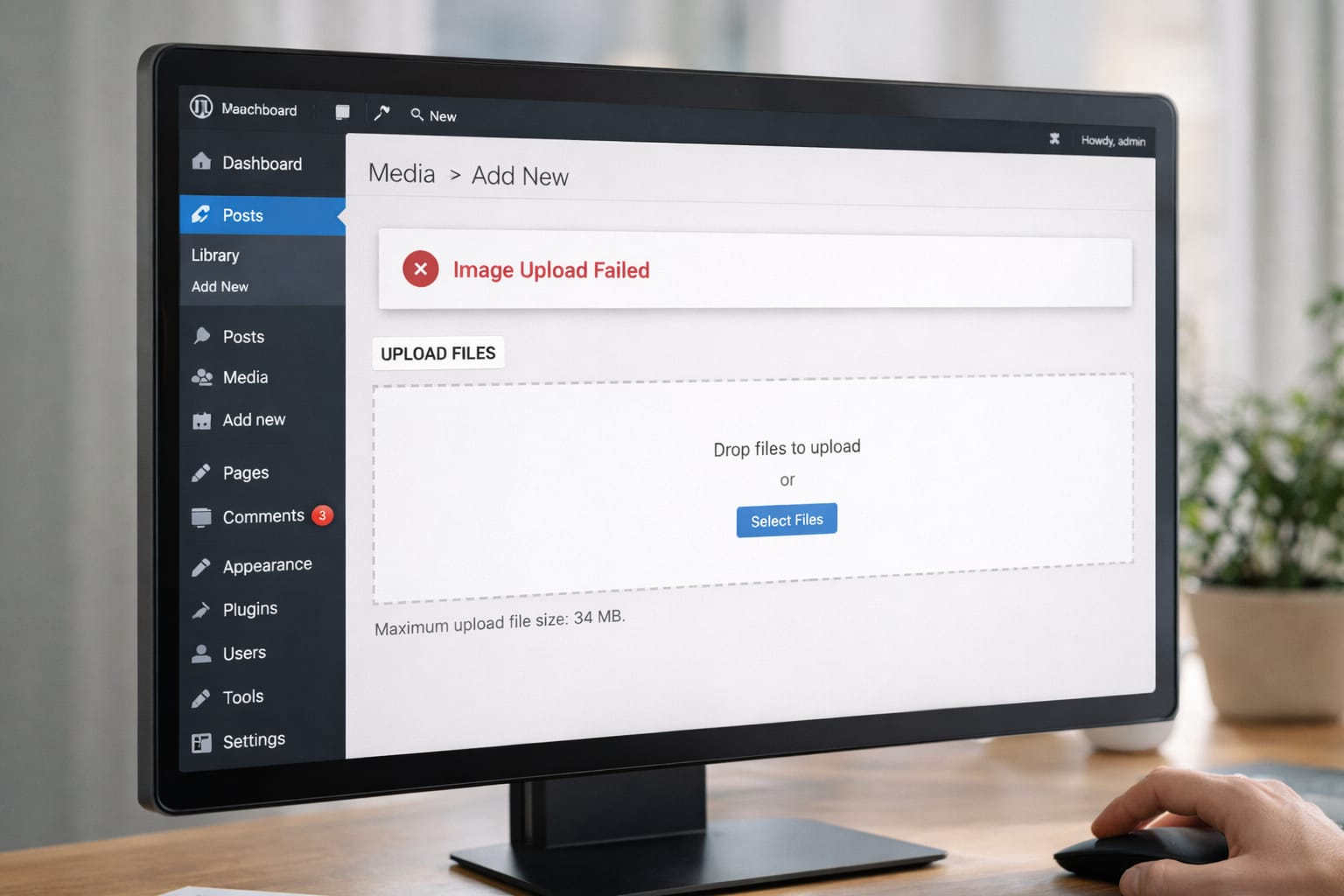
If you’re trying to upload images to WordPress and suddenly see “Image upload failed”, you’re not alone. Many beginners face this issue due to file limits, permission errors, wrong settings, or plugin conflicts. This guide shows you simple, step-by-step fixes you can follow at home—no coding skills required.
Why Does the WordPress Image Upload Failed Error Happen?
This error usually appears when WordPress cannot process or store your media file.
Here are the most common causes:
- Incorrect file permissions on your hosting server
- Wrong media upload path in WordPress settings
- Browser cache or outdated WordPress version
- Plugin conflicts (especially image, optimization, or security plugins)
- File size too large based on hosting limits
- Temporary hosting or internet connectivity issue
These issues are based on user reports and commonly seen in shared hosting environments.
Step-by-Step Fixes for WordPress Image Upload Failed Error
Below are beginner-friendly solutions. Try them one by one.
1️⃣ Clear Browser Cache & Try Another Browser
This quick step fixes temporary loading bugs.
Many users report that the issue disappears after clearing browser cache or switching browsers. Cached scripts sometimes block the media uploader. Try clearing cache, opening an incognito window, or switching to Chrome/Firefox to confirm if the problem is browser-specific.
2️⃣ Disable Recently Installed Plugins
Some plugins block image uploads.
Steps:
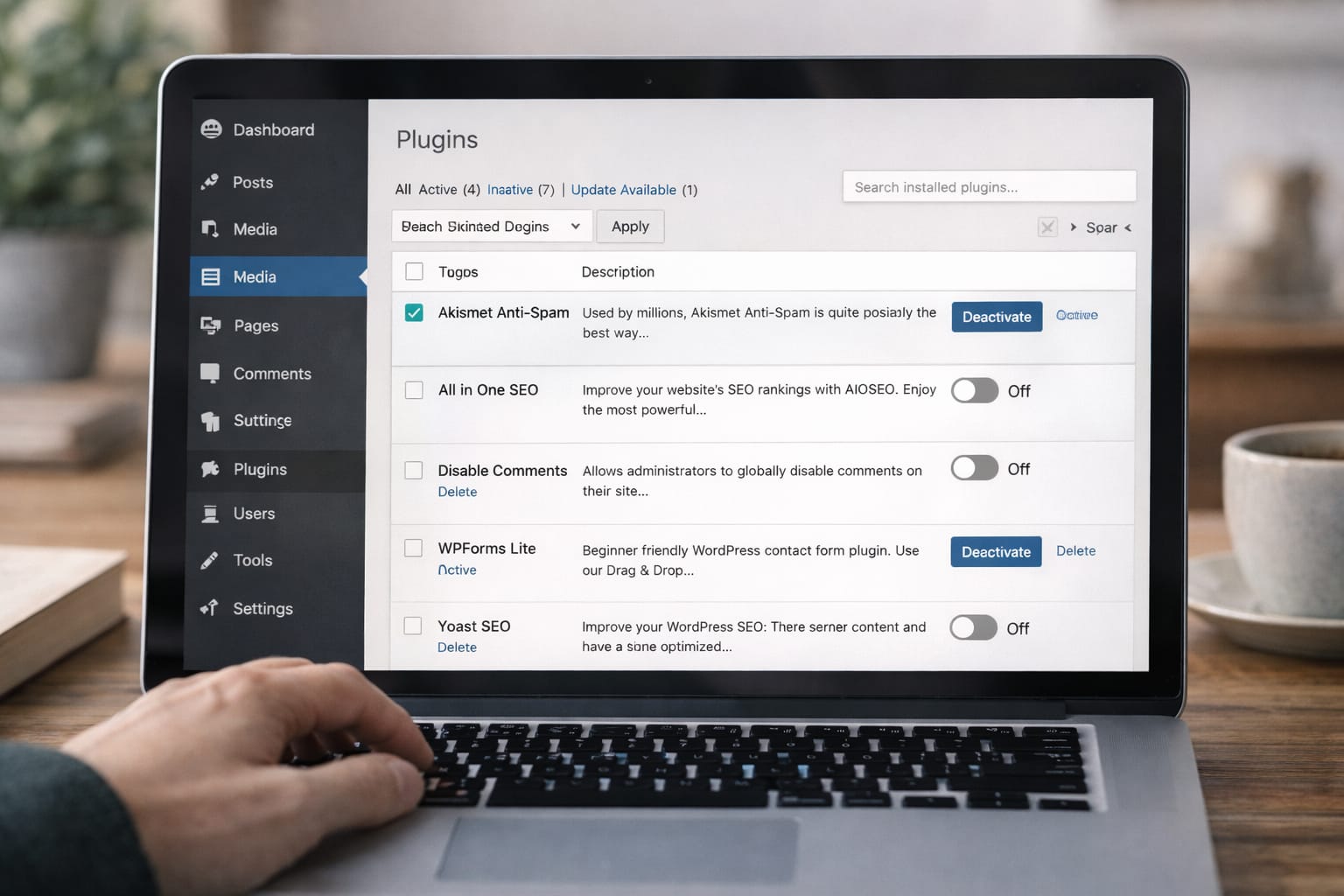
- Go to Plugins → Installed Plugins
- Deactivate image compressors, CDN plugins, or security plugins
- Try uploading again
- Reactivate plugins one by one to find the conflict
If this fixes it, replace the problematic plugin.
3️⃣ Fix File Permissions in WordPress
Incorrect permissions prevent WordPress from saving files.
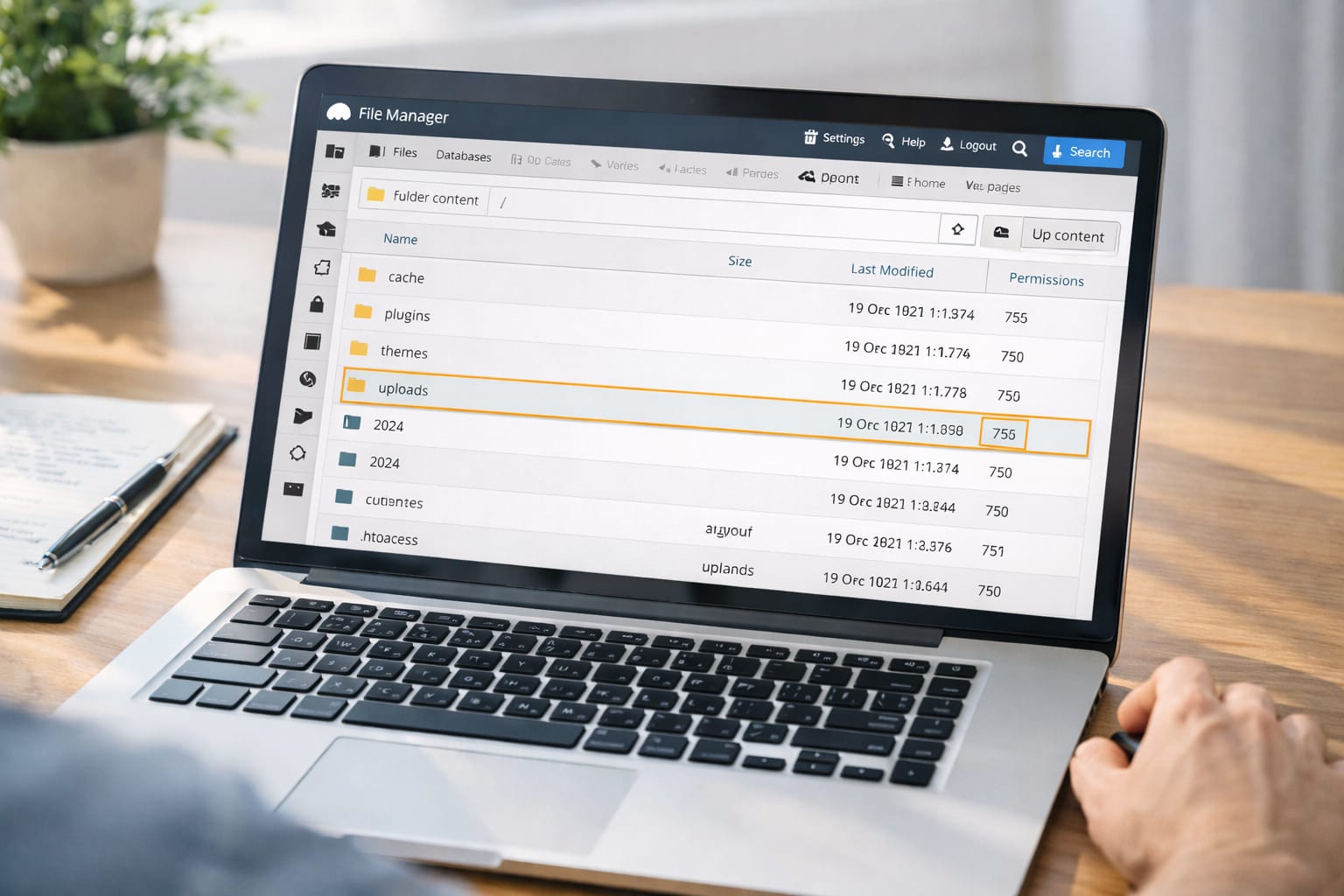
According to hosting support guidelines, WordPress requires specific folder permissions to allow image uploads. Your hosting panel should allow you to set wp-content/uploads to 755 permissions. Incorrect settings like 700 or 777 may trigger the “Image Upload Failed” error.
4️⃣ Update Your WordPress & PHP Version
Outdated versions can break the uploader.
Steps:
- Go to Dashboard → Updates
- Install available updates
- Ask your host to update PHP version to 8.0 or above
This resolves compatibility problems based on user reports.
5️⃣ Fix Wrong Media Path (Advanced but Simple)
Sometimes WordPress stores media in the wrong directory.
How to check:
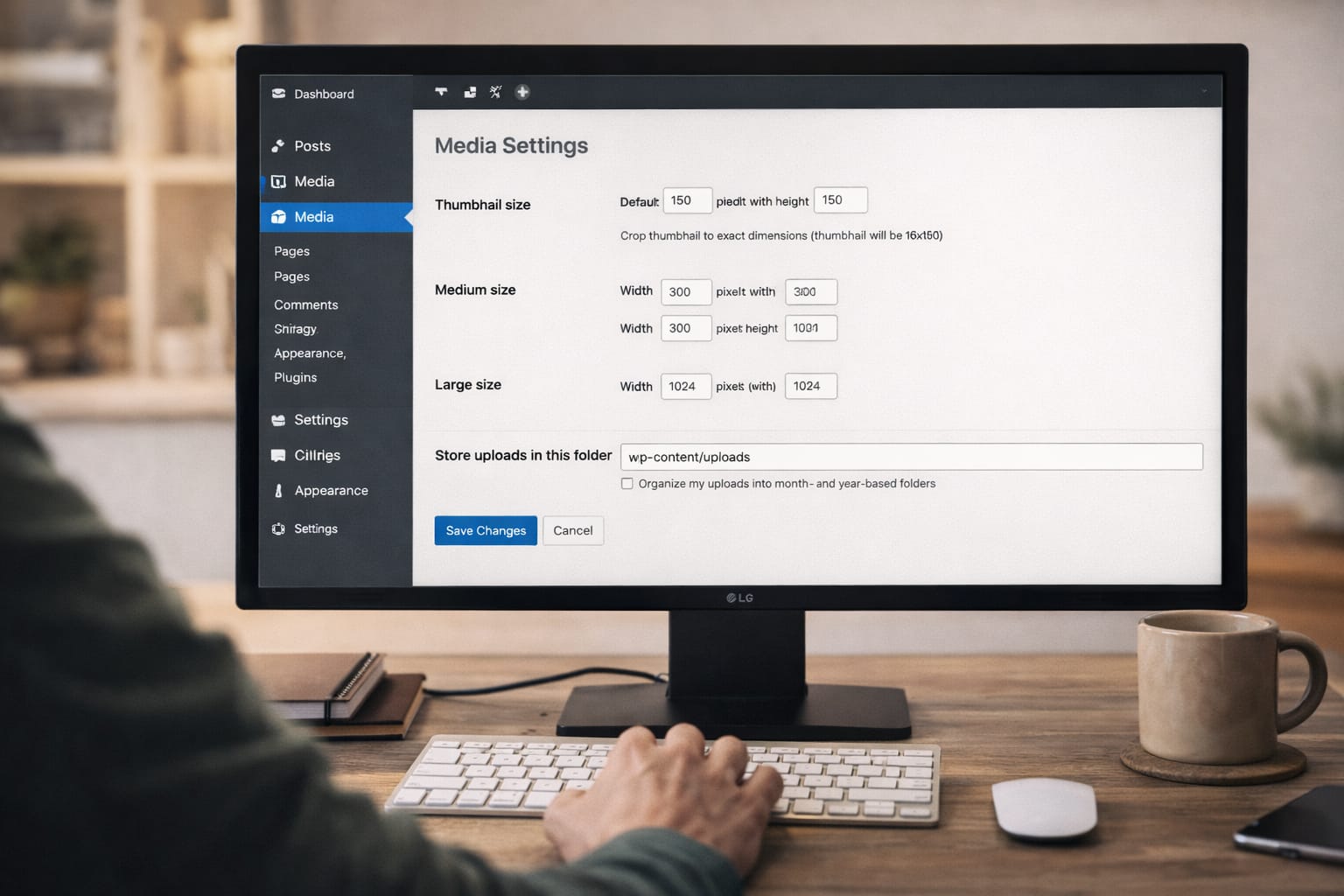
- Go to Settings → Media
- Look for “Store uploads in this folder”
- If it’s empty, leave it empty (WordPress sets it automatically)
- If it contains something incorrect, remove it
This is a common fix after migrations.
6️⃣ Increase WordPress File Upload Limit
Large images often fail due to hosting limits.
Try:
- Compress the image
- Rename the file
- Ask your host to increase “post_max_size” and “upload_max_filesize”
You can also add this to .htaccess (if allowed by host):
php_value upload_max_filesize 64M php_value post_max_size 64M
Alternative Fix (If Nothing Works)
If the main steps fail, try these:
✔ Upload via File Manager (Hosting Panel)
Upload images directly to:
public_html/wp-content/uploads/2024/
Then insert them using URL inside WordPress.
✔ Use WordPress Recovery Mode
Triggered when plugin errors occur.
✔ Switch to Default Theme (Temporary)
Themes can contain code that breaks the media uploader.
✔ Contact Hosting Support
They can reset file permissions or fix server-level blocks quickly.
How to Contact Official Support
You can use these methods depending on the issue:
- WordPress Help Center – search for media upload issues
- Your Hosting Support Panel – fix permissions, folder access, PHP version
- Plugin Developer Support – for plugin conflicts
- Theme Support Page – if theme scripts break uploading
Most providers offer live chat or ticket support.
Conclusion
The “WordPress Image Upload Failed” error looks frustrating but is usually easy to fix. Start with browser cache and plugin checks, then move on to permissions and media path settings. Most users solve it within minutes using these steps.
Frequently Asked Questions
Q1. Why is the WordPress uploader not receiving the image?
This can happen due to browser cache issues, plugin conflicts, or incorrect folder permissions. Try clearing your browser cache, temporarily disabling plugins, or checking the upload folder’s permission settings.
Q2. Can I fix the upload error without logging in to WordPress?
Yes. You can upload images directly using your hosting provider’s file manager. This method bypasses WordPress and allows you to manually place files inside the uploads folder.
Q3. Is it possible to fix this without reinstalling WordPress?
Yes. Most upload issues are caused by permissions, plugins, or configuration settings. Reinstalling WordPress is usually unnecessary and should be considered only as a last resort.