
If you want to start earning from your YouTube channel, you must enable monetization. Many beginners feel confused about the requirements, settings, and verification steps. This guide explains how to enable YouTube monetization step-by-step, why issues happen, and what to do if monetization doesn’t activate.
Why Does the Monetization Problem Happen?
YouTube monetization problems usually happen when your channel hasn’t met the requirements, your Google account isn’t verified, you uploaded reused content, or the monetization settings are incomplete. Sometimes the YouTube Studio app also glitches due to outdated versions.
Common Causes
- Not meeting 1,000 subscribers + 4,000 watch hours OR 3M Shorts views
- Channel not verified with phone number
- Reused or non-original content
- Incomplete AdSense linking
- Outdated YouTube Studio app
- Policy warnings or strikes
Step-by-Step Fixes to Enable YouTube Monetization
You can enable YouTube monetization by meeting the eligibility requirements, enabling monetization inside YouTube Studio, linking an AdSense account, and completing verification steps. Follow these simple instructions to activate earning features.
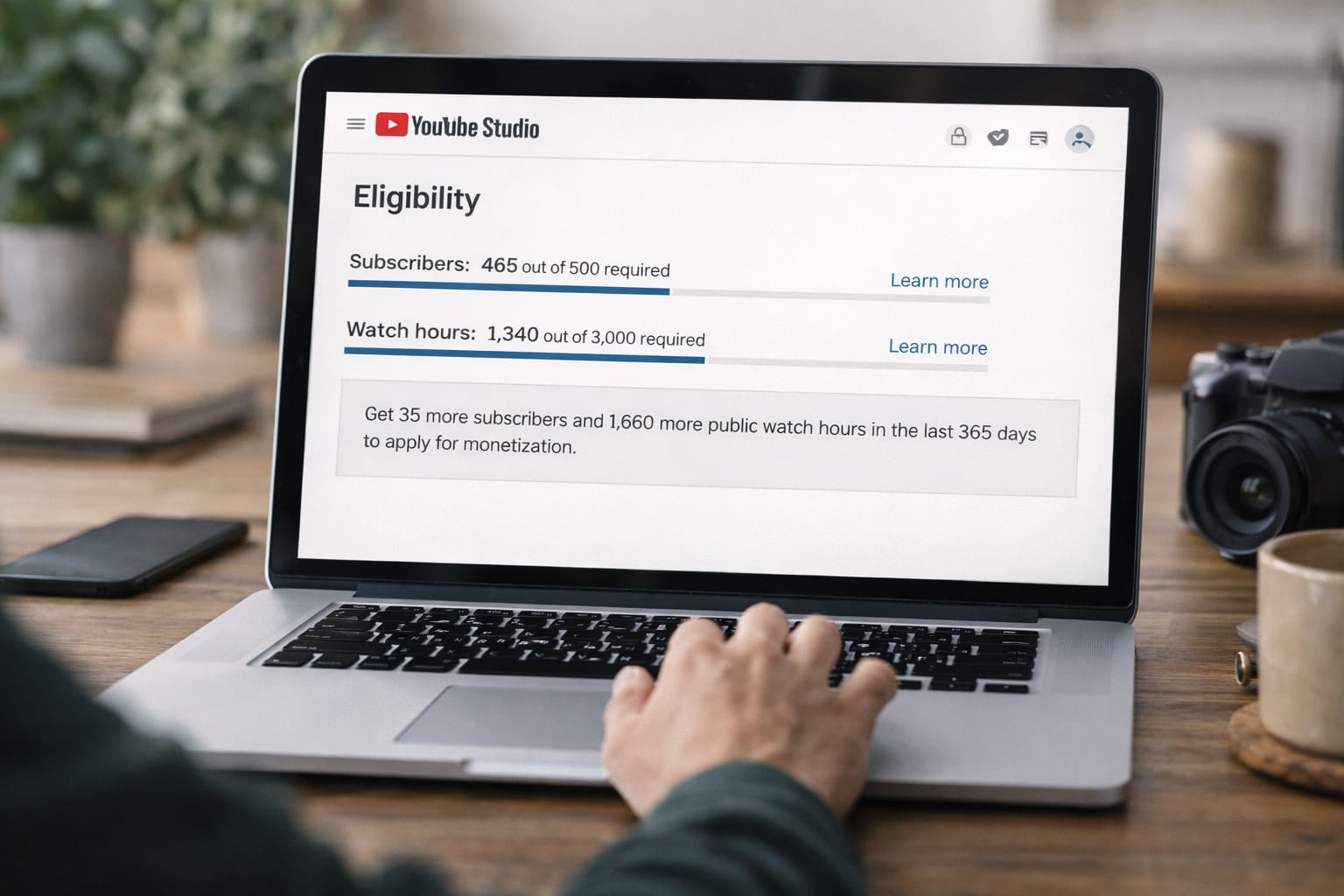
1. Check Monetization Eligibility
- Open YouTube Studio → Monetization tab.
- You’ll see your progress bar:
- 1,000 subscribers
- 4,000 hours watch time (last 12 months) OR
- 3 million Shorts views (last 90 days)
- Make sure your channel follows YouTube policies.
➤ If this does not work, update the YouTube Studio app and check again.
2. Enable Monetization Setting
- Go to YouTube Studio (Web) → Monetization.
- Click Start on the “YouTube Partner Program” card.
- Accept YouTube’s Terms and Agreements.
- Complete the verification steps.
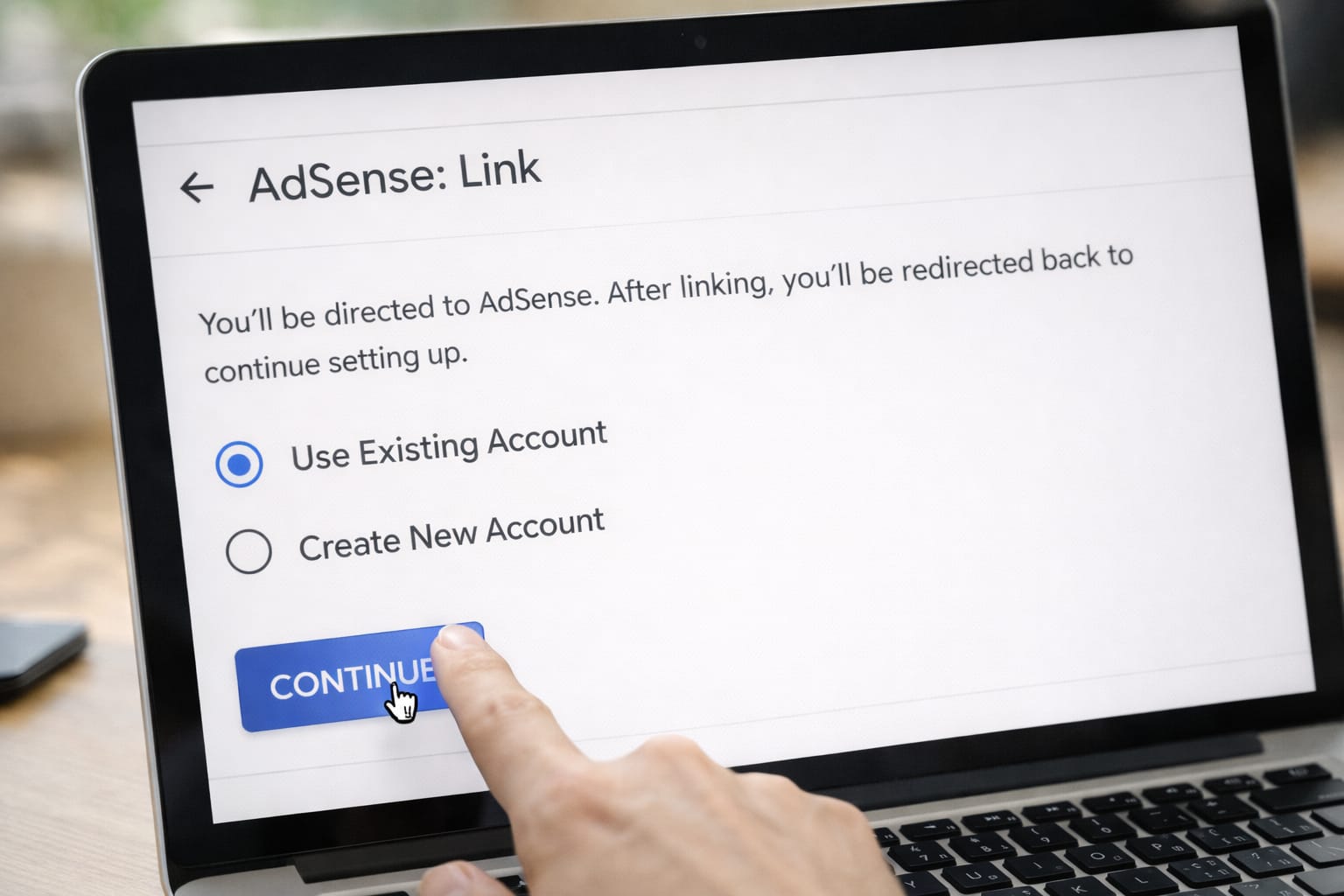
3. Link an AdSense Account
- Choose Create a New AdSense or Use Existing AdSense.
- Sign into your Google account.
- Enter payment details and personal info.
- Wait for AdSense approval (may take 24–48 hours).
Based on user reports, incorrect details often delay approval.
4. Turn on Ads for Your Videos
Once approved:
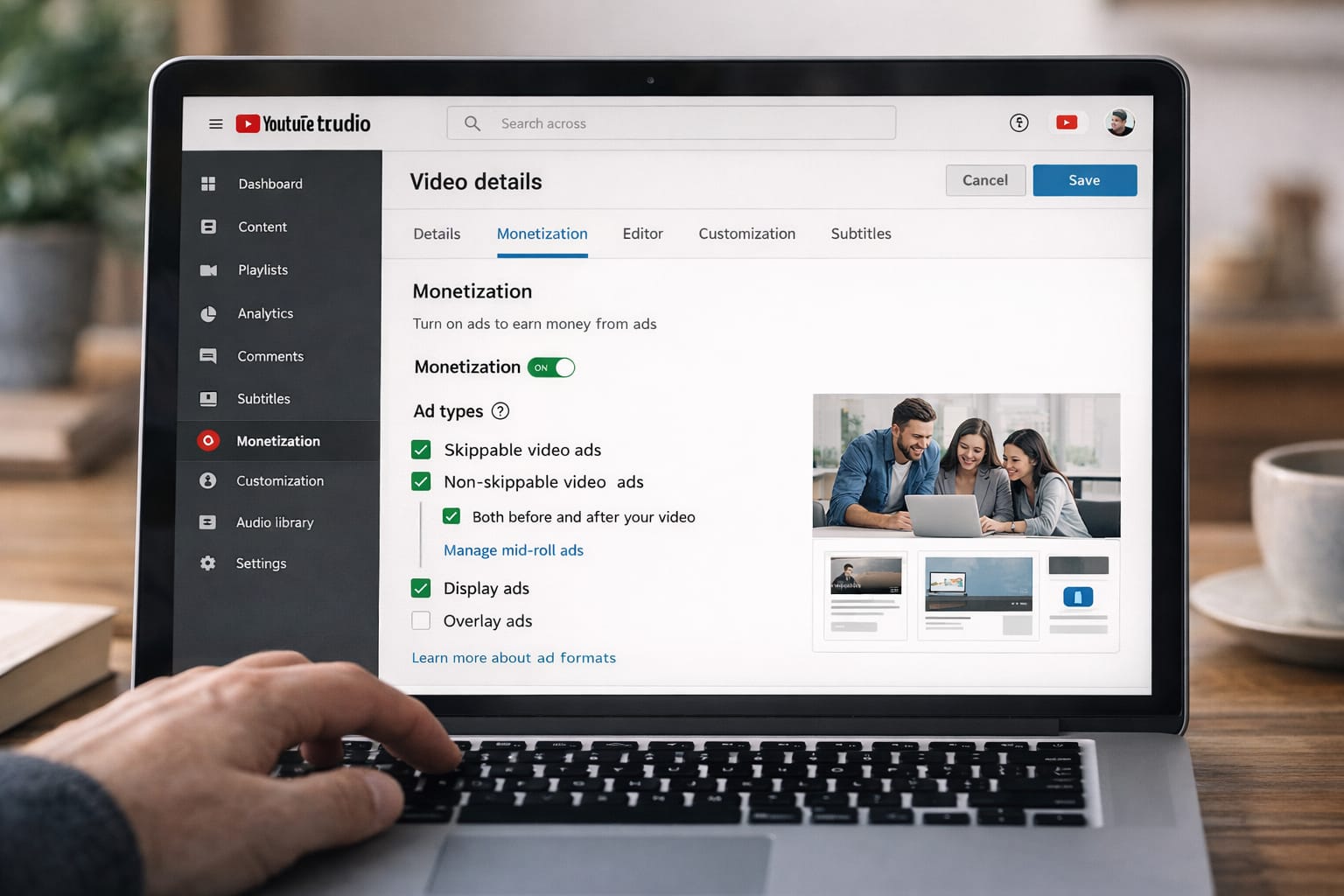
- Go to Content tab.
- Select a video → Monetization.
- Turn the toggle ON.
- Choose ad types (skippable, non-skippable, display, etc.).
5. Fix Common Monetization Errors
- If monetization stays “Under Review,” wait 30 days.
- If reused content appears, remove non-original videos.
- If “AdSense not linked,” re-open the setup page and refresh.
Alternative Fix (If Monetization Still Doesn’t Work)
If monetization does not activate, try using the web version of YouTube Studio, updating your Google account info, removing reused content, or resubmitting your monetization application after 30 days.
Other Helpful Alternatives
- Change browser (Chrome recommended)
- Clear cache and cookies
- Use YouTube Studio on computer instead of mobile
- Remove copyright or reused clips
- Fix “Limited Ads” issues with manual reviews
How to Contact Official Support
YouTube offers Creator Support through the Help Center, email support (for eligible creators), and community forums. You can also access troubleshooting guides directly in YouTube Studio.
Ways to reach help:
- YouTube Help Center → Monetization Issues
- YouTube Community Forum
- Send feedback via YouTube Studio
- Chat/Email support (available after joining YPP)
Conclusion
Enabling YouTube monetization becomes easy when you follow a structured process: meet the eligibility criteria, turn on monetization in YouTube Studio, link an AdSense account, and ensure your content follows YouTube policies. With these steps, you can activate monetization smoothly.
Frequently Asked Questions
Q1. Why am I not receiving the YouTube verification code?
This can happen due to network issues, blocked SMS services, or using the same phone number multiple times. You can try using a different phone number or switching to another mobile network.
Q2. Can I enable monetization without an AdSense account?
No. An AdSense account is required to receive payments. You need to link an existing AdSense account or create a new one before monetization can be enabled.
Q3. Can I fix monetization issues without reinstalling the app?
Yes. Many monetization issues can be resolved by updating the app, clearing the cache, or using the YouTube Studio web version instead of reinstalling the app.