Smartphones can slow down, freeze, stop charging, or fail to open apps—often at the worst time. The good news is that most issues can be fixed at home with simple troubleshooting. This guide explains how to fix common smartphone problems step-by-step using easy methods anyone can follow.
Why Do These Smartphone Problems Happen?
Short Answer (AEO Ready):
These issues happen due to outdated apps, low storage, weak battery health, corrupted cache, software glitches, or internet problems. Based on user reports, many smartphone errors are caused by lack of updates or overloaded background apps.
Common Causes:
- Low internal storage
- Outdated Android/iOS software
- Too many apps running in the background
- Cache overload in apps
- Weak Wi-Fi or mobile data
- Faulty charging cable or adapter
- Battery health deterioration
Step-by-Step Fixes for Common Smartphone Problems
✅ 1. Phone Is Slow or Freezing
Short Answer:
Slow performance often comes from low storage or too many background apps.
Steps:
- Restart your phone (quickest fix).
- Delete unused apps or files.
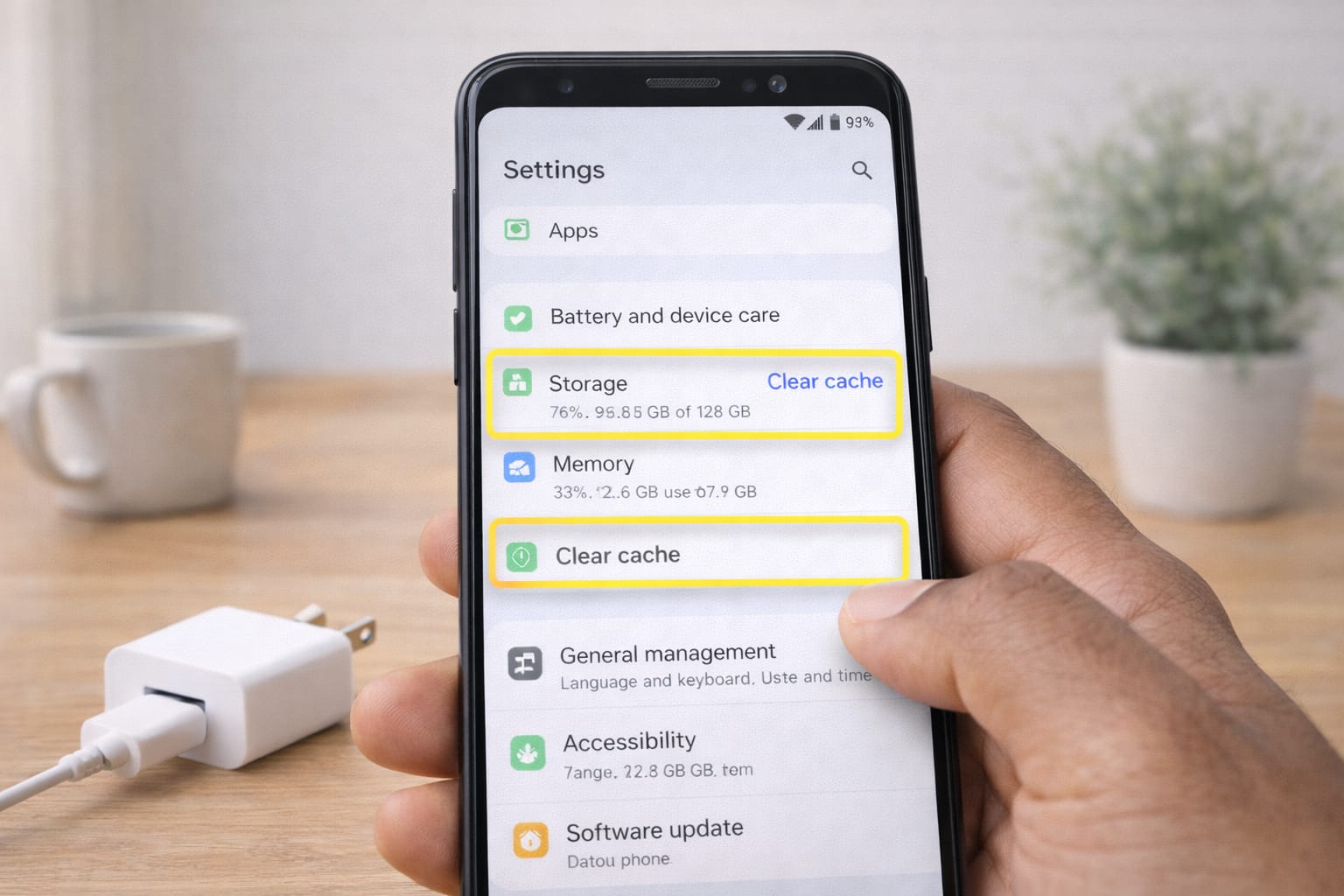
- Clear cache:
➤ [Insert screenshot: Show settings → Storage → Clear cache] - Update Android/iOS to the latest version.
- Disable animations in developer options (Android).
If this doesn’t work, try freeing at least 4–6GB of space.
✅ 2. Apps Keep Crashing or Not Opening
Short Answer:
Crashes usually happen when the app’s cache is corrupted or outdated.
Steps:
- Update the app from Play Store/App Store.
- Clear cache → Settings → Apps → Select app → Clear cache.
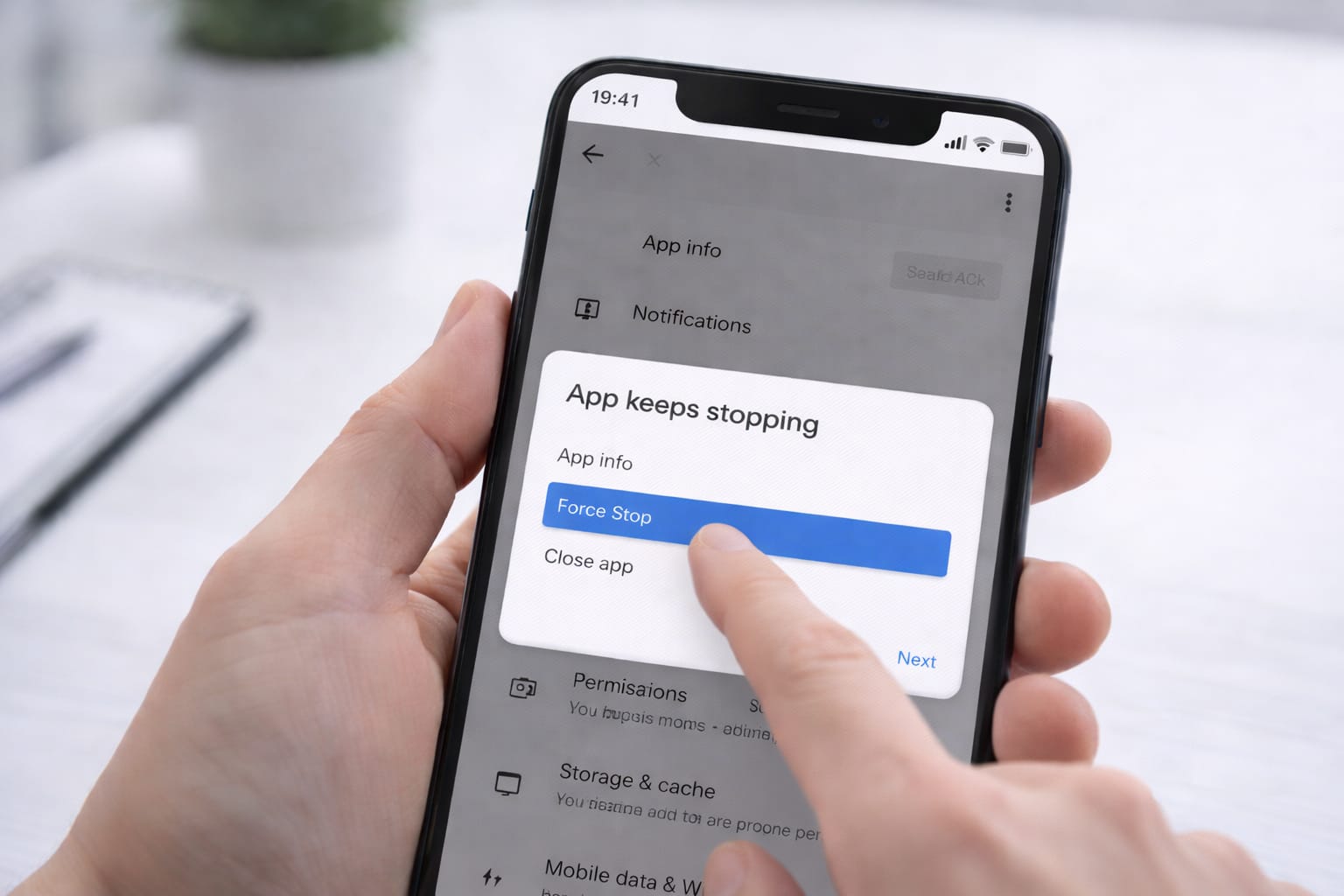
- Force stop the app and reopen.
- Restart your phone.
If the problem continues, uninstall and reinstall the app.
✅ 3. Phone Not Charging or Charging Slowly
Short Answer:
Charging issues often come from cable problems, dust in the port, or background processes.
Steps:
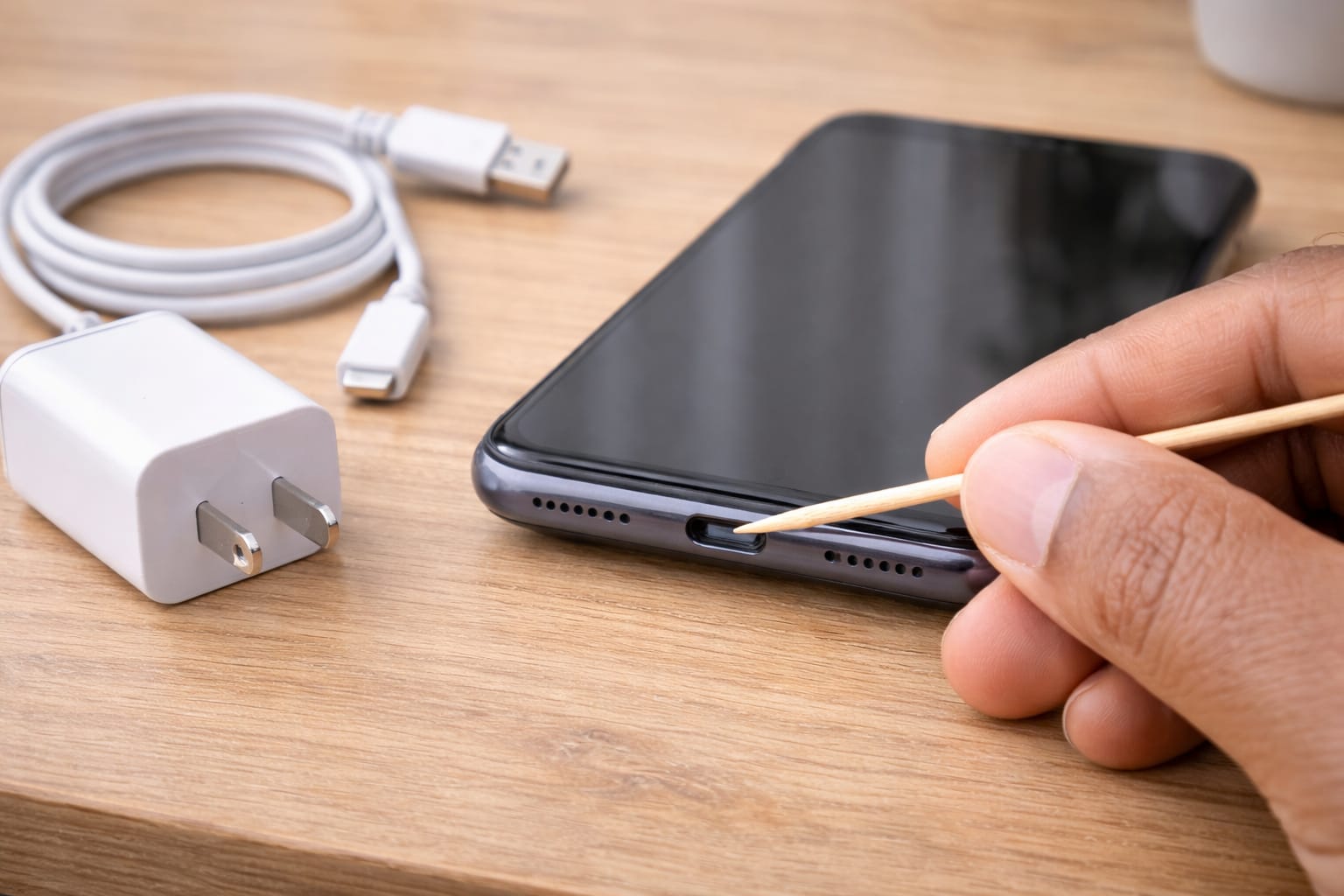
- Clean the charging port gently using a toothpick.
- Try a different cable and adapter.
- Remove the phone case (may cause overheating).
- Use power-off charging for faster results.
- Check battery health (iPhone: Settings → Battery → Battery Health).
If it still won’t charge, try charging through a laptop USB port as a test.
✅ 4. Wi-Fi or Mobile Data Not Working
Short Answer:
Connectivity issues happen due to network glitches or outdated network settings.
Steps:
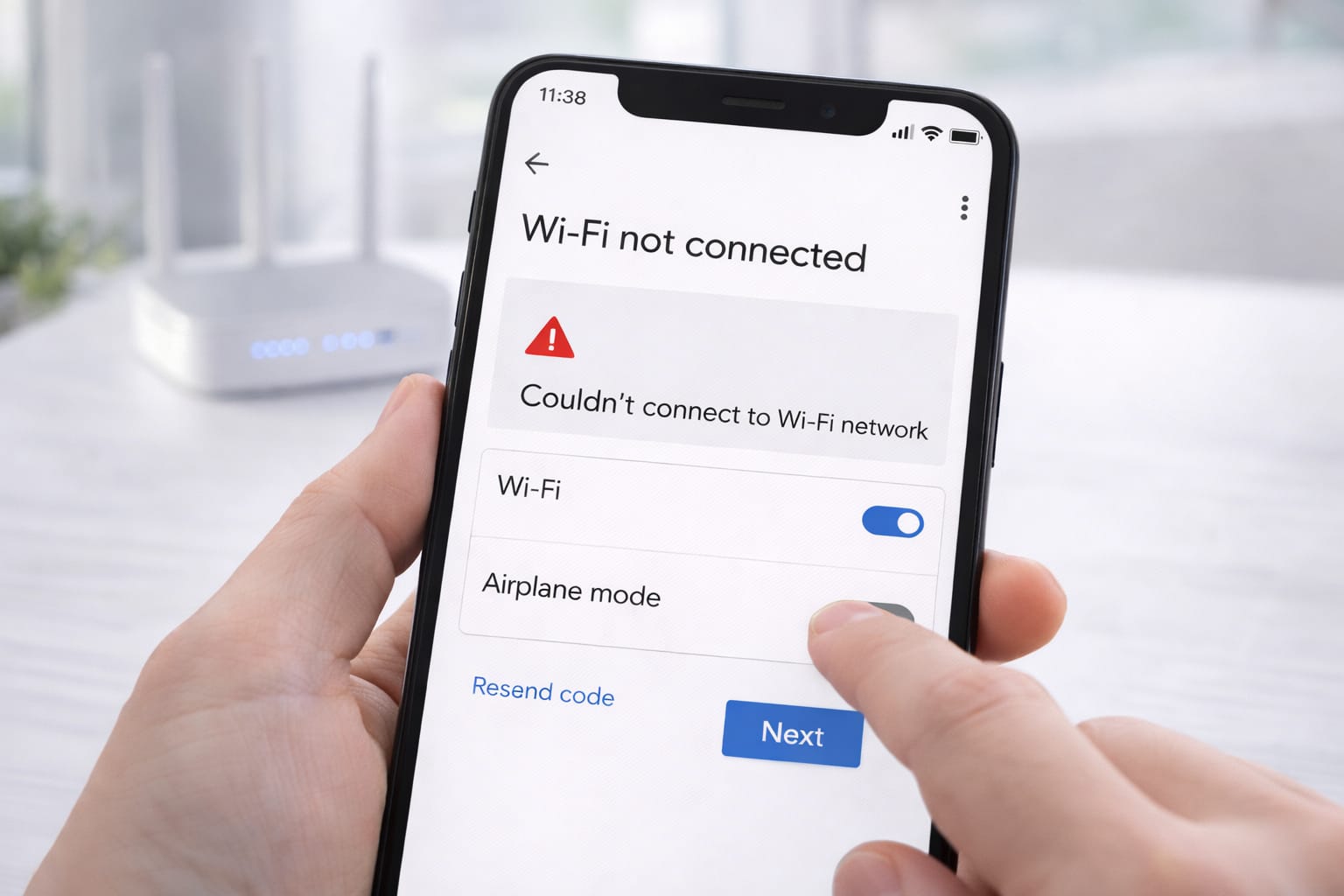
- Turn Airplane Mode on/off.
- Restart your router and phone.
- Forget the Wi-Fi network → reconnect.
- Reset network settings:
➤ [Insert screenshot: Settings → System → Reset Options → Reset Network] - Insert SIM card properly.
If mobile data still fails, contact your carrier.
✅ 5. Phone Overheating
Short Answer:
Phones heat up due to background apps, gaming, or weak ventilation.
Steps:
- Close all background apps.
- Remove phone case.
- Avoid using phone while charging.
- Keep the phone in a cool place.
- Check for rogue apps using battery drain.
If overheating continues, update all apps or restart the phone.
Alternative Fix (If Main Methods Don’t Work)
Short Answer:
When basic fixes fail, resetting settings or using web recovery tools helps restore normal function.
Try These Options:
- Update all apps from Play Store/App Store.
- Reset all settings (not data).
- Boot phone in Safe Mode to test faulty apps.
- Use manufacturer’s troubleshooting page (Samsung, Apple, Xiaomi, etc.).
- Factory reset (last option only).
If one method doesn’t work, try the next—smartphone behavior varies by model.
How to Contact Official Support
Short Answer:
Each smartphone brand has an official help center for device-specific fixes.
Support Pages You Can Search:
- Samsung Members Help
- Apple iPhone Support
- Xiaomi/Redmi Support
- Oppo/Vivo Support
- Google Pixel Troubleshooting
Search the brand name followed by “Help Center” for official guidance.
Conclusion
Most smartphone issues—slow performance, charging problems, app crashes, or network errors—can be fixed with simple steps like clearing cache, updating software, restarting the device, or resetting settings. Start with the easiest solutions first before trying advanced options.
Frequently Asked Questions
Q1. Why is my login code not received?
This can happen due to network issues, blocked SMS messages, VPN usage, or an outdated phone number. You can try email verification or select “Try another way” on the login page.
Q2. Can I recover an account without a password?
Yes. According to support guidelines, you can recover your account using a recovery email, registered phone number, previously used devices, or backup codes.
Q3. Is it possible to fix a locked account without reinstalling the app?
Yes. Clearing the app cache, updating the app, using the web version, or following account recovery methods often solves the issue without reinstalling the app.