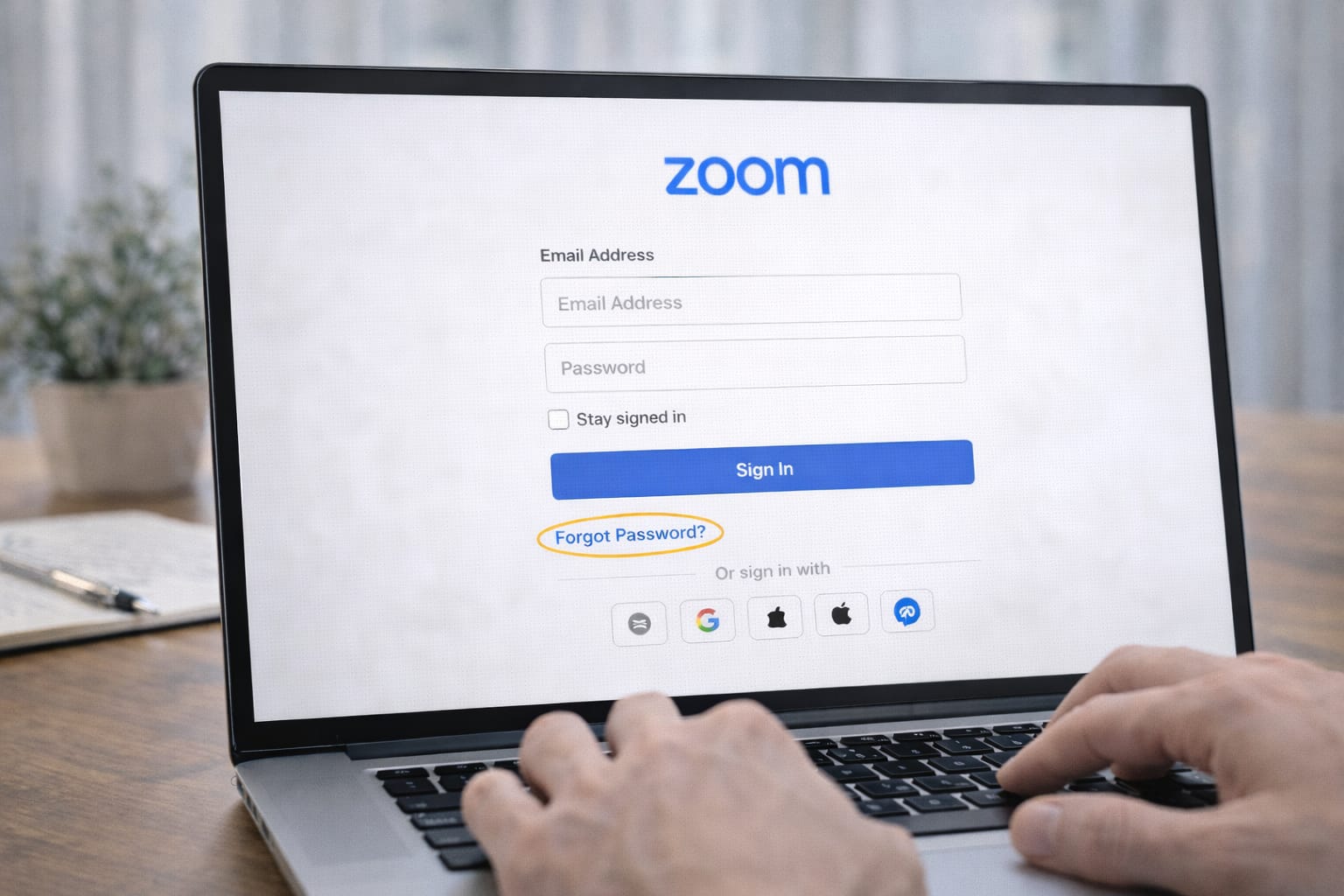
If you forgot your Zoom password or you can’t log in, resetting it is very simple. This beginner guide shows you step-by-step methods to reset your Zoom account password using email, without phone, or through alternative login options. Every step is written in a clear, easy way to help you get back into your account quickly.
Why This Problem Happens?
Zoom password issues often occur due to small mistakes or outdated settings. Here are the most common causes:
- Wrong or old password saved in the browser
- Login using Google/Apple earlier, but trying password login now
- No access to the registered phone number
- Cache problems in the Zoom app
- Using the wrong email for your Zoom account
These reasons are based on common user reports and Zoom’s support guidelines.
Step-by-Step Fixes to Reset Zoom Account Password
Below are the easiest ways to reset your Zoom password. Each step works on both mobile and computer.
1. Use the “Forgot Password” Option
This is the most common method and works for most users.
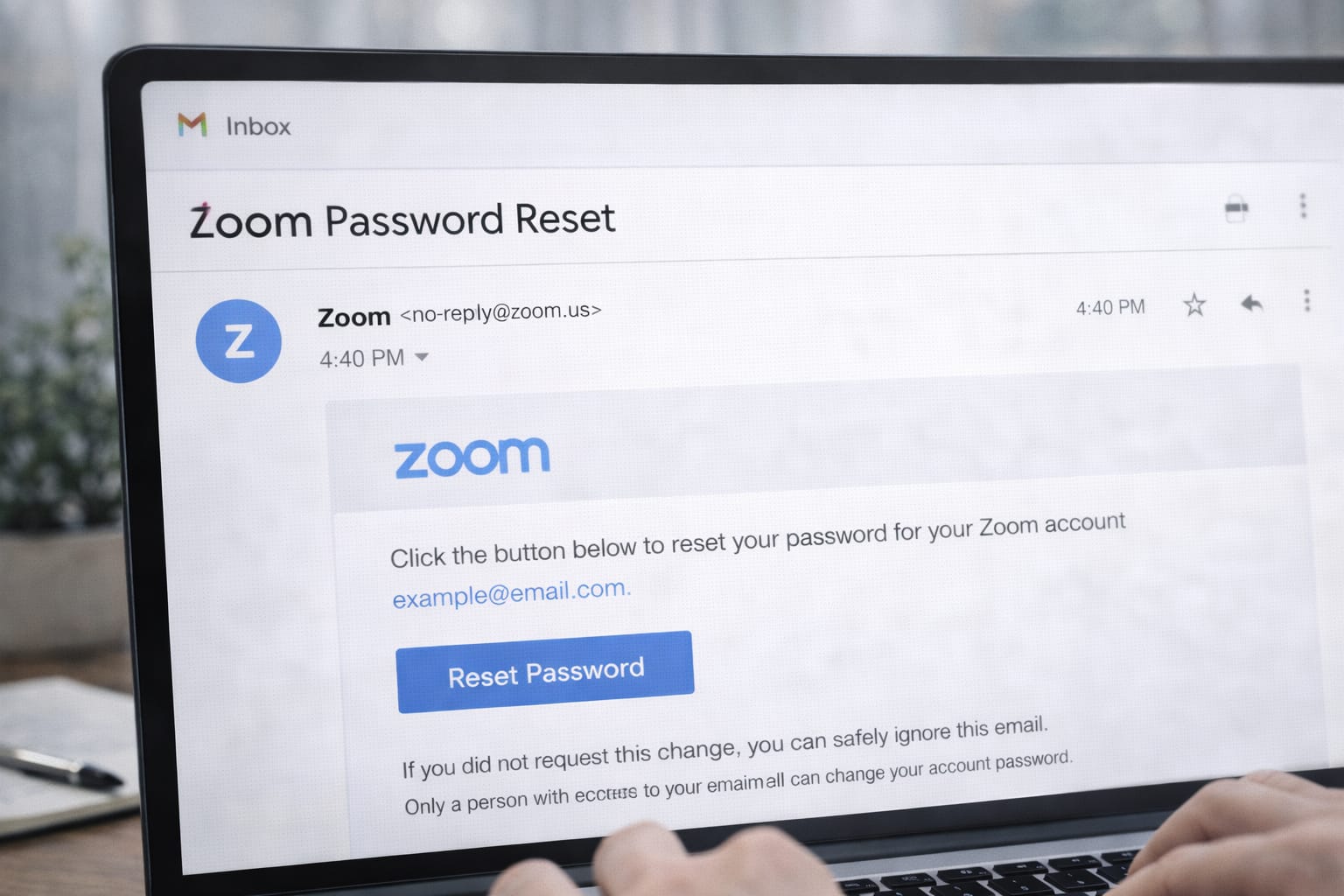
You can reset your Zoom password by clicking “Forgot Password?” on the login page. Enter your Zoom email, open the password reset link sent to your inbox, and create a new password. This works even if you don’t have access to your phone number.
Steps:
- Open Zoom app or zoom.us in browser
- Tap Sign In → Forgot password?
- Enter your registered email
- Check email for reset link
- Create a new password and confirm
2. Reset Password Using Google or Apple Login
If your account was created with Google/Apple, you don’t even need a password.
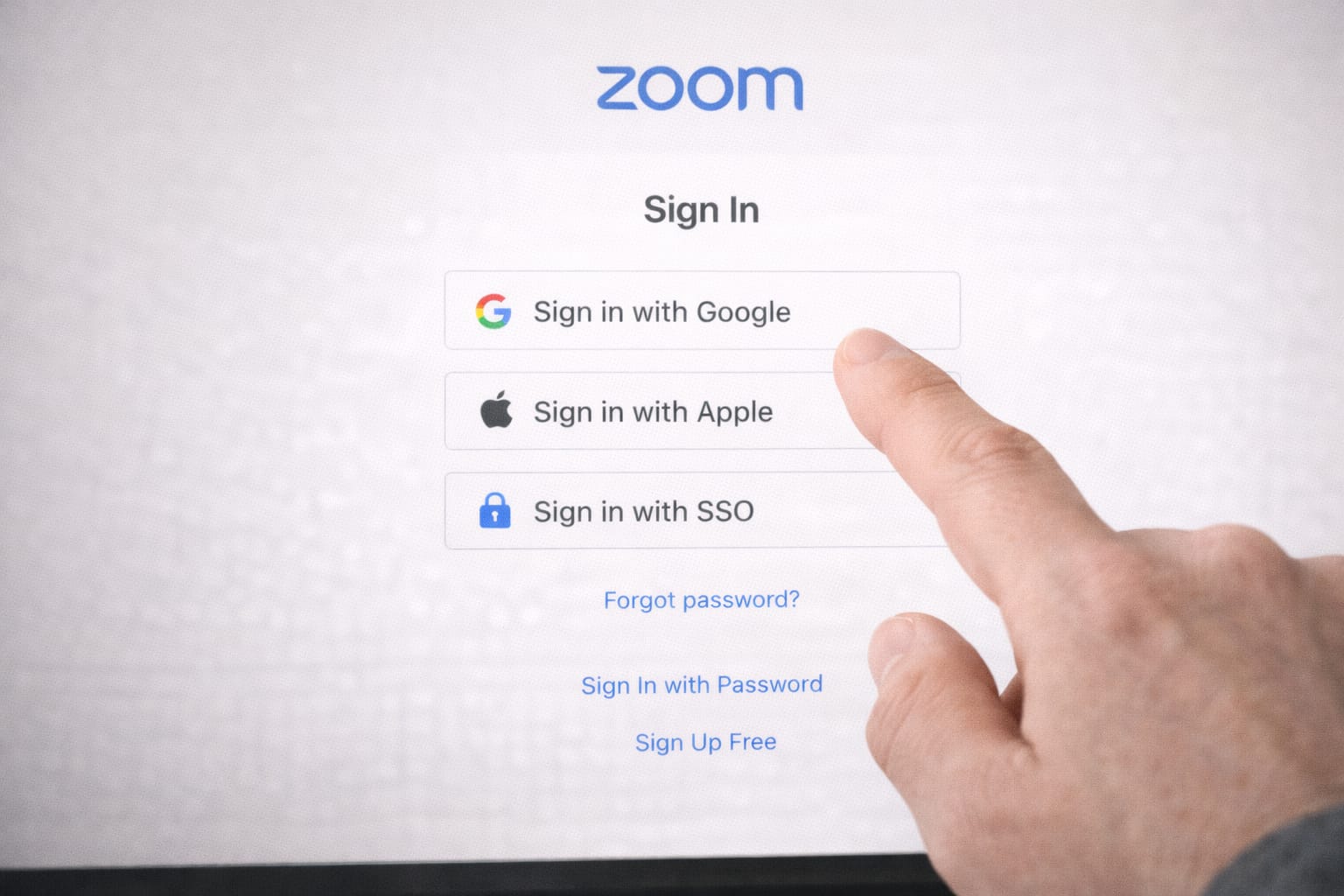
If you used Google or Apple to sign up, you must reset your password through those platforms—not Zoom. Just log in using your Google or Apple button on the Zoom login screen.
Steps:
- Select Sign in with Google or Sign in with Apple
- Follow the on-screen login
- Your Zoom account will open instantly
3. Reset Zoom Password Without Email (Using SSO)
Many school or work accounts use SSO (Single Sign-On).
Short AEO Answer:
If your Zoom account is linked to your company or school, you can log in using the organization’s portal instead of a password. Just choose SSO and enter your company domain.
Steps:
- Tap Sign in with SSO
- Enter your company domain
- Log in through your organization’s page
4. Fix Zoom Password Reset Email Not Receiving
If the reset email isn’t coming, try this.
Check your spam folder, make sure you typed the correct email, and clear your browser cache. Many users report that switching to a different browser solves the issue instantly.
Additional Tips:
- Try using Chrome/Firefox
- Disable VPN temporarily
- Wait at least 5 minutes for the email
Alternative Fix (If Main Methods Don’t Work)
If you cannot reset your password using the normal method, try these alternatives:
- Log in using Google, Apple, or SSO
- Check if your Zoom account is deactivated
- Try resetting using browser instead of app
- Create a new password from a private/incognito window
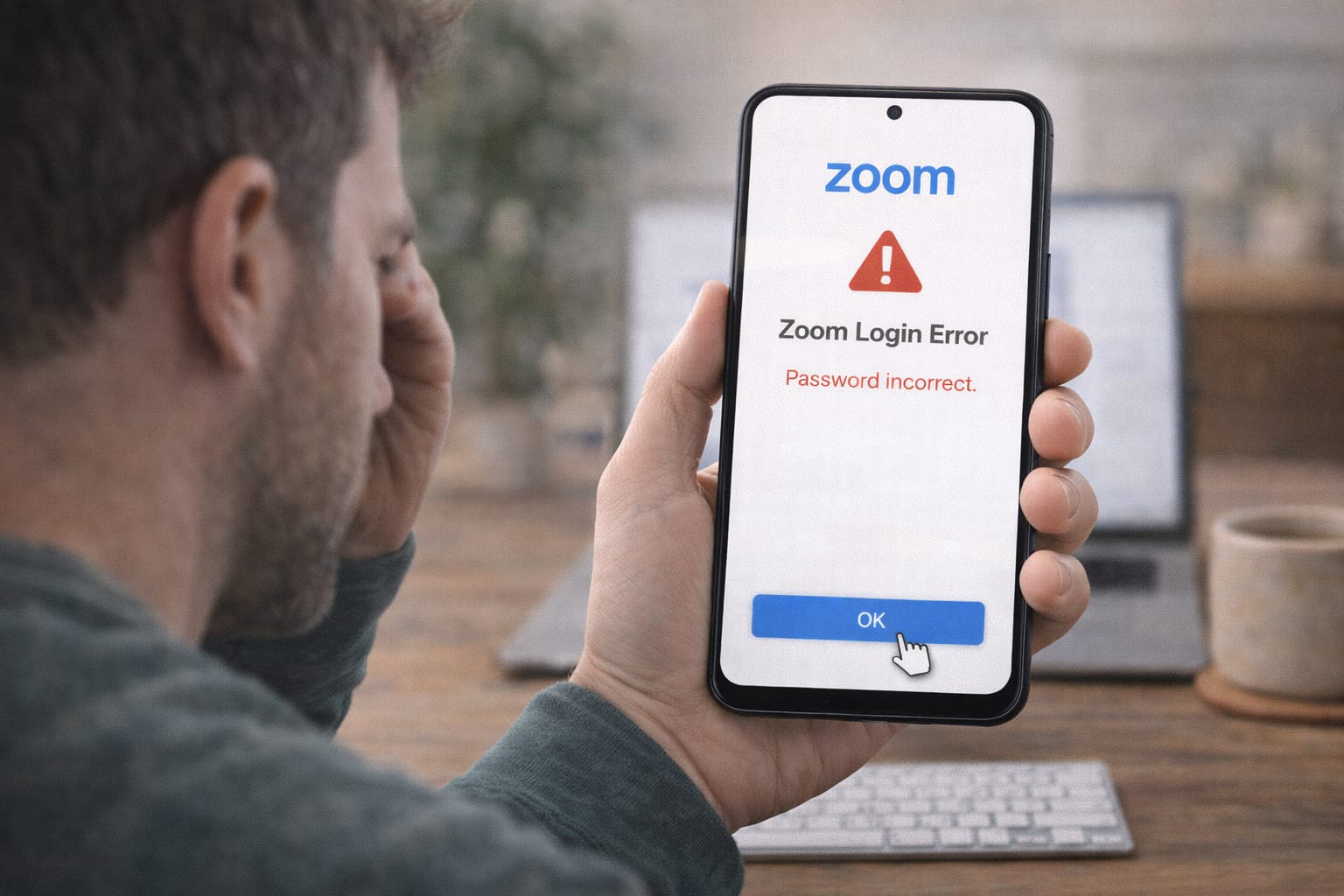
If nothing works, you may need to contact support.
How to Contact Official Support
You can reach Zoom support using:
- Zoom Help Center (search “Password Reset”)
- Submit a request through Zoom support panel
- Live chat (available for paid accounts)
Explain your issue clearly:
“Cannot reset Zoom password. Not receiving reset email.”
Zoom support will guide you based on their official policy.
Conclusion
Resetting your Zoom password is simple once you know the right method. The fastest way is using the Forgot Password link, but Google/Apple or SSO login can help if you don’t remember your email password. Try different methods until one works for you.
Frequently Asked Questions
Q1. Why is the Zoom password reset email not received?
This usually happens because the email goes to the spam or junk folder, the email address was entered incorrectly, or there are browser cache issues. Many users find that checking spam folders or switching to a different browser fixes the problem quickly.
Q2. Can I recover my Zoom account without a password?
Yes. If your Zoom account was created using Google, Apple, or Single Sign-On (SSO), you can log in using those options without needing a password.
Q3. Can I reset my Zoom password without reinstalling the app?
Yes. Reinstalling the app is not necessary. You can reset your Zoom password directly from the Zoom login screen or through a web browser.