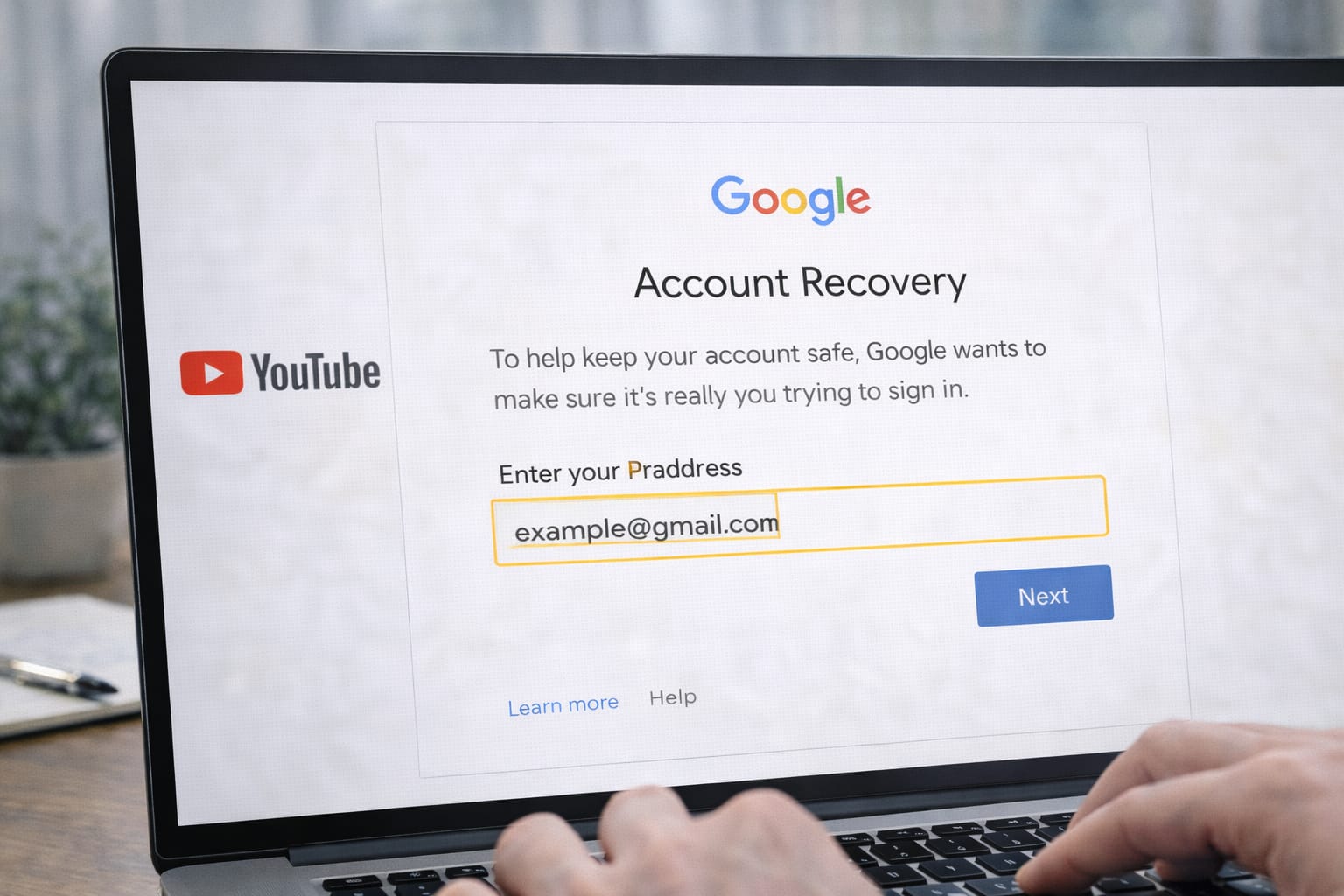
Accidentally deleted your YouTube channel or lost access after a mistake? Many creators face this problem, especially beginners. The good news is that YouTube provides ways to restore a deleted channel—if you act on time.
This guide explains step-by-step how you can recover your deleted YouTube channel easily.
Why This Problem Happens?
Sometimes a YouTube channel becomes inaccessible or appears deleted for several reasons.
Here are the most common causes:
- You manually deleted your YouTube channel or Google account.
- YouTube disabled the account due to policy violations.
- Wrong Google account used for login.
- Channel data not synced after deletion request.
- Recovery email or password not working.
A deleted YouTube channel usually happens because of manual deletion, account issues, policy violations, or login errors. Sometimes users simply sign in with the wrong Google account. Based on user reports, channels deleted recently can still be restored using Google’s account recovery tools or YouTube’s appeal form.
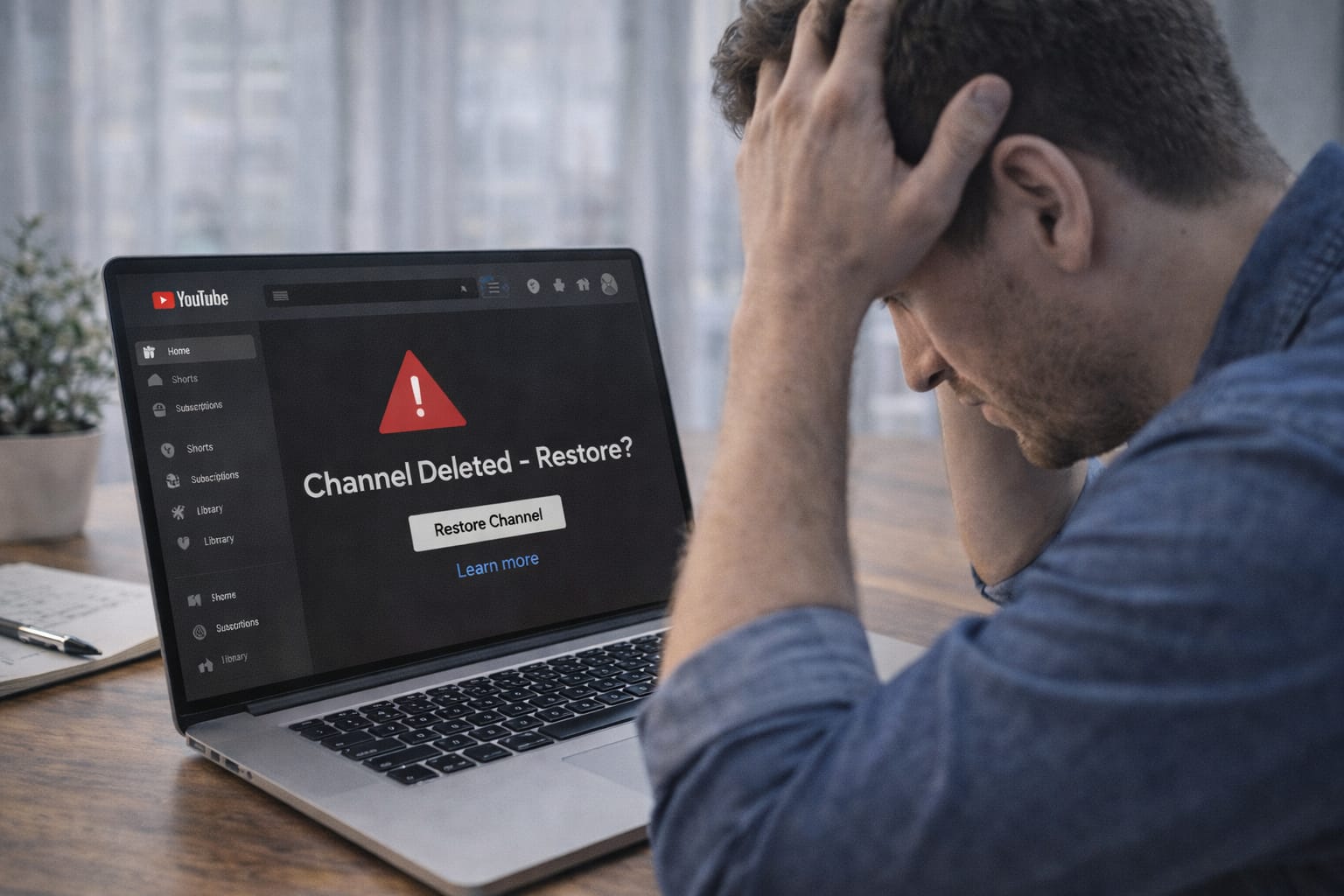
Step-by-Step Fixes to Restore Deleted YouTube Channel
Follow these simple methods in order. Start with the easiest one.
1. Restore Your YouTube Channel Through Google Account Recovery
This works if your Google account still exists.
If your Google account is active, you can restore your YouTube channel by signing into Google Account Recovery. Based on support guidelines, recently deleted channels may show a restore option. This method works best when the deletion is less than 30 days old.
Steps:
- Go to Google Account Recovery.
- Sign in with the email linked to the deleted YouTube channel.
- Follow the on-screen steps to restore the account.
- Re-open YouTube → Your Channel → It may reappear automatically.
➤ [Insert screenshot: Google Account Recovery page]
2. Use YouTube Channel Restore Request Form
Use this if your channel was disabled or removed by YouTube.
When YouTube disables a channel, it must be appealed through the YouTube restore form. This method is commonly used and helps users explain the issue directly to YouTube staff. A valid ID or account ownership proof may be required.
Steps:
- Search online for YouTube Channel Restore Request Form.
- Enter your Gmail ID and channel details.
- Explain why the deletion was incorrect or accidental.
- Submit and wait for YouTube’s response (2–7 days typical).
3. Check If You Logged Into the Wrong Google Account
Many users forget they had multiple Gmail accounts.
If the wrong Google account is used, YouTube may appear empty or deleted. Switching accounts often solves the issue instantly. Users report this as one of the most common mistakes.
Steps:
- Open YouTube → Click Profile Icon.
- Select “Switch account”.
- Test each Gmail one by one.
4. Recover a Deleted Google Account (If You Deleted Entire Account)
If the whole Google account was deleted, you must restore it first.
Steps:
- Search for Google Account Recovery.
- Enter your email → Choose “Try to restore this account”.
- Verify identity → Reset password.
- Open YouTube → Channel may automatically return.
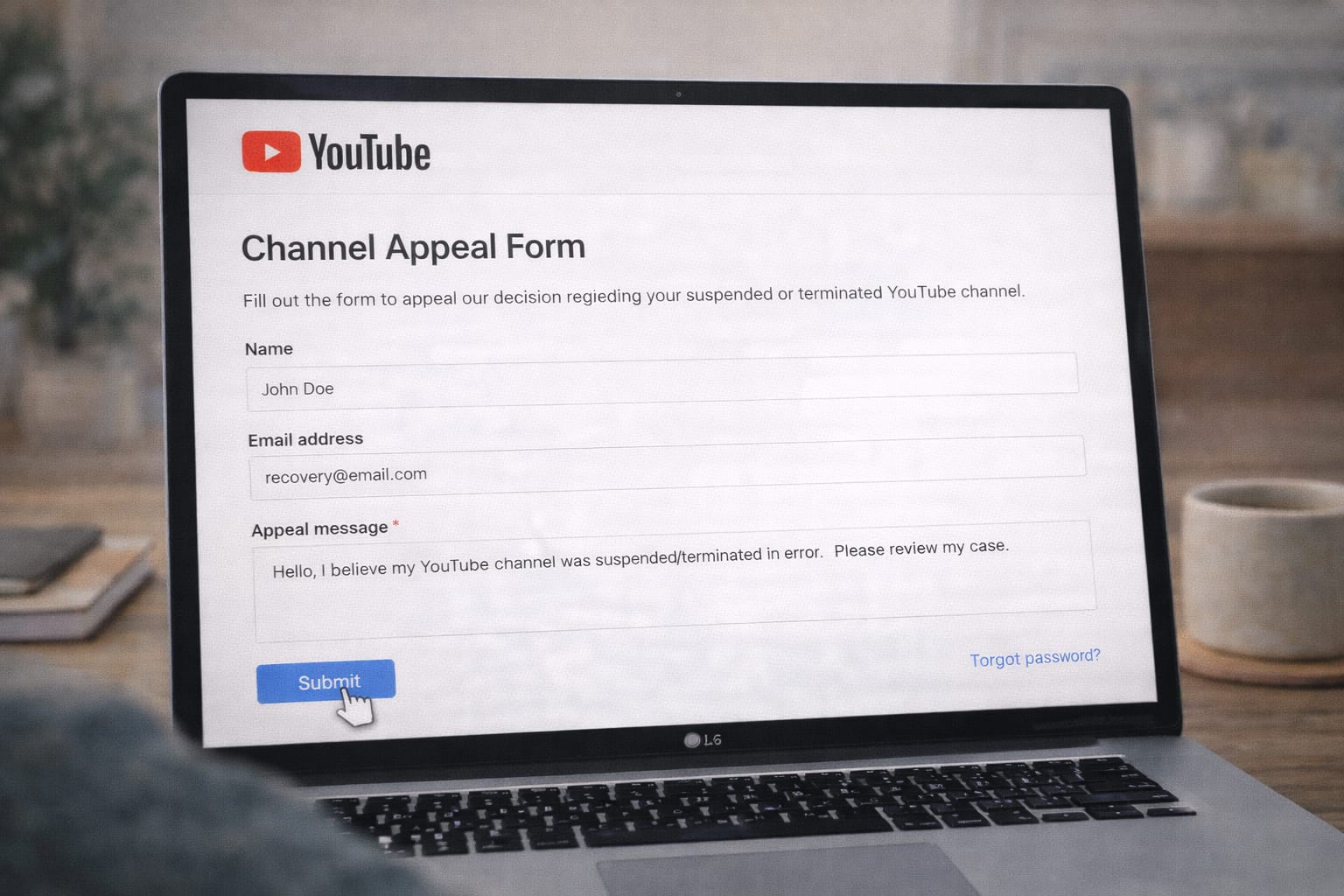
Alternative Fix (If Main Methods Don’t Work)
If your channel doesn’t appear:
- Use a desktop instead of a smartphone.
- Clear browser cache and re-login.
- Try YouTube on incognito mode.
- Contact YouTube Creator Support (available for monetized channels).
- Check if your channel was terminated for policy reasons.
If normal recovery steps fail, switching devices, clearing cache, or accessing YouTube in incognito may help. Monetized creators can also contact YouTube Creator Support for direct help. This approach is commonly used when automated tools don’t show recovery options.
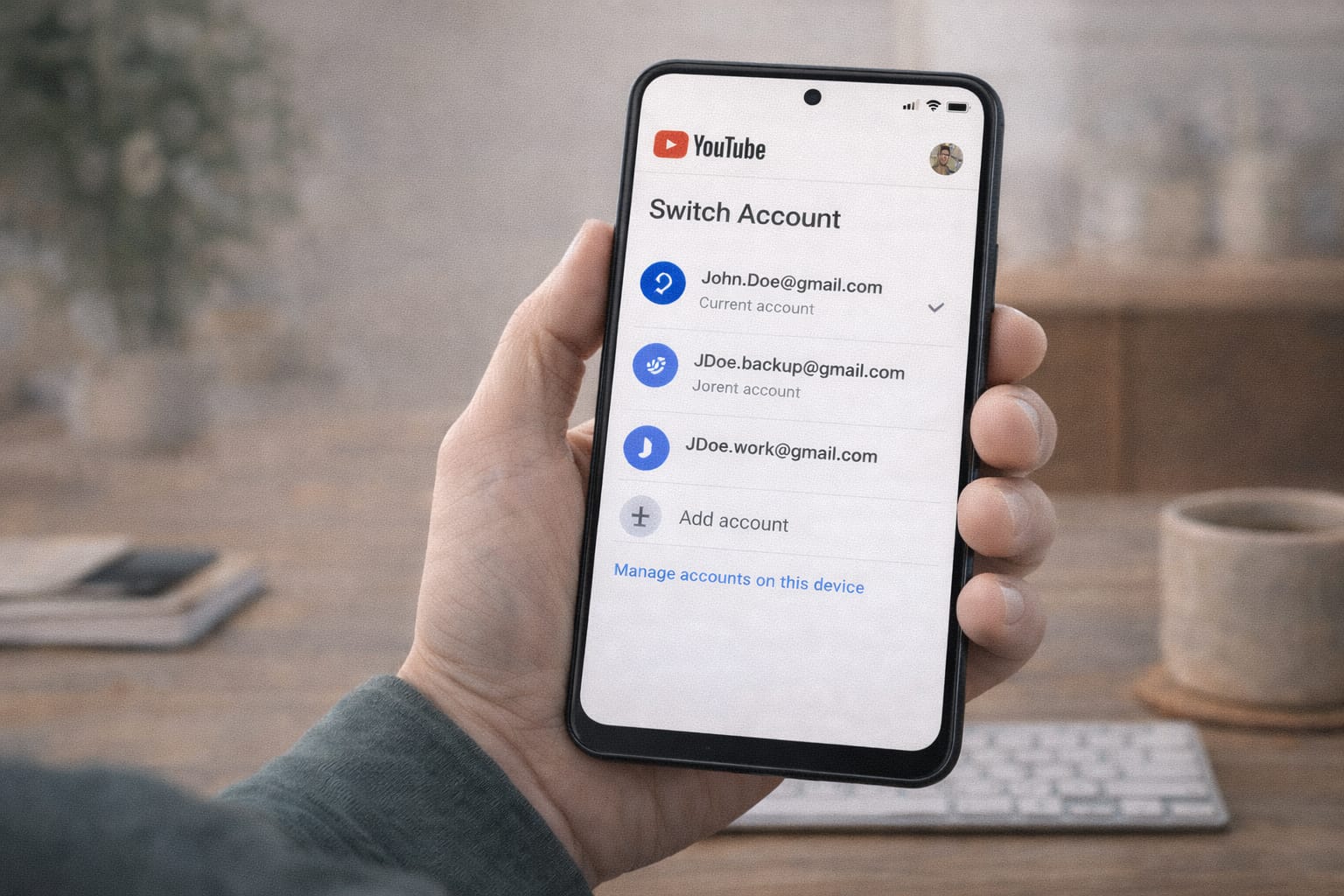
How to Contact Official Support
If your channel had monetization enabled, you can reach real YouTube support.
Steps:
- Open YouTube Studio on desktop.
- Click Help → Get Creator Support.
- Select Channel & Feature Issues.
- Start chat/email with YouTube support.
For non-monetized creators:
Search for YouTube Help Center and submit a form under “Fix Account Issues”.
Conclusion
Restoring a deleted YouTube channel is possible if you follow the right steps. Start by recovering your Google account, then use YouTube’s restore request form if needed. Most creators can recover their channel as long as the deletion wasn’t permanent or too old.
Frequently Asked Questions
Q1. Why am I not receiving the login or verification code?
This can happen due to network problems, outdated recovery email settings, or blocked SMS services. Try using a backup email, switching to another device, or waiting a few minutes and requesting the code again.
Q2. Can I recover my channel without password access?
Yes. You can use Google Account Recovery to reset your password first. Once your Google account is restored, your YouTube channel usually returns automatically.
Q3. Can I restore my YouTube channel without an email or phone number?
In some cases, yes. If you remember old passwords or can provide specific details about your channel, Google’s verification system may still help recover your account.
Q4. Is reinstalling the YouTube app required?
No. This is an account-related issue, not an app problem, so reinstalling the YouTube app usually does not fix it.