If YouTube Studio is not loading on your phone or computer, you’re not alone. Many creators face this issue when trying to check analytics, upload videos, or open the dashboard. This guide explains the real reasons behind the problem and gives simple step-by-step fixes even beginners can follow.
Why YouTube Studio Is Not Loading?
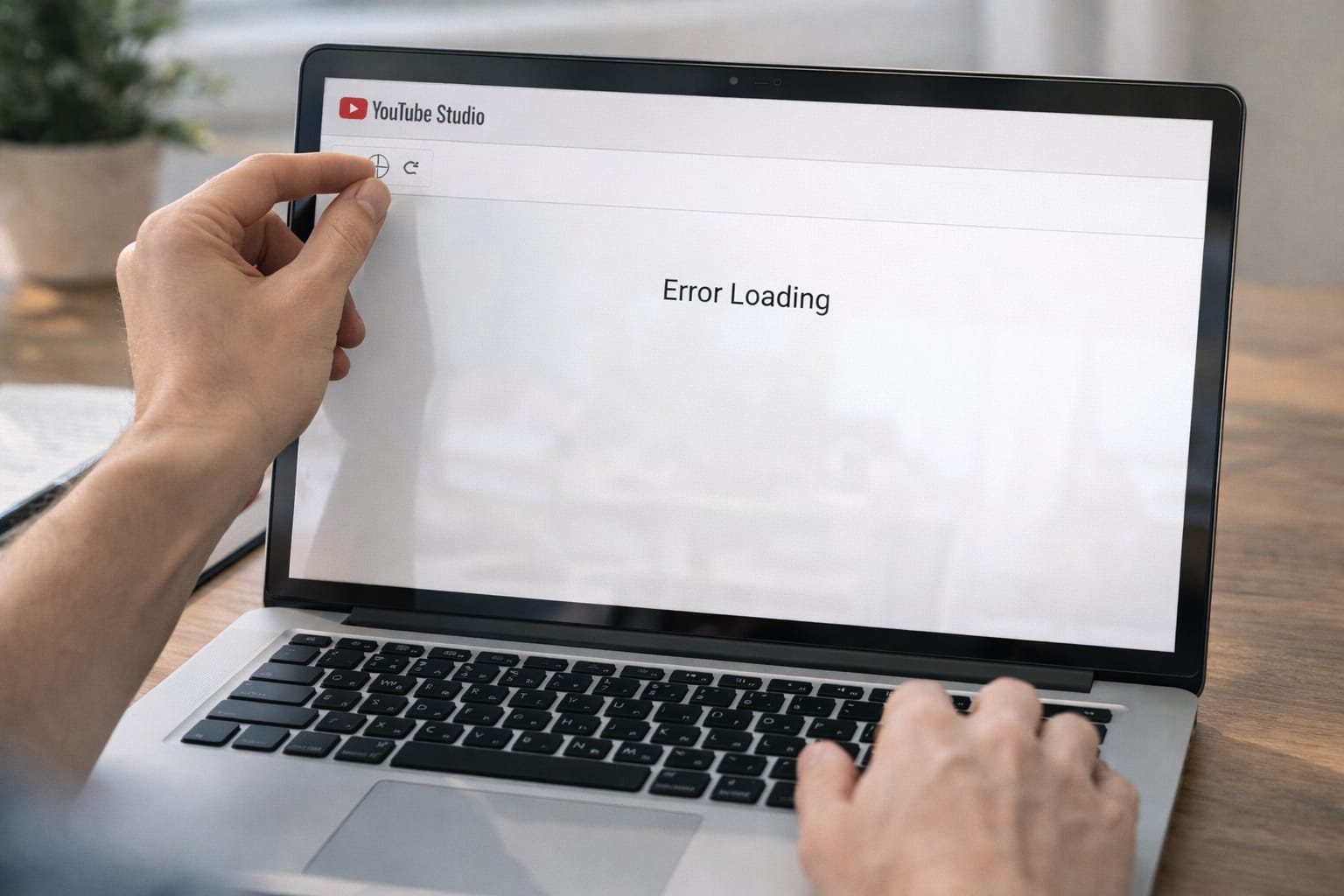
YouTube Studio may fail to load due to poor internet, outdated app version, corrupted cache, Google account sync issues, or temporary server outages. Sometimes browser extensions or ad-blockers also block the dashboard from loading. Identifying the cause helps you apply the right fix quickly.
Common Causes
- Slow or unstable internet connection
- Outdated YouTube Studio app
- Full browser cache or corrupted cookies
- Google account login issues
- Ad-blockers or extensions blocking scripts
- YouTube server downtime
- Incorrect date/time settings in device
Step-by-Step Fixes for YouTube Studio Not Loading
These beginner-friendly fixes work on Android, iPhone, and computer. Try each step one by one because the issue can vary by device or browser. If one solution doesn’t help, move to the next.
Fix 1: Check Internet Connection
- Turn Wi-Fi off → wait 5 seconds → turn it on again.
- Test YouTube normal app to confirm connection.
- Switch to mobile data or another Wi-Fi network.
- Restart the router if needed.
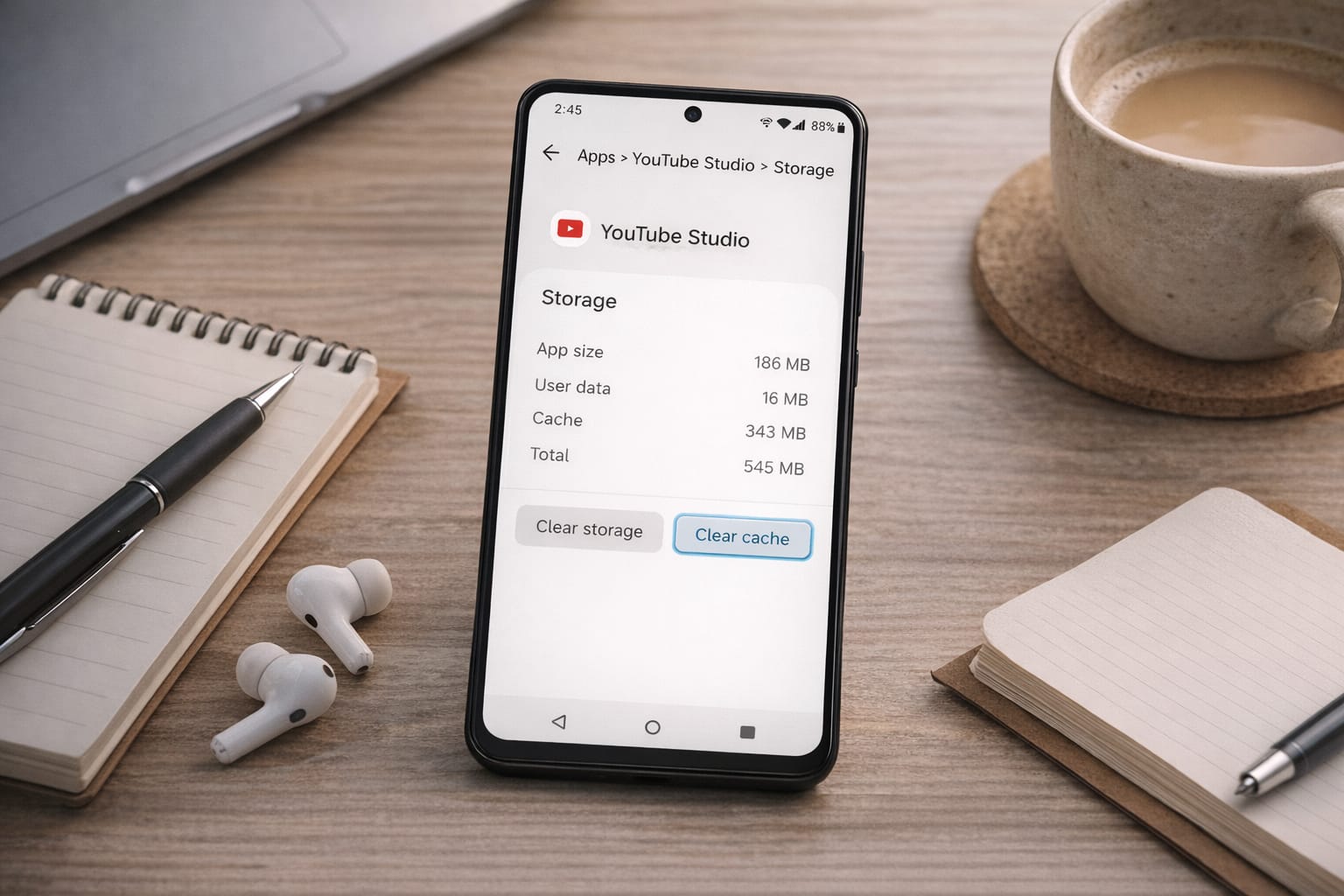
Fix 2: Clear YouTube Studio Cache (Android)
- Go to Settings → Apps → YouTube Studio
- Tap Storage
- Press Clear Cache
- Reopen the app
iPhone users must reinstall the app, as iOS has no direct cache option.
Fix 3: Update the YouTube Studio App
Outdated versions often freeze or fail to load.
- Open Play Store/App Store
- Search YouTube Studio
- Tap Update
Fix 4: Log Out and Log in to Your Google Account
- Go to Settings → Accounts → Google
- Remove account
- Add it again
- Open YouTube Studio
This refreshes sync issues.
Fix 5: Open YouTube Studio in Incognito Mode (PC Browser)
- Open Chrome → Three dots → New Incognito Window
- Visit YouTube Studio
- If it loads, an extension or cookie is the cause
Fix 6: Disable Browser Extensions
- Chrome → More Tools → Extensions
- Turn off ad-blockers, script blockers, analytics blockers
- Reload YouTube Studio
Fix 7: Clear Browser Cache (PC)
- Chrome → Settings → Privacy → Clear browsing data
- Select: Cached images/files + Cookies
- Restart browser
Fix 8: Check Date & Time Settings
Wrong device time often blocks Google services.
Set it to Automatic Date & Time.
Alternative Fix (If Main Methods Don’t Work)
If YouTube Studio still doesn’t load, try using the web version, another device, or check if YouTube servers are down. You can also switch browsers or use a VPN if the issue is region-based.
Other Methods
- Try studio.youtube.com on PC browser
- Use another browser like Firefox or Edge
- Restart your phone or computer
- Try a VPN to check regional issues
- Reinstall the YouTube Studio app
How to Contact Official Support
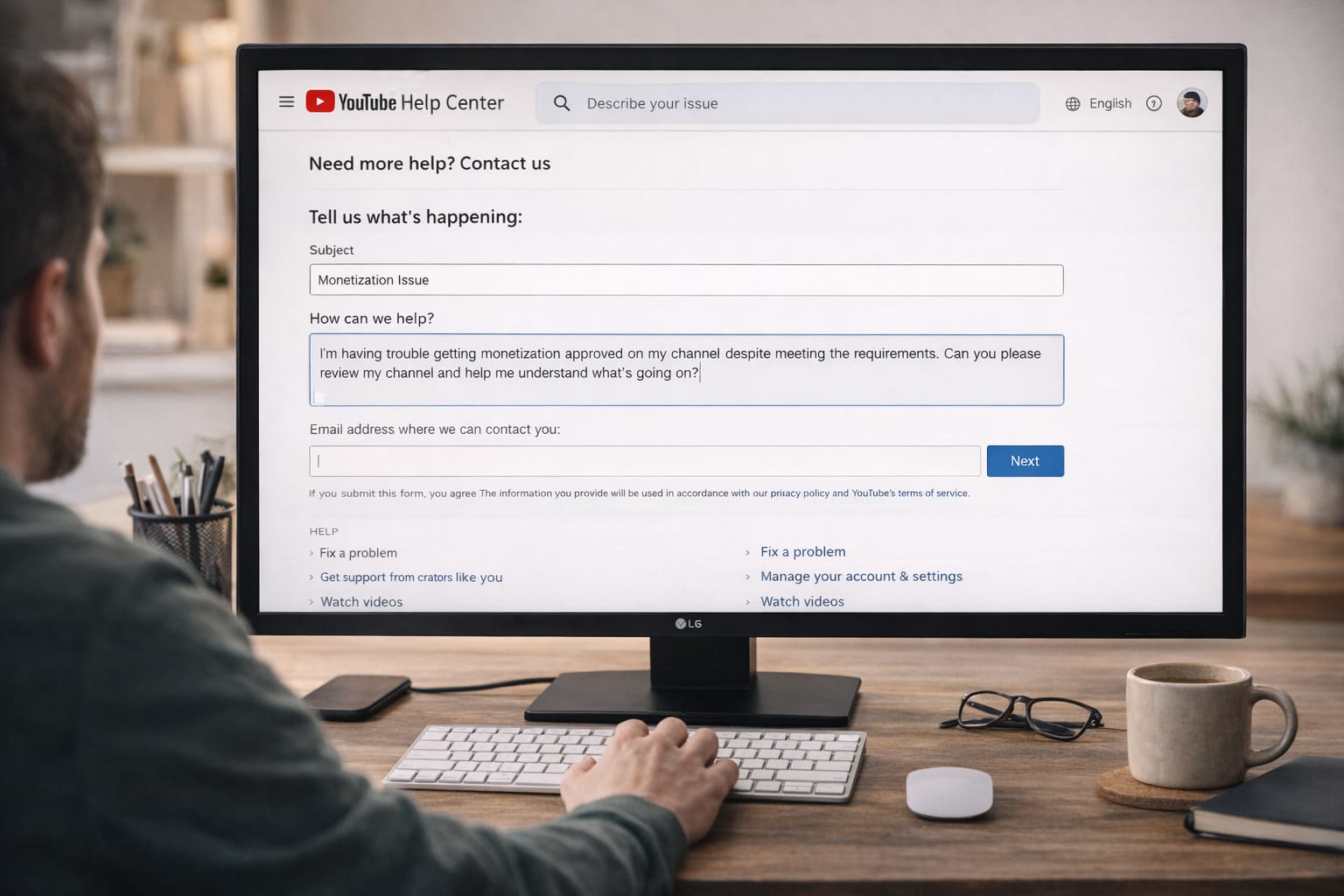
If nothing works, contact YouTube support using the Help Center. You can report a problem directly inside YouTube Studio or use Google support pages for account or dashboard issues.
Ways to Contact Support
- Go to YouTube Studio → Help → Send Feedback
- Visit YouTube Help Center
- Use Google Account Recovery support if login fails
- Join YouTube Community Forums for troubleshooting
Conclusion
YouTube Studio not loading is usually a simple fix. Most creators solve it by clearing cache, updating the app, disabling extensions, or switching browsers. Try each method step by step until the dashboard loads normally.
Frequently Asked Questions
Q1. Why is my YouTube Studio not loading even with fast internet?
This can happen due to browser cache problems, an outdated app, or blocked scripts from browser extensions such as ad-blockers. Clearing the cache or disabling extensions often fixes the issue.
Q2. Can I recover access without reinstalling the app?
Q1. Why is my YouTube Studio not loading even with fast internet?
This can happen due to browser cache problems, an outdated app, or blocked scripts from browser extensions such as ad-blockers. Clearing the cache or disabling extensions often fixes the issue.
Q3. Why does YouTube Studio show a blank white screen?
This issue is commonly reported when browser extensions interfere, cookies become corrupted, or the app version is outdated.