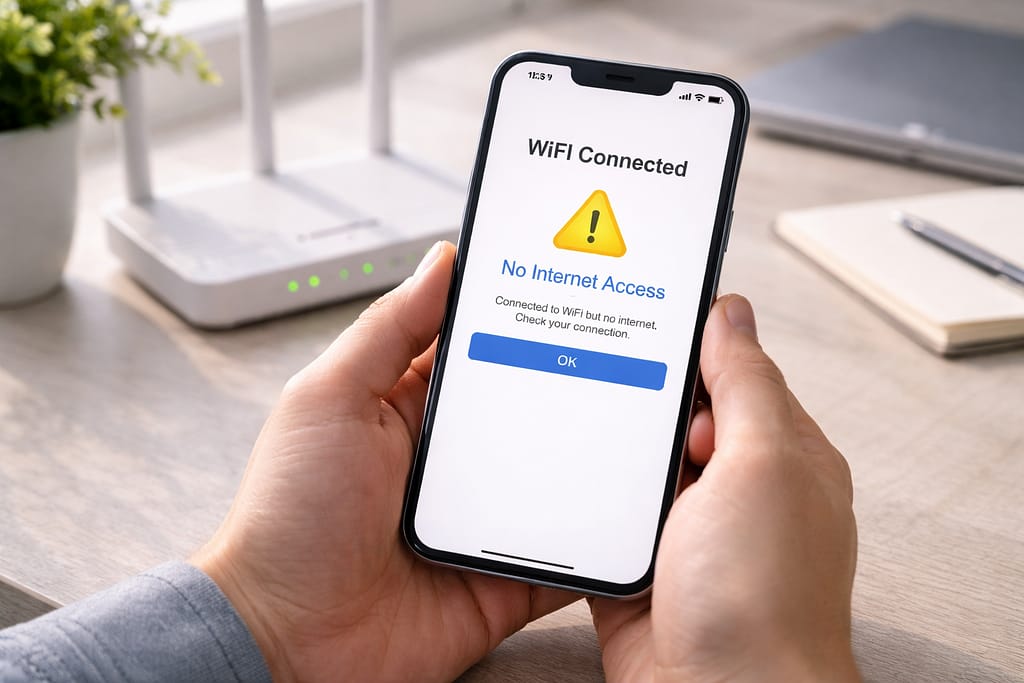
Many people see their phone or laptop showing “WiFi Connected” but still no internet access. This can be frustrating when you need to work, study, or browse quickly. In this beginner guide, you’ll learn simple, step-by-step methods to fix this problem at home—without advanced technical skills.
Why This Problem Happens?
Here are the most common reasons behind this issue:
- Router is turned on but not connected to the internet
- Internet provider outage
- Incorrect network settings or DNS
- Weak WiFi signal or too many connected devices
- Expired plan or slow ISP response
This issue usually happens when your router is working locally but not receiving actual internet from your service provider. Incorrect DNS, weak WiFi, outdated settings, or ISP outages can also trigger the error. Checking router, restarting devices, and fixing settings often solves it.
Step-by-Step Fixes for WiFi Connected but No Internet
Follow these beginner-friendly solutions:
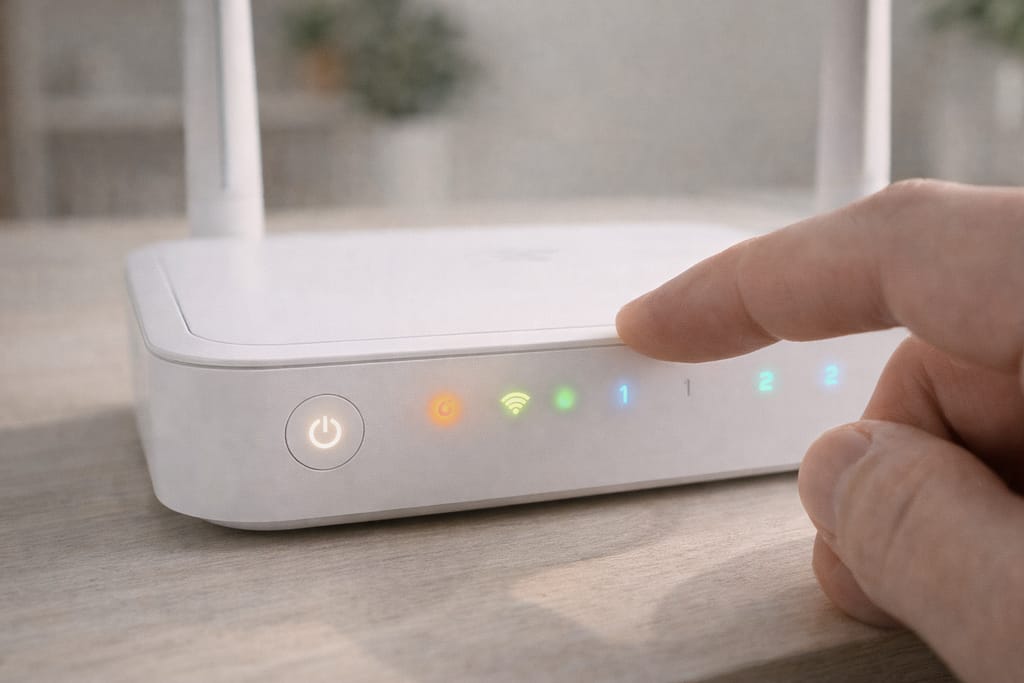
1️⃣ Restart Your Router (Most Common Fix)
- Turn off your WiFi router.
- Wait 10–15 seconds.
- Turn it back on.
- Reconnect your device.
This refreshes your network and removes temporary errors.
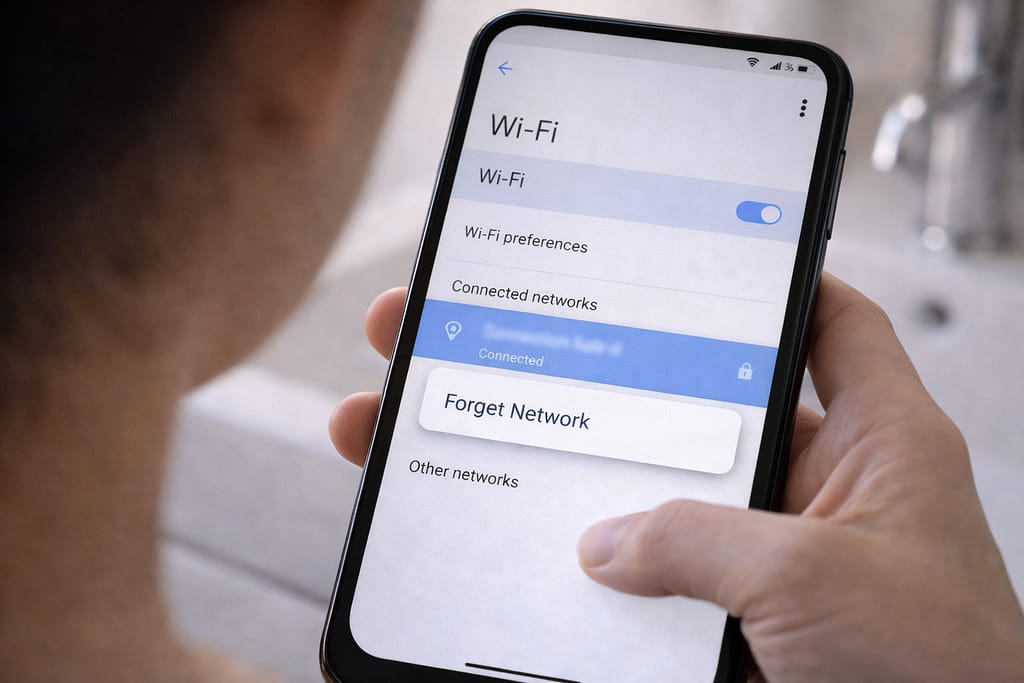
2️⃣ Forget and Reconnect to the Network
- Open Settings → WiFi.
- Tap your network → Forget.
- Reconnect with your password.
This resets saved configuration issues that block internet access.
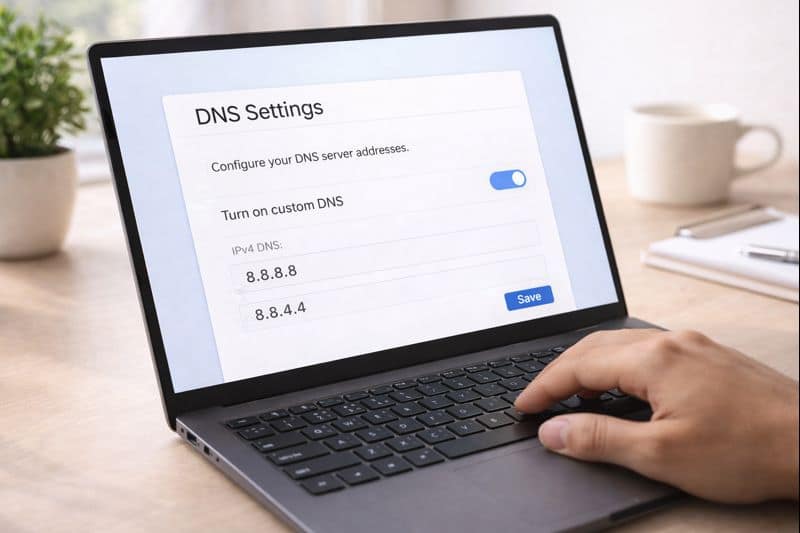
3️⃣ Change the DNS Settings (Android/Windows)
Use Google DNS:
- 8.8.8.8
- 8.8.4.4
This helps if DNS is not responding.
4️⃣ Check If ISP Is Down
Based on user reports, service providers sometimes go offline for maintenance.
Try:
- Testing with another phone
- Turning mobile data on briefly
- Calling customer support
If other devices also fail, the issue is external.
5️⃣ Reset Network Settings (Phone)
Android:
- Settings → System → Reset Options → Reset WiFi, Mobile & Bluetooth
Windows:
- Settings → Network & Internet → Network Reset
This clears broken configurations.
Alternative Fix (If Main Methods Don’t Work)
If nothing helps, try these extended solutions:
- Use a wired Ethernet connection to test actual modem output
- Update router firmware
- Check router cables or loose connectors
- Switch to the 5GHz or 2.4GHz band depending on range
- Log in to router admin panel and click Reboot / Renew IP Address
These methods help when deeper network issues exist.
How to Contact Official Support
If the issue is from your provider or router brand, you can contact:
- Your ISP’s Help Center from their support app
- Router brand support through their official website help page
- Google Account Recovery page for DNS verification issues
- Facebook or YouTube help center for login-based network checks
Support teams can check your line status remotely.
Conclusion
When your WiFi is connected but shows no internet, it’s usually a simple configuration or router issue. Restart your router first, then check DNS, reconnect to WiFi, or reset network settings. These easy methods solve the problem for most users at home.
Frequently Asked Questions
Q1. Why is my Wi-Fi connected but the internet not working on my phone?
This usually happens due to router outages, DNS problems, or incorrect network settings. Restarting the router and resetting network settings often resolves the issue.
Q2. Can I fix this without restarting the router?
Yes. You can try forgetting the Wi-Fi network and reconnecting, switching DNS settings, or turning Airplane mode on and off. If the problem continues, restarting the router is still recommended.
Q3. Is it possible to fix this without technical knowledge?
Absolutely. Most solutions involve simple steps such as reconnecting to Wi-Fi, restarting your phone, or changing basic network settings—no technical expertise is required.
Q1. Why is my Wi-Fi connected but the internet not working on my phone?
This usually happens due to router outages, DNS problems, or incorrect network settings. Restarting the router and resetting network settings often resolves the issue.
Q2. Can I fix this without restarting the router?
Yes. You can try forgetting the Wi-Fi network and reconnecting, switching DNS settings, or turning Airplane mode on and off. If the problem continues, restarting the router is still recommended.
Q3. Is it possible to fix this without technical knowledge?
Absolutely. Most solutions involve simple steps such as reconnecting to Wi-Fi, restarting your phone, or changing basic network settings—no technical expertise is required.