Many beginners struggle when they need to edit a PDF but don’t have any app or paid software. The good news? You can edit PDFs online for free using simple tools available on your phone or computer. This guide gives you easy, step-by-step methods to add text, remove content, sign PDFs, or update information—without downloading anything.
Why Editing a PDF Becomes Difficult?
Editing a PDF is tricky because PDF files are meant for viewing, not editing. Here are common issues:
- PDF opens in “view only” mode
- Device doesn’t support PDF editing apps
- Incorrect file format or corrupted PDF
- Browser or cache issues
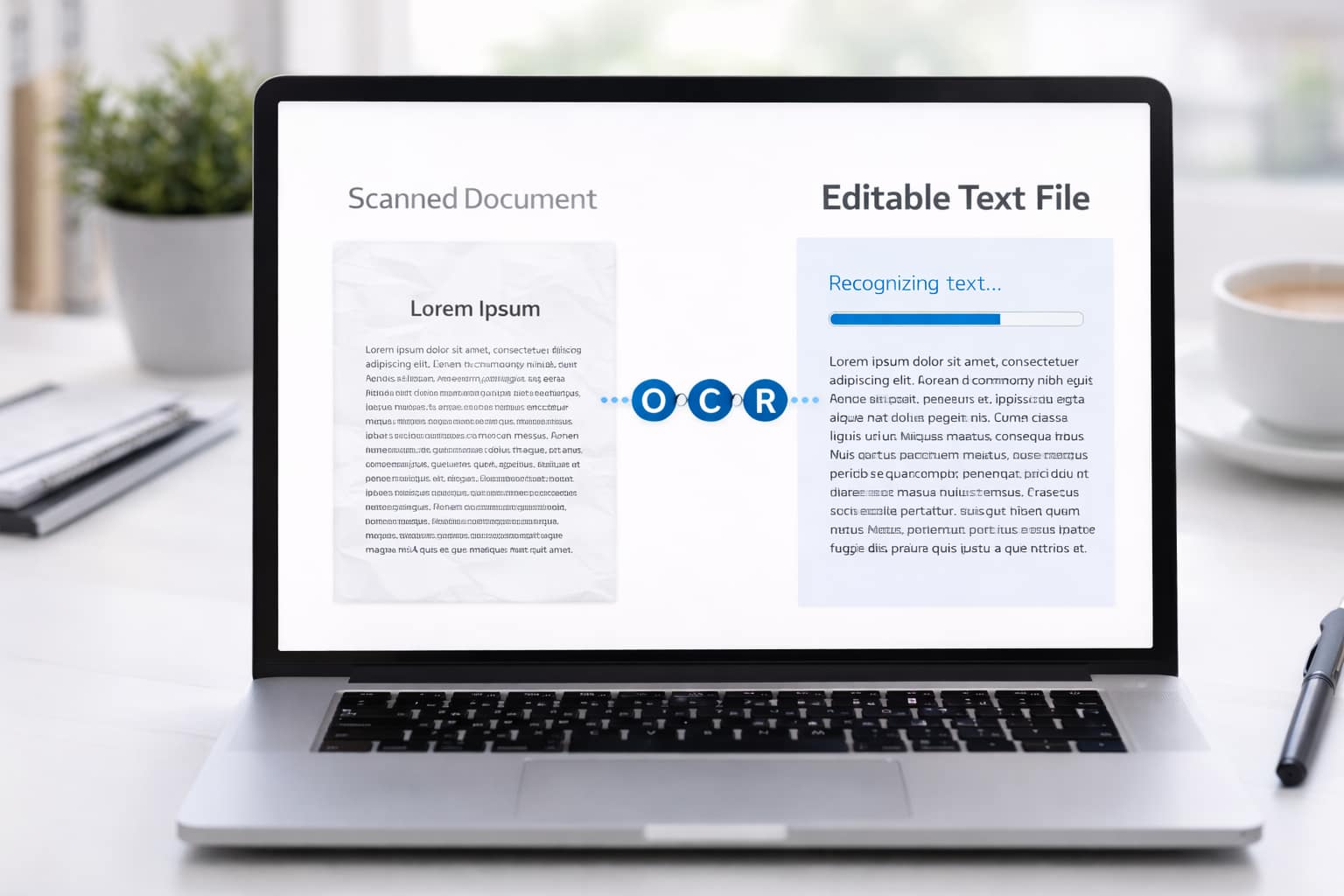
- PDF created as an image (scanned copy)
PDF editing becomes difficult because most PDFs are read-only by default. Without the right tool, your device can’t modify text or images inside the file. Free online editors help convert the PDF into an editable format so you can update it easily.
Step-by-Step Fixes to Edit a PDF Free Without App
Below are the simplest working methods for beginners.
✔ Method 1 — Edit PDF Using Google Docs (Free & Safe)
Short Answer:
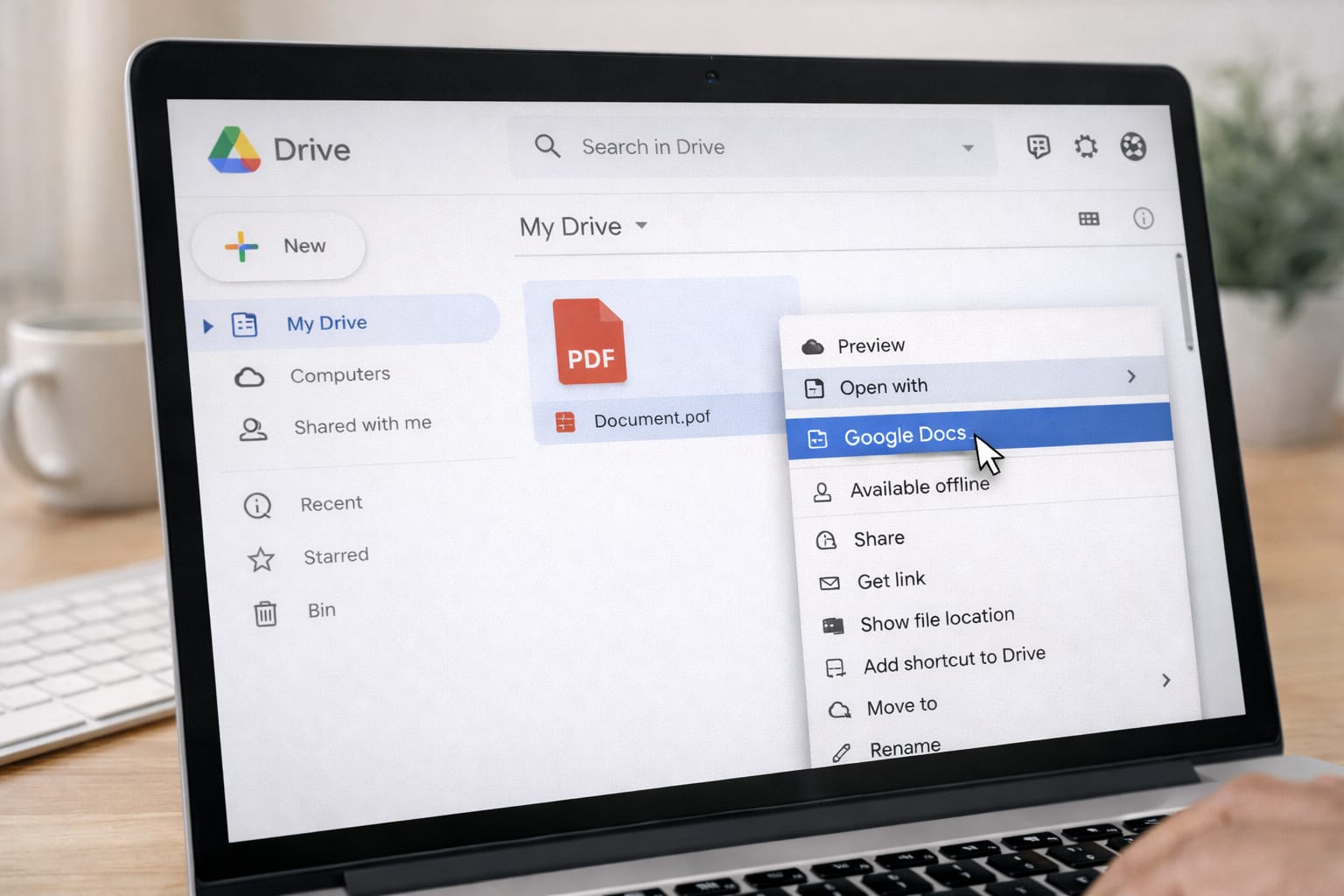
Google Docs is one of the easiest free ways to edit a PDF. It converts your PDF into an editable document where you can change text, add new content, or copy information.
Steps:
- Open Google Drive in your browser.
- Click New → File Upload.
- Upload your PDF.
- Right-click the PDF → Open with → Google Docs.
- Edit the text, formatting, or images.
- Go to File → Download → PDF to save it again.
✔ Method 2 — Edit PDF Online Using Free Websites
Short Answer:
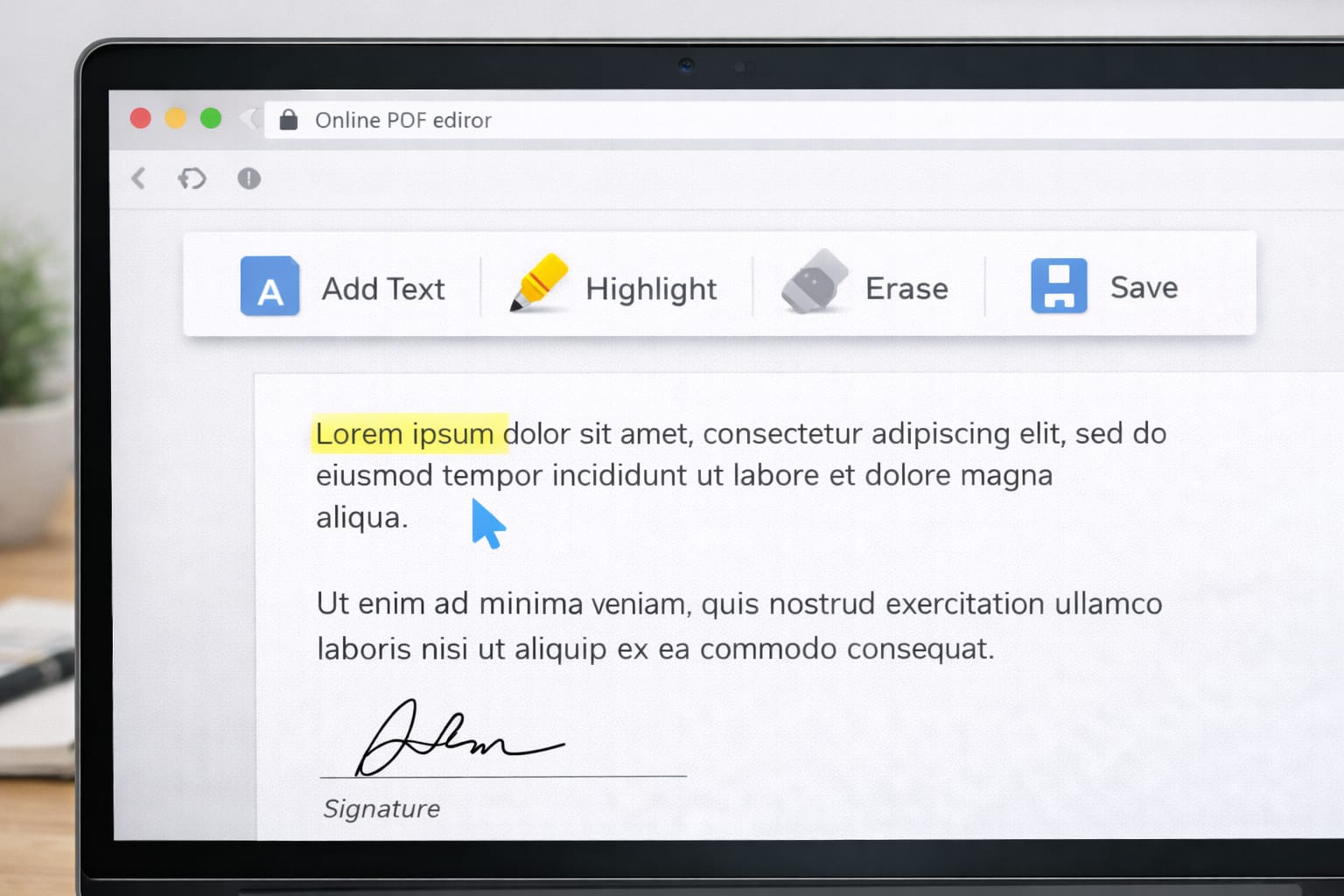
Several free online tools let you edit PDFs directly in your browser without installing anything.
Common Websites:
- Smallpdf (General editing)
- Sejda PDF (Text editing + signing)
- iLovePDF (Simple quick edits)
Steps:
- Open any online PDF editing website.
- Upload your PDF.
- Choose Edit, Add Text, Erase, or Highlight tools.
- Make changes.
- Download your edited PDF.
✔ Method 3 — Edit Scanned PDF by Converting to Word
Short Answer:
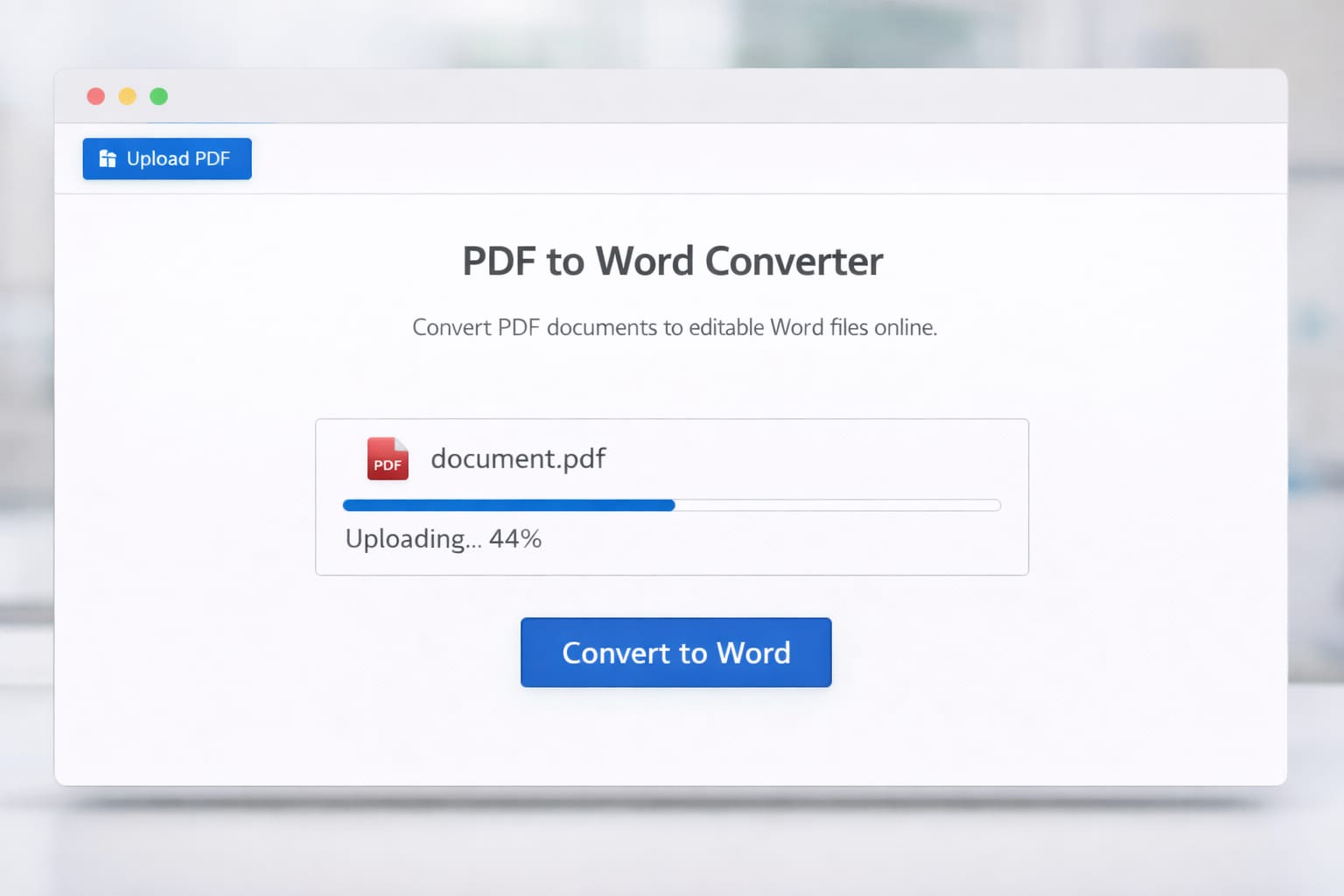
Scanned PDFs act like images. Converting them to Word helps make them editable.
Steps:
- Open an online PDF to Word converter.
- Upload your scanned PDF.
- Download the Word version.
- Edit in Google Docs or web-based Word.
- Export again as PDF.
Alternative Fix (If Editing Still Doesn’t Work)
If none of the above methods work, try these:
- Open file in another browser (Chrome, Edge, Firefox).
- Clear your browser cache.
- Reduce file size using a free compressor.
- Re-upload PDF to another editing website.
- Rename the file before uploading.
These small fixes often solve hidden upload errors.
How to Contact Official Support
If you’re facing issues uploading or editing PDFs:
- Google Drive Help Center → Search for “edit PDF”
- Microsoft Support → For editing Word or PDF formats
- Online PDF Tools Help Pages → For website-specific issues
You can find contact or help options inside each platform’s menu.
Conclusion
Editing a PDF for free and without any app is easy once you know the right tools. Whether you choose Google Docs, online PDF editors, or a converter, each method gives you simple steps to update your document quickly. Start with Google Docs for basic text edits, and use online tools for advanced changes.
Frequently Asked Questions
Q1. Why is my PDF not opening in Google Docs?
Google Docs may fail to open a PDF if the file is too large, scanned as an image, or corrupted. In many cases, converting the PDF to a Word file first helps resolve the issue.
Q2. Can I edit a PDF without email or login?
Yes. Many free online PDF editors allow you to upload and edit PDFs without signing in or providing an email address.
Q3. Is it possible to edit a PDF without reinstalling apps?
Absolutely. You can edit PDFs using online tools or Google Docs directly in your browser, without installing or reinstalling any apps.