Many people struggle when they need to edit a PDF but don’t have software installed. The good news is—you can convert a PDF to a Word file without downloading any app. This guide shows simple online methods, Google tools, and step-by-step fixes anyone can follow.
Why This Problem Happens?
Converting PDF to Word becomes difficult for a few common reasons:
- The PDF is locked or scanned
- Your phone doesn’t support PDF editing
- You don’t have software like MS Word or Adobe
- File size is too large for your device
- Browser settings block certain uploads
These issues make users think conversion is “not possible,” but simple online tools can solve it quickly.
Step-by-Step Fixes to Convert PDF to Word Without Software
Here are the easiest methods that work on both phone and computer.
Method 1 — Convert PDF to Word Using Google Docs
This is the most reliable free method.
Step-by-step:
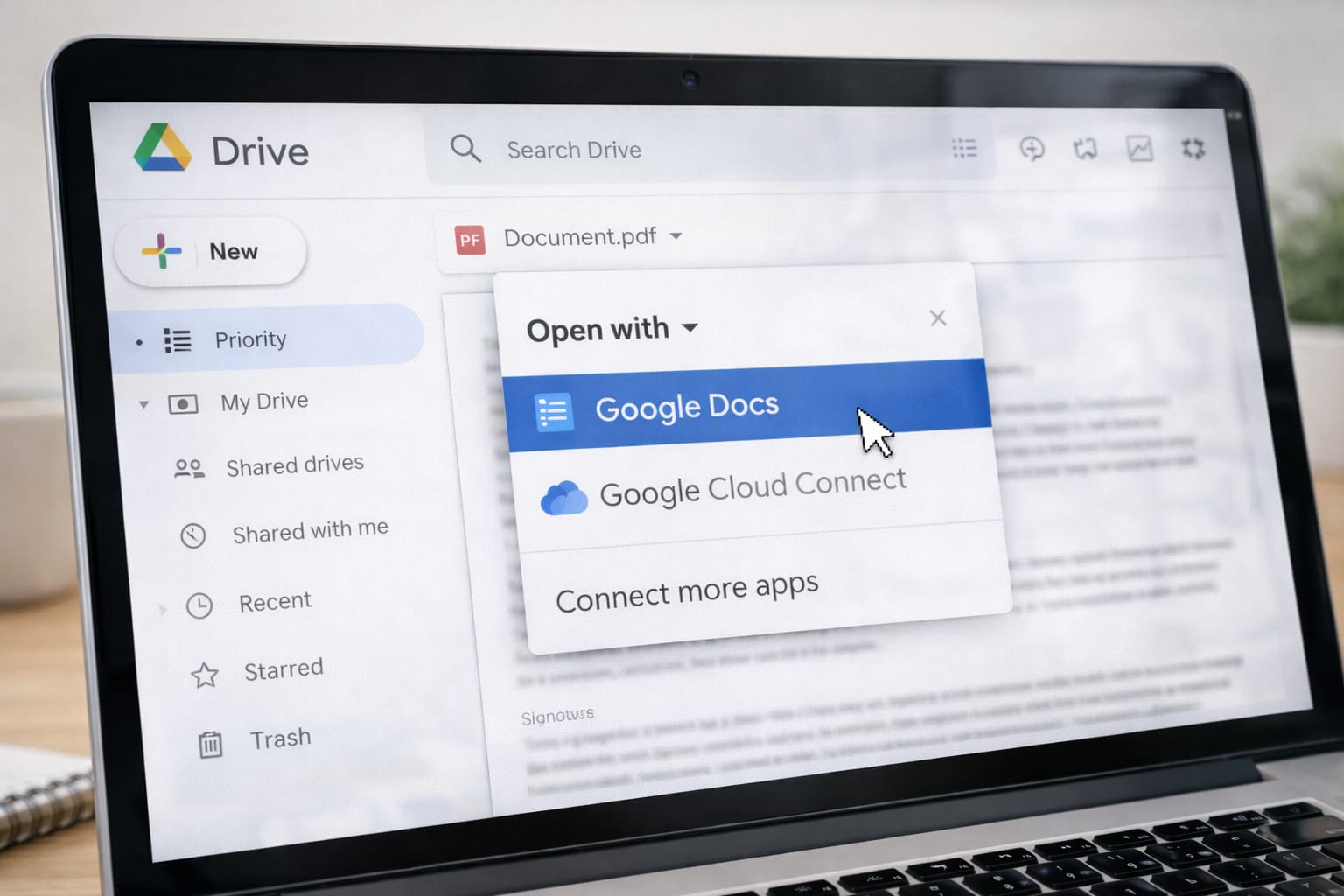
- Open Google Drive → Upload your PDF.
- Right-click → Select Open with → Google Docs.
- Google Docs will open your PDF as an editable document.
- Now go to File → Download → Microsoft Word (.docx).
✔ Works for text-based PDFs
✔ Free and beginner-friendly
Method 2 — Use Online PDF Conversion Websites
Commonly used platforms allow quick conversion.
Steps:
- Search “PDF to Word converter online” in Google.
- Choose any trusted tool like SmallPDF, PDF2Go, or ILovePDF.
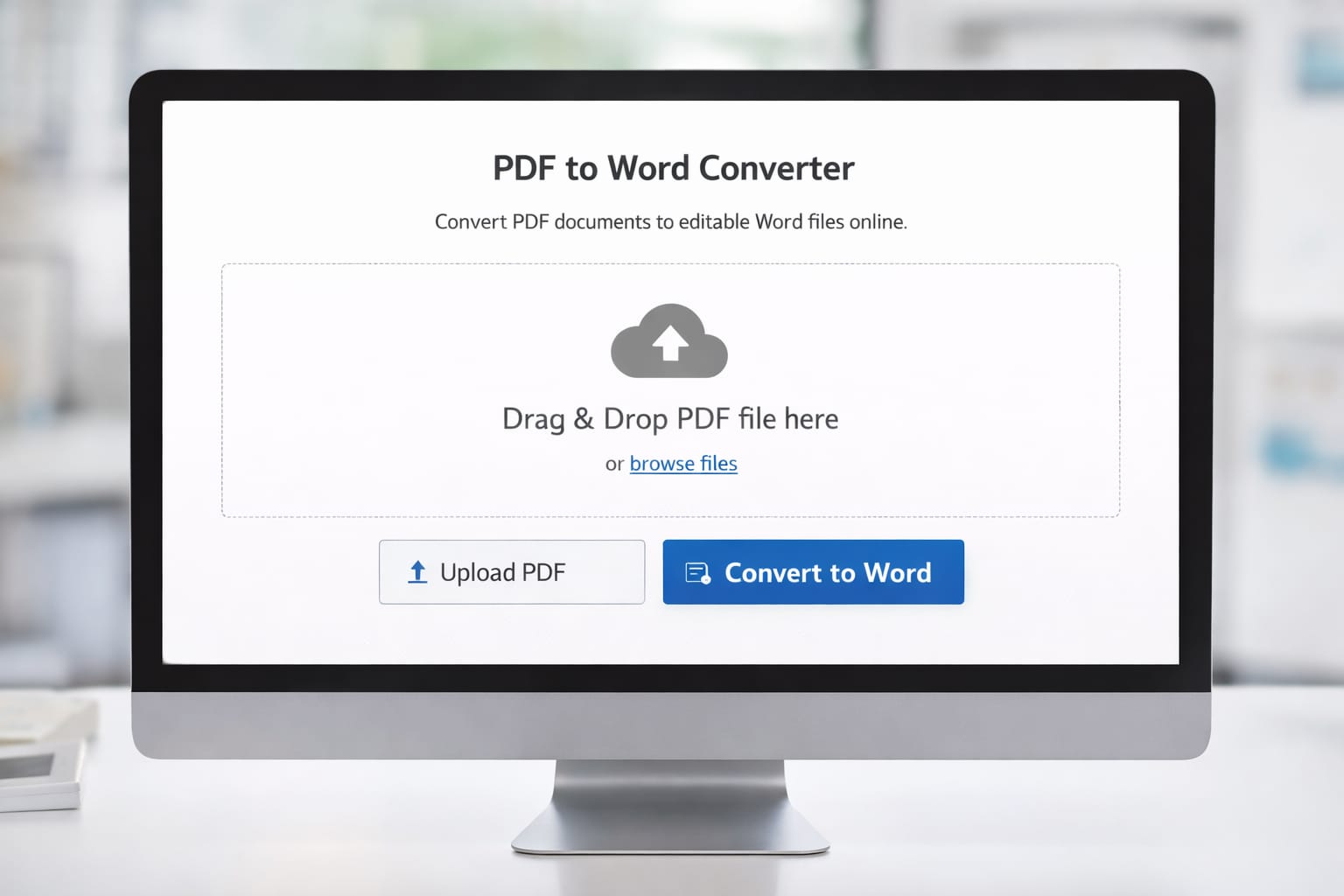
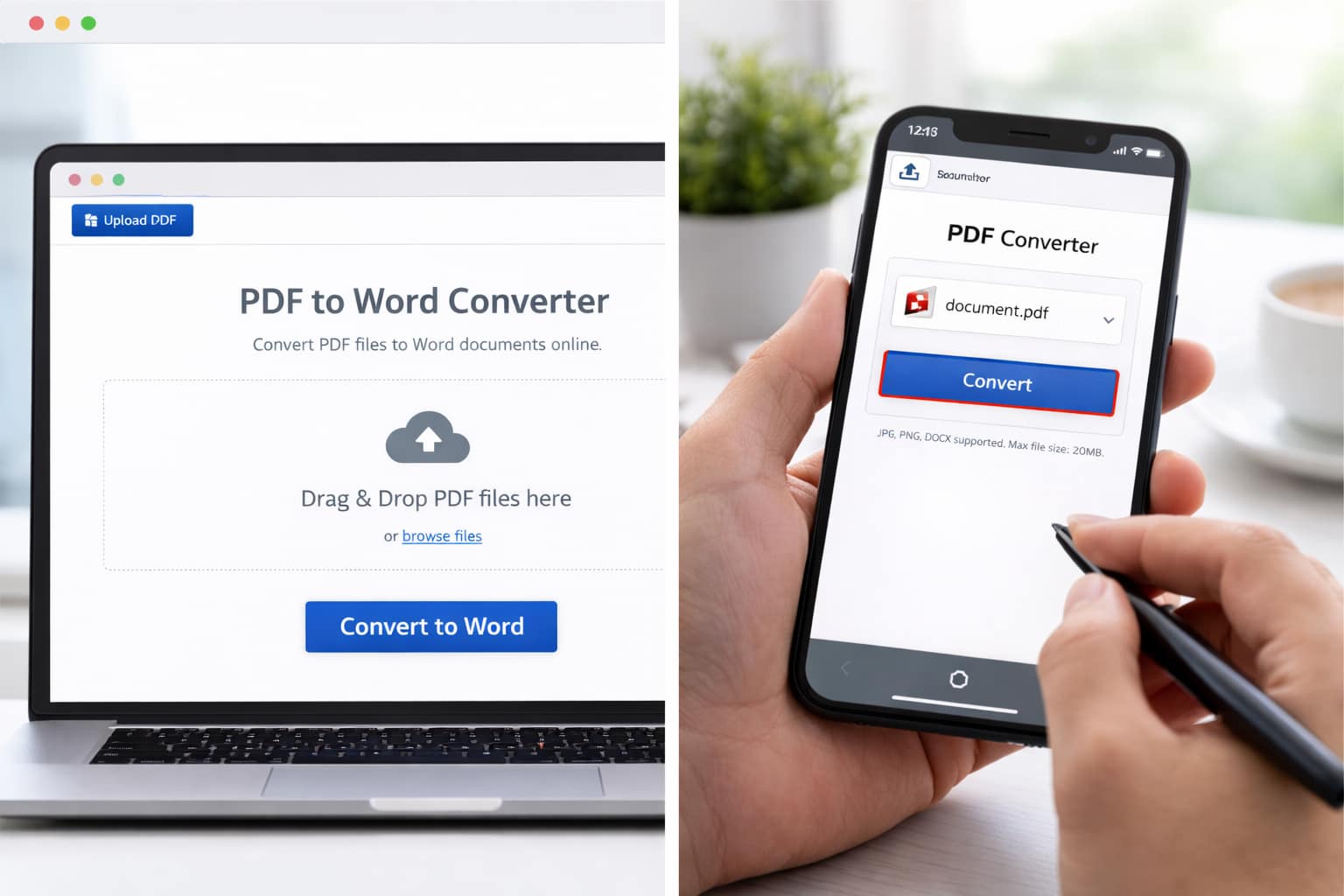
- Upload your PDF → Click Convert to Word.
- Download the Word file to your device.
If one site fails, try another because scanned files require OCR support.
Method 3 — Convert PDF to Word via Microsoft Word Web
If you don’t have MS Word installed, use the free web version.
Steps:
- Visit Office/Word online.
- Upload your PDF.
- Word Web converts it automatically and opens it for editing.
- Save the file as .docx.
This method keeps most formatting intact.
Alternative Fix (If Main Methods Don’t Work)
If your PDF is scanned or corrupted, try these:
- Use an online tool with OCR support
- Split the PDF into smaller pages before converting
- Take screenshots and convert images to Word
- Open the PDF in Google Chrome → Copy text manually
If none work, your original PDF may have image-only content that requires OCR conversion.
How to Contact Official Support
If you face issues with Google or Microsoft tools, follow these:
- Google Support: search “Google Drive help center”
- Microsoft Word Support: search “Microsoft Word online help”
- Online converter help: most sites have a “Support” or “Contact Us” section
These resources provide official instructions for upload or conversion errors.
Conclusion
Converting a PDF to a Word document without software is easy using Google Docs, online PDF converters, and Word Web. Start with Google Docs for best accuracy, and use online tools if you need OCR or faster conversion.
Frequently Asked Questions
Q1. Why is the PDF not uploading to the converter?
This usually happens because the file size is too large, the internet connection is slow, or the browser has restrictions. Try compressing the PDF, switching to a stronger Wi-Fi network, or using a different browser.
Q2. Can I convert a scanned PDF to Word?
Yes, but you need a converter that supports OCR (Optical Character Recognition). Google Docs works for simple scanned text, while online OCR tools handle more complex scanned documents.
Q3. Is it possible to convert without reinstalling the app?
Yes. All these conversion methods work completely online, so there’s no need to install or reinstall any apps or software.