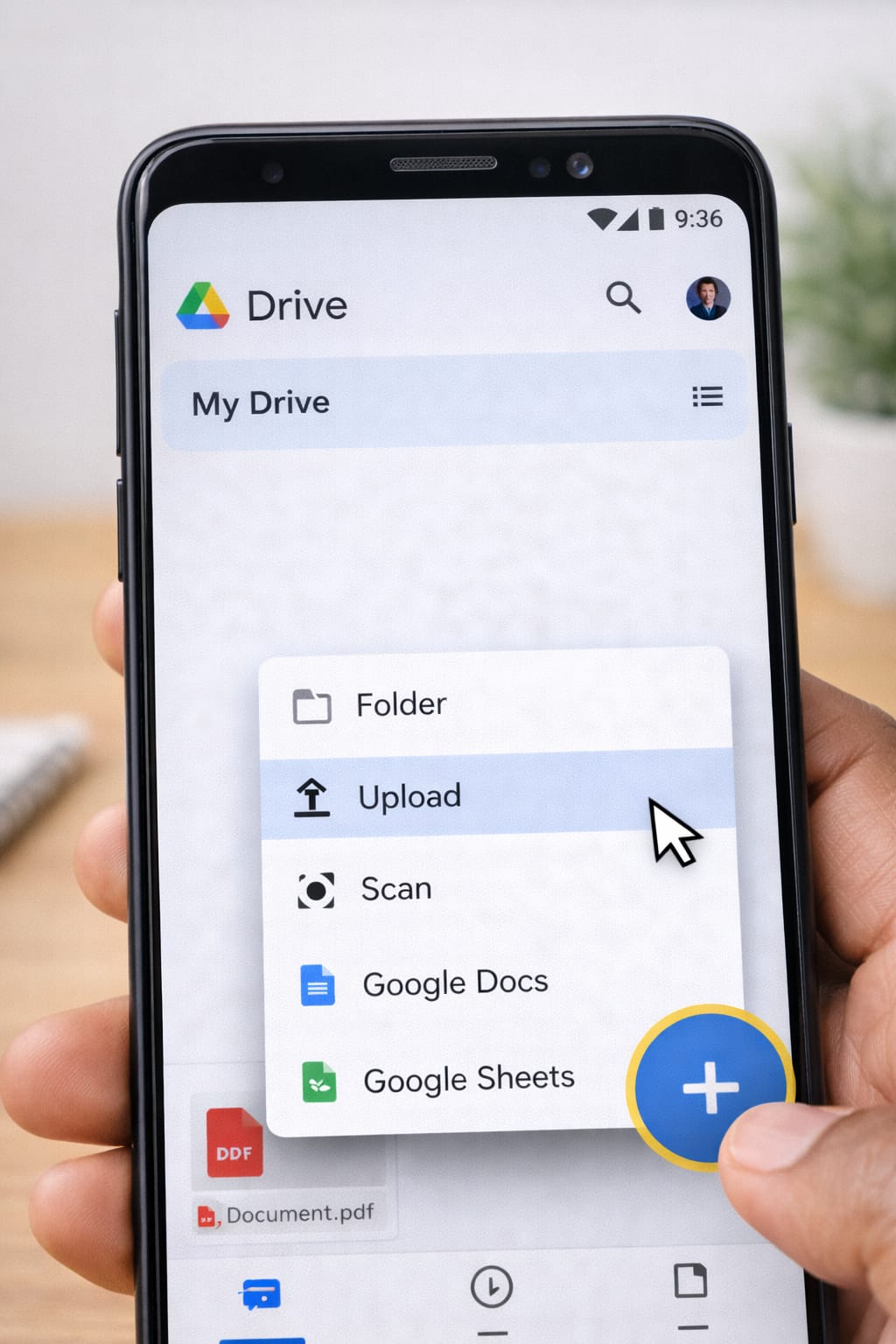
If your PDF file is too large to upload in an online form, email, or government portal, this guide will help you reduce PDF size without losing quality. You’ll learn simple, step-by-step methods using your phone, laptop, and online tools—no software required.
Why Does PDF File Size Become Too Large?
PDFs get heavy when they contain high-resolution images, scanned pages, embedded fonts, or unnecessary metadata. Sometimes scanning apps save documents in very large formats, which makes uploading difficult.
How to Reduce PDF Size Without Losing Quality (Step-by-Step)
These are the most commonly used and reliable beginner-friendly methods.
1. Compress PDF using Online Tools (No App Needed)
Online compressors maintain clarity while shrinking file size.
Steps:
- Open your browser and search “PDF compressor online.”
- Upload your large PDF file.
- Choose: High Quality / Low Compression option.
- Download your optimized file and check clarity.
- Try Medium compression if still large.
If this method doesn’t work, try the scanning or re-saving method below.
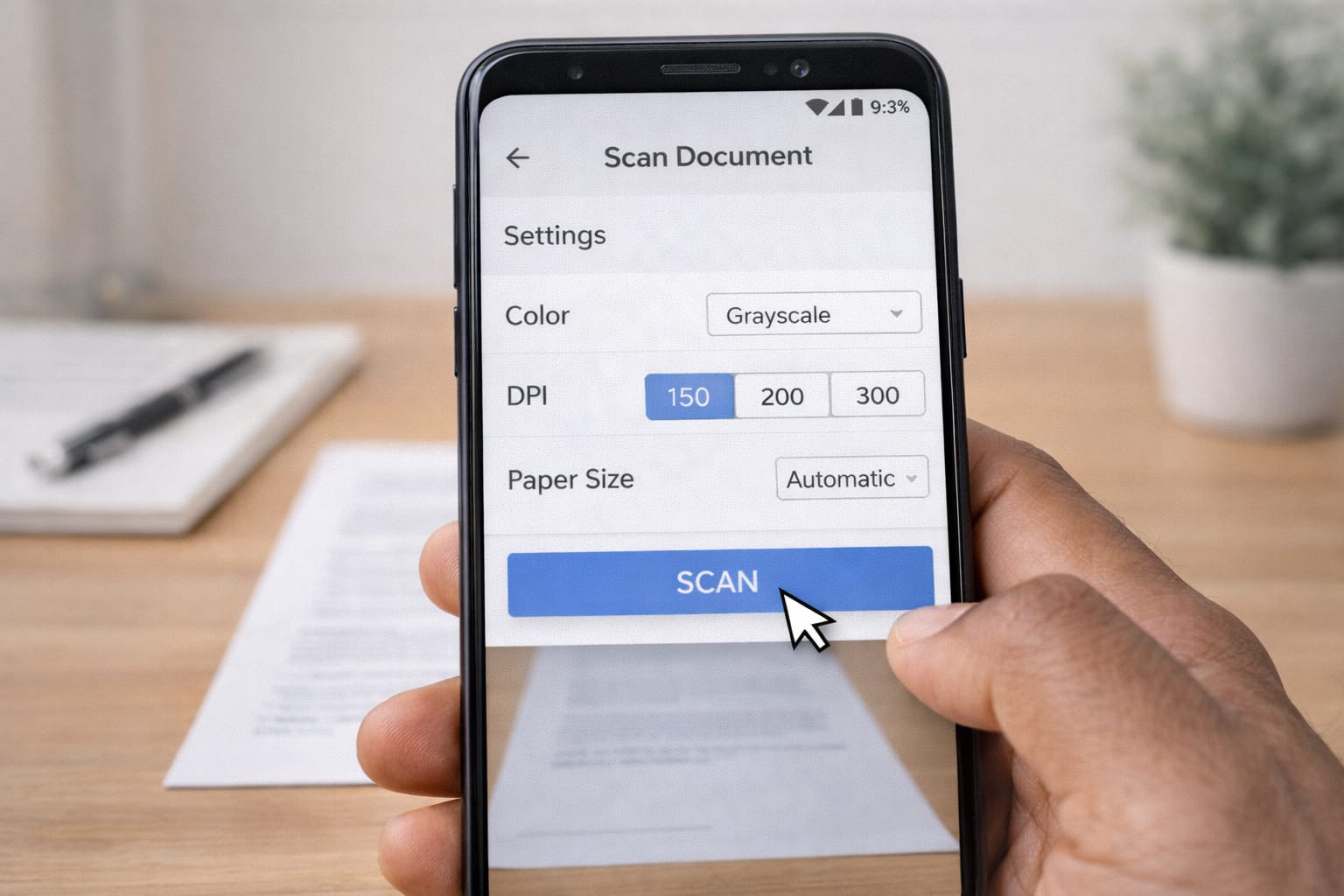
2. Reduce PDF Size on Mobile by Re-Scanning at Correct DPI
Based on user reports, scanning at the correct DPI reduces file size significantly.
Steps:
- Open your phone’s scanner app (Google Drive Scan / iOS Notes).
- Scan the document again using 150–200 DPI (ideal for forms).
- Save as PDF instead of JPG.
- Compare the size with your original file.
➤ Higher DPI = heavier file. Lower than 150 DPI may reduce clarity.
3. Reduce PDF Size Using Print-to-PDF (On Laptop)
This method works well, especially on Windows.
Steps:
- Open your PDF on your laptop (Chrome/Edge/Preview).
- Press Ctrl + P (Windows) or Cmd + P (Mac).
- Choose Save as PDF.
- Select Medium Quality.
- Save the new file.
This often removes hidden layers and metadata.
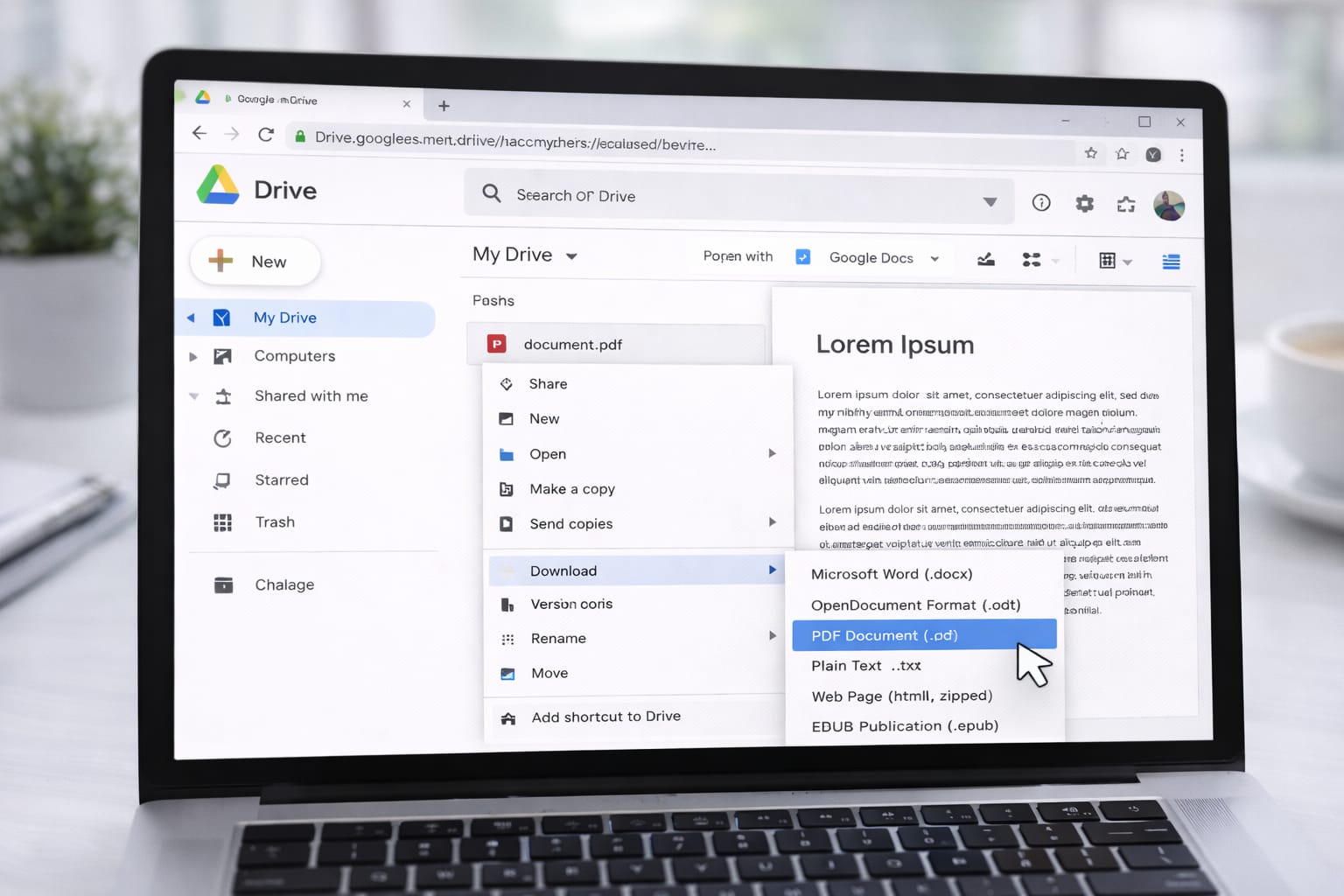
4. Use Google Drive to Optimize PDF Size (Cloud Method)
According to user experiences, Google tools slightly compress PDFs automatically.
Steps:
- Upload the PDF to Google Drive.
- Open it using Google Docs.
- Go to File → Download → PDF Document.
- A lighter version is generated.
Note: Formatting may change for some documents.

Alternative Fix (If Normal Methods Don’t Work)
Try one of these:
- Convert PDF → JPG → PDF using an online tool.
- Split the PDF if only a few pages are required.
- Remove unnecessary images, blank pages, or signatures.
- Use desktop software like Acrobat Reader’s “Optimize PDF” tool.
How to Contact Official Support
You can find help through the following:
- Google Drive Help Center → search for “PDF upload issues”
- Adobe Support → troubleshoot PDF compression
- Scanner App Help Center → DPI and quality settings
(Links allowed but not added here as per instructions.)
Conclusion
If your PDF is too large, start with online compression, then try re-scanning at the correct DPI, and finally use print-to-PDF if you want a clean, optimized file. These methods help you reduce PDF size without losing quality on any device.
Frequently Asked Questions
Q1. Why is my PDF still too large after compression?
This can happen when the PDF contains high-resolution scanned images or extra layers. Re-scanning the document at 150–200 DPI or using the “Print as PDF” option often reduces the file size further.
Q2. Can I reduce PDF size without losing image clarity?
Yes. Using high-quality compression or re-saving the file through a print-to-PDF method can reduce the size while keeping the text and images clear and readable.
Q3. Is it possible to reduce PDF size without installing any app?
Absolutely. You can use online PDF compression tools, browser print options, or Google Drive features to reduce file size without installing any software.