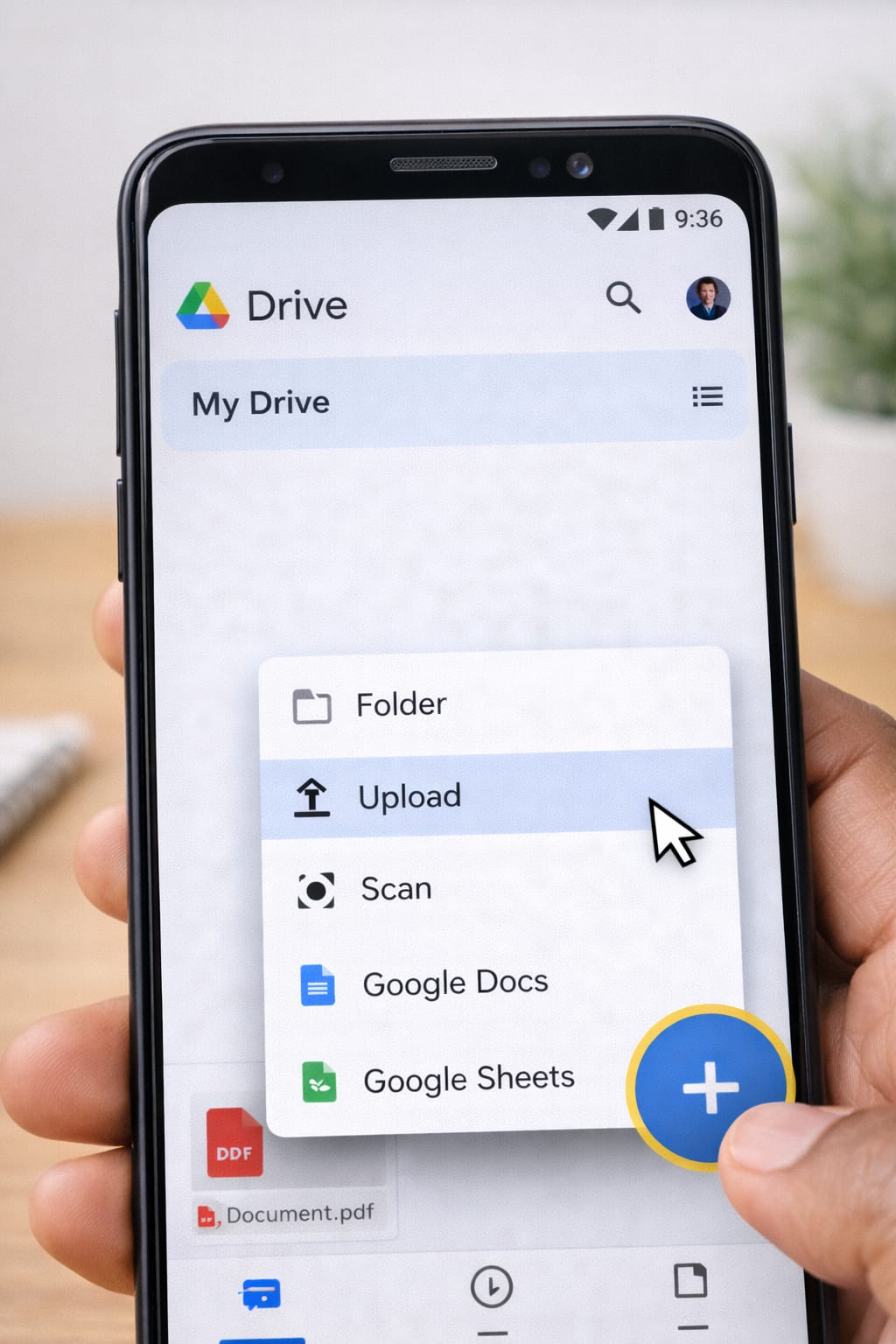
If you’re trying to upload a video to Google Drive but can’t find the upload option, or the upload gets stuck, this beginner-friendly guide will help. Here, you’ll learn how to upload videos from Android, iPhone, and computer, including common fixes when Google Drive refuses to upload.
Why Does This Problem Happen?
Here are the most common reasons Google Drive won’t upload videos, based on user reports:
- Weak or unstable internet connection
- Google Drive app outdated
- Not enough device storage or Drive storage
- File size too large for slow connections
- App cache issues causing upload errors
- Logged-out Google account without syncing
👉 In most cases, clearing the app cache or updating the app fixes the issue.
How to Upload Video to Google Drive (Step-by-Step)
Below is a short and clear method that works for both Android and iPhone.
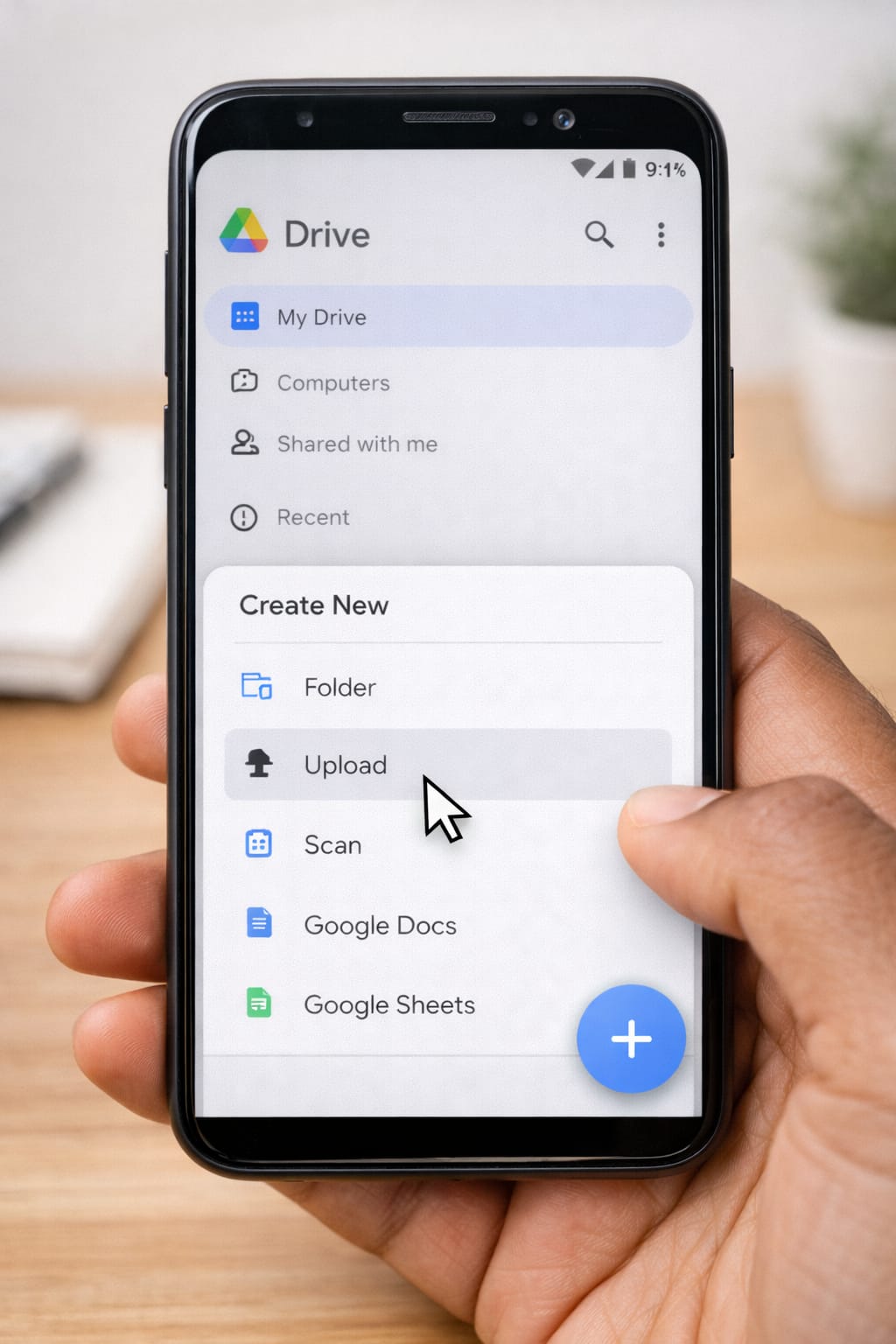
1. Upload Video Using Google Drive App (Phone)
This is the easiest and most commonly used method for beginners.
Steps:
- Open Google Drive app.
- Tap + (Plus button) → choose Upload.
- Select Videos or Gallery from the list.
- Tap the video you want to upload.
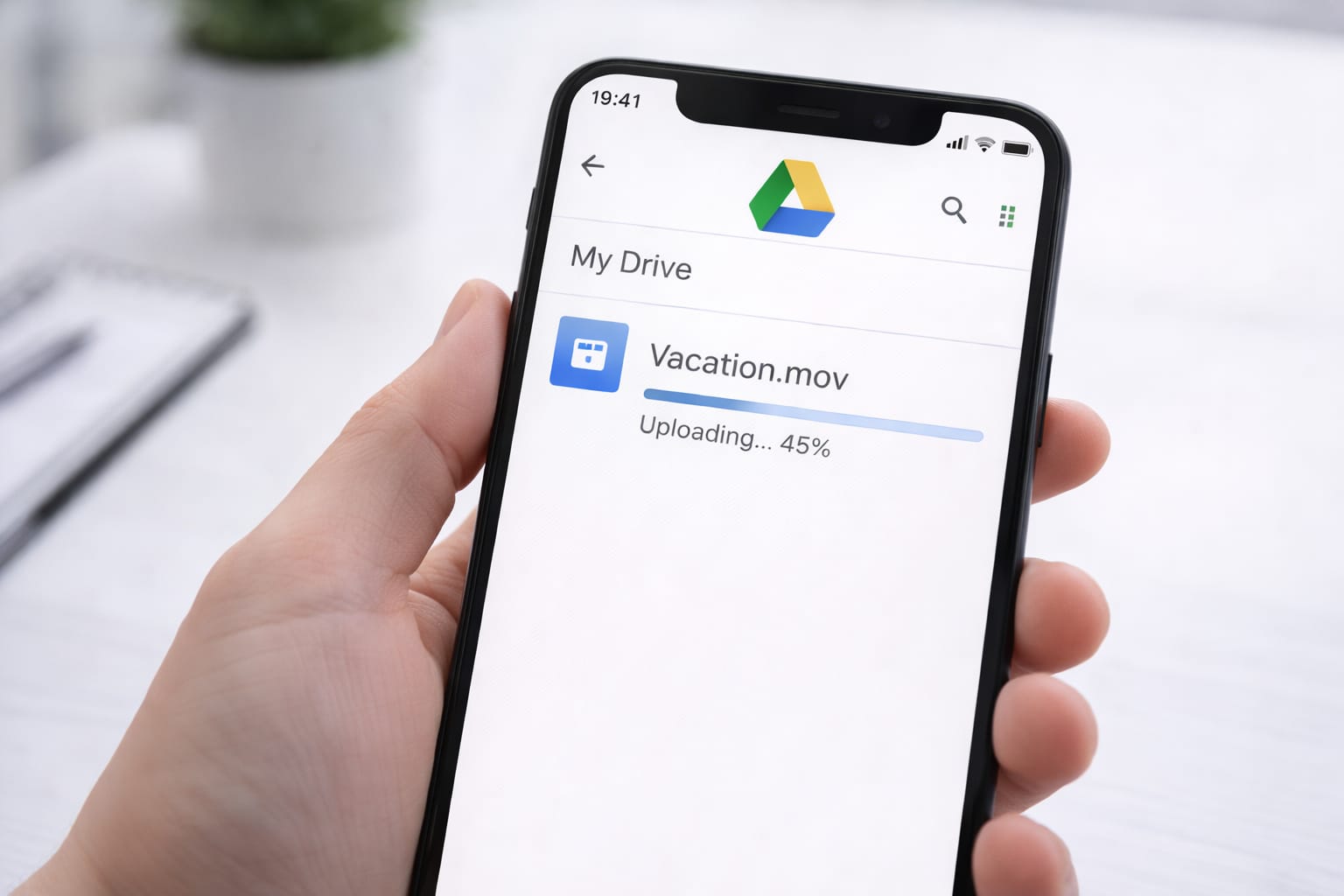
- Wait until the upload shows Complete.
➤ [Insert screenshot: Google Drive + Upload button]
Tip: Keep the Drive app open during upload to avoid pausing.
2. Upload Large Videos Using the Files App (Android)
Useful when Google Drive doesn’t show your video.
Steps:
- Open Files by Google or File Manager.
- Find your video in Videos or Downloads.
- Long-press the video → tap Share → choose Drive.
- Select your Google account and folder → tap Upload.
If the upload doesn’t start, try switching WiFi networks.
3. Upload Videos from iPhone to Google Drive
iPhone users may need to allow permissions.
Steps:
- Open Google Drive app.
- Tap + → Upload → Photos and Videos.
- Select the video → tap Upload.
- Wait until you see the progress check mark.
If videos aren’t appearing, enable:
Settings → Privacy → Photos → Google Drive → Allow Access to All Photos
4. Upload Videos from a Computer (Alternative Fix)
If your phone is slow or uploads fail repeatedly, use this method.
Steps:
- Transfer the video from phone to PC via USB or Bluetooth.
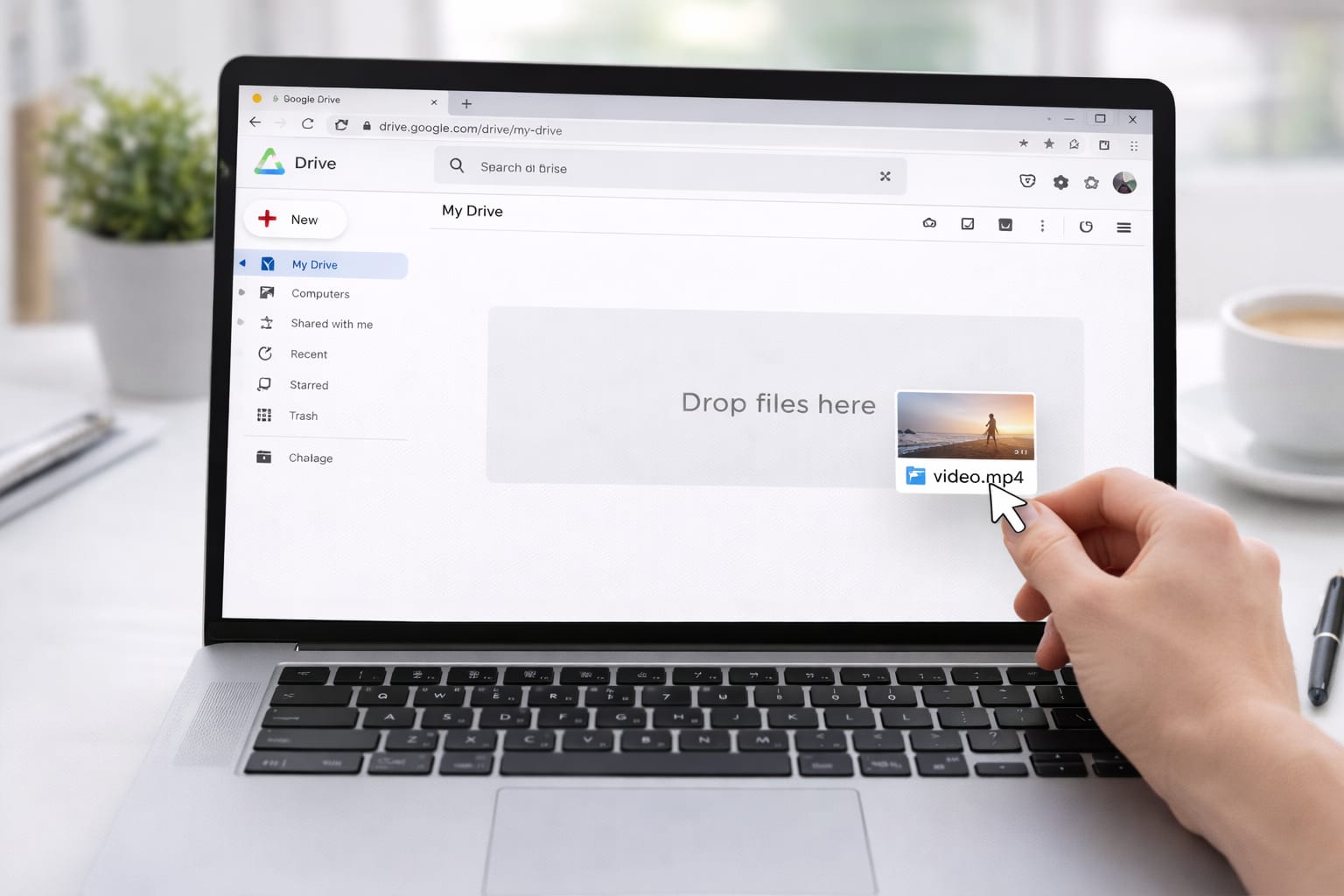
- Open Google Drive in a browser.
- Drag and drop the video OR click New → File Upload.
This method is more stable for videos larger than 500 MB.
Alternative Fixes (If Upload Still Doesn’t Work)
Try these commonly used solutions:
1. Clear Google Drive App Cache
Works especially for Android.
Steps:
Settings → Apps → Google Drive → Storage → Clear Cache
2. Update Google Drive App
Outdated versions often fail to upload.
3. Check Google Drive Storage
If your Drive is full, uploads won’t start.
You can delete files or upgrade storage.
4. Rename the Video File
Sometimes Drive rejects filenames with special characters.
5. Try Uploading Through Chrome Browser
Go to drive.google.com → Desktop site → Upload.
How to Contact Google Support
Here’s how to access official help pages:
- Open Google Drive app → tap Menu → Help & Feedback
- Search for: Upload problems / Drive sync issue
- Use Send Feedback if files repeatedly fail
Google might take some time to respond, but this is the recognized method to report account-level issues.
Conclusion
Uploading videos to Google Drive is simple once you know the steps. The fastest method is using the Google Drive app upload button, while large videos upload more reliably through the Files app or a computer. If uploads fail, clearing the app cache or updating the app usually solves the issue.
Frequently Asked Questions
Q1. Why is my Google Drive video upload stuck?
This usually happens because of a weak internet connection, app cache issues, or an outdated Google Drive app. Try clearing the app cache, reconnecting to Wi-Fi, or updating the Drive app.
Q2. Can I upload videos to Google Drive without the app?
Yes. You can open a browser on your phone, go to drive.google.com, and upload videos directly from there. This works even if the app is not working properly.
Q3. Why is my phone not showing videos while uploading?
This often happens when permissions are disabled. Check your phone’s settings and make sure photo and video access is enabled for the Google Drive app.