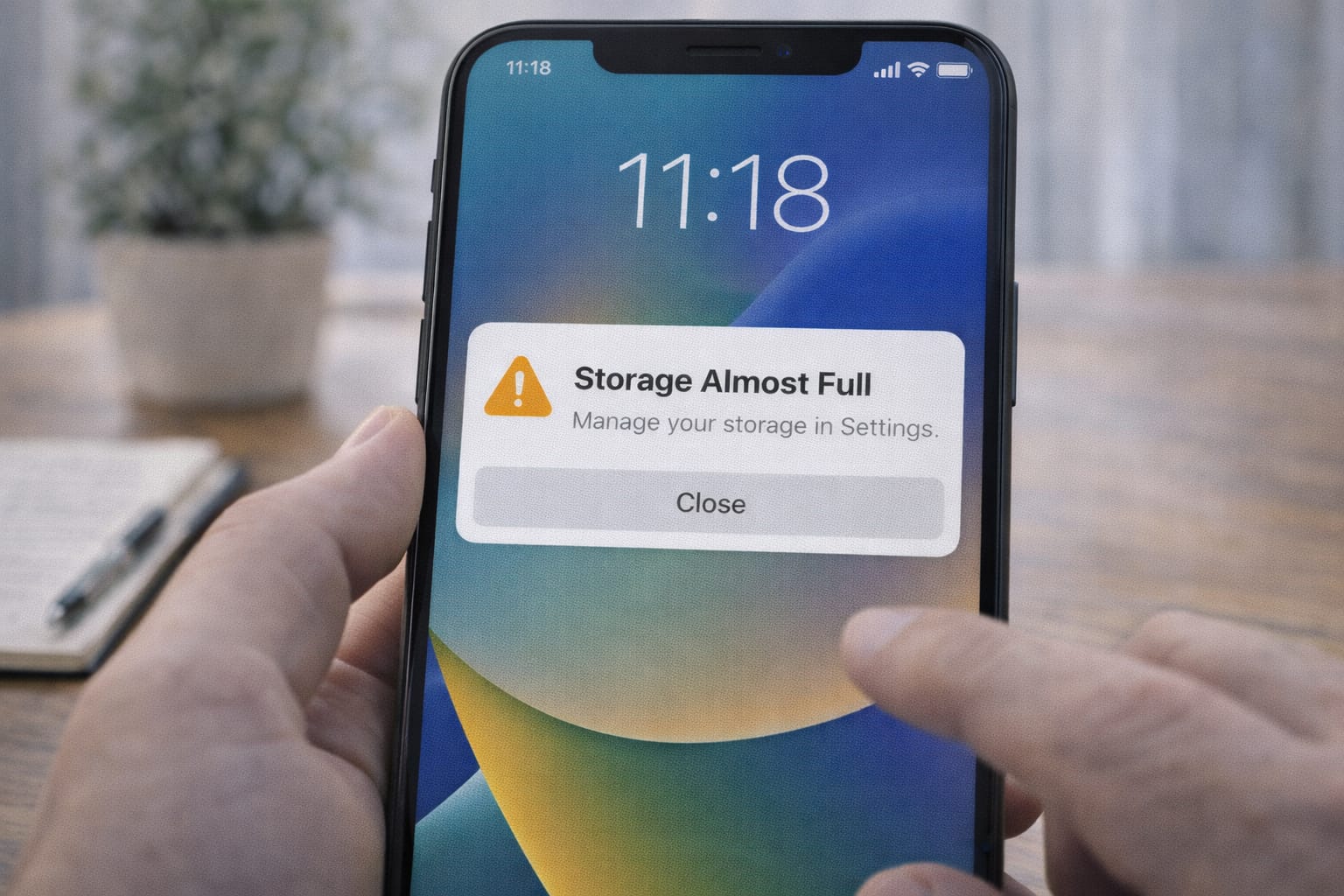
If your phone keeps showing “Storage Almost Full,” don’t worry — this is one of the most common smartphone issues. Apps stop working, photos won’t save, and the phone becomes slow. In this guide, you’ll learn simple, step-by-step methods to fix phone storage full issues on both Android and iPhone.
Why This Problem Happens?
Below are the most common reasons your phone storage becomes full:
- Apps storing too much cache and temporary files
- Large videos, duplicate photos, or unused downloads
- Old WhatsApp media taking hidden space
- System updates needing extra storage
- Backups saved locally instead of the cloud
In simple words: your phone fills up quietly in the background until it stops working.
Step-by-Step Fixes for Phone Storage Full (Quick Solutions)
⭐ Fix 1: Clear Cache and Junk Files
Most “phone storage full” notifications come from cached data.
Steps:
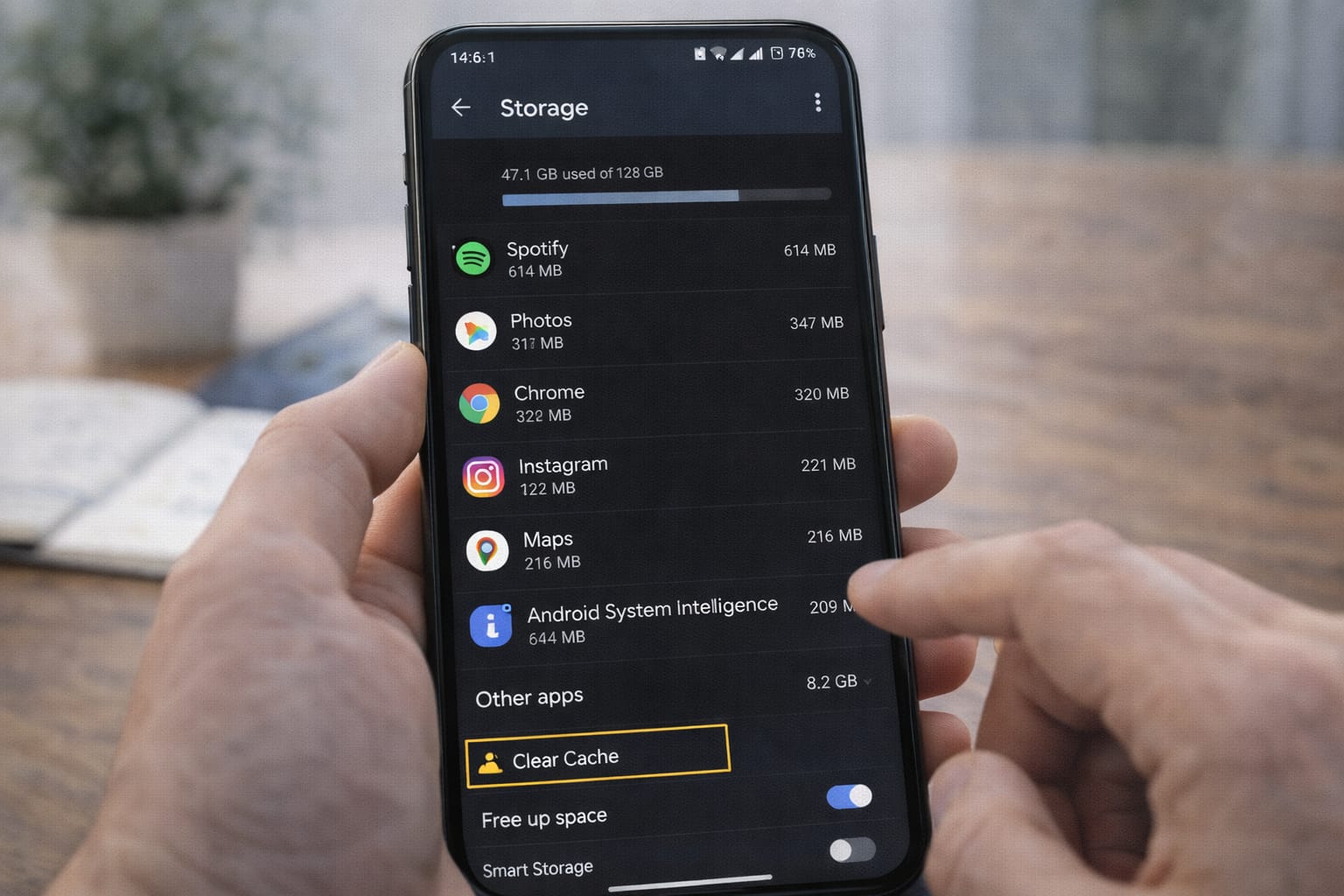
- Go to Settings → Storage.
- Tap Apps and open your heaviest apps (Instagram, Chrome, YouTube).
- Select Clear Cache (not Clear Data).
- Repeat for others.
This method is safe and doesn’t delete personal files.
⭐ Fix 2: Remove Unwanted Photos / Videos
High-resolution videos take the most space.
Try these:
- Delete duplicates
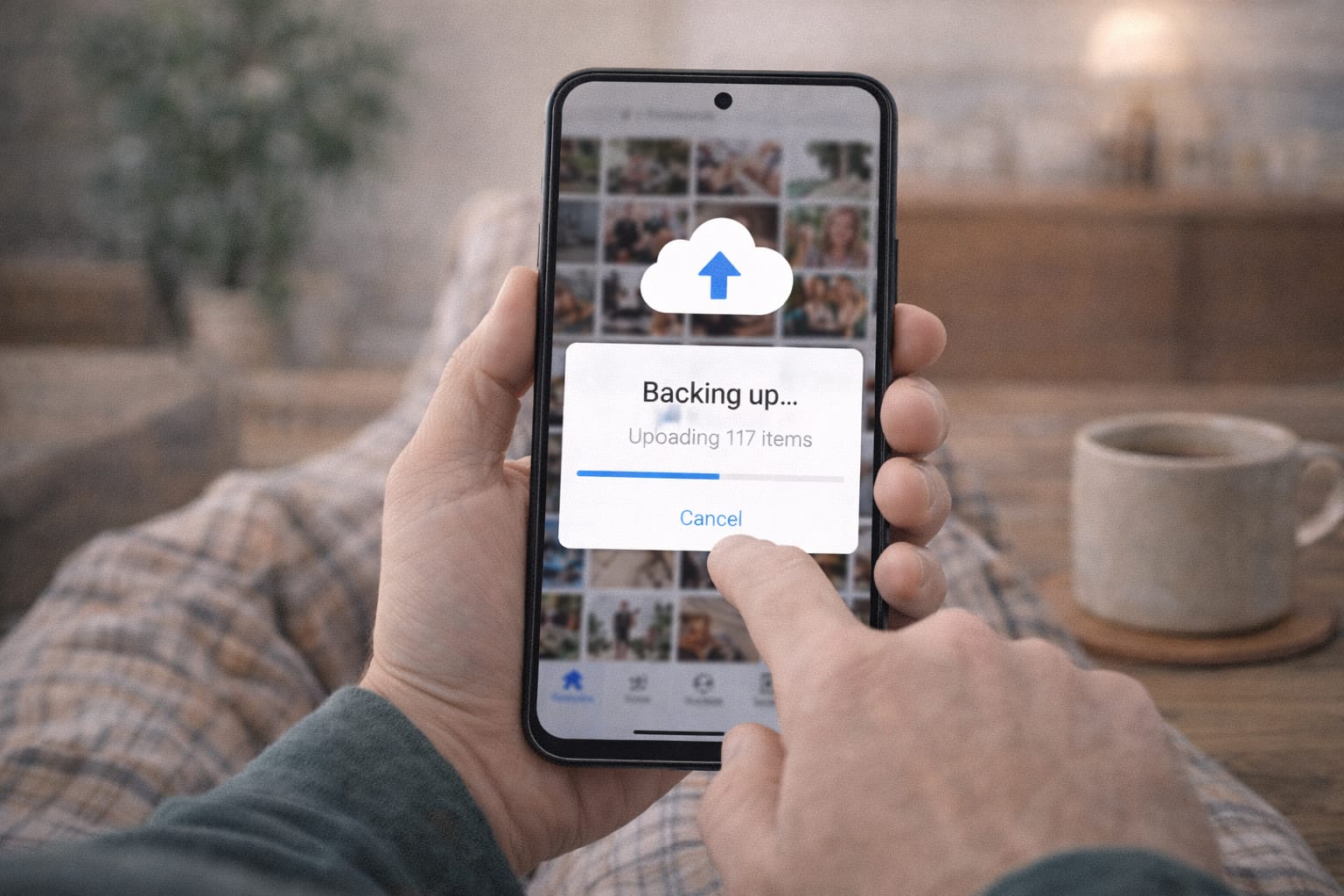
- Move old videos to Google Photos or iCloud
- Empty the Recently Deleted folder
⭐ Fix 3: Clean WhatsApp & Messenger Media
Apps like WhatsApp store thousands of hidden images.
Steps:
- Open WhatsApp → Settings → Storage & Data.
- Tap Manage Storage.
- Delete “Forwarded many times” or large media files.
⭐ Fix 4: Delete Unused Apps
Go to Settings → Apps → Sort by size → Remove apps you don’t use.
Even installed games you haven’t opened for months take 1–3GB each.
⭐ Fix 5: Use “Storage Manager” or “Offload Apps” (iPhone)
iPhone users can free space without deleting app data.
Steps:
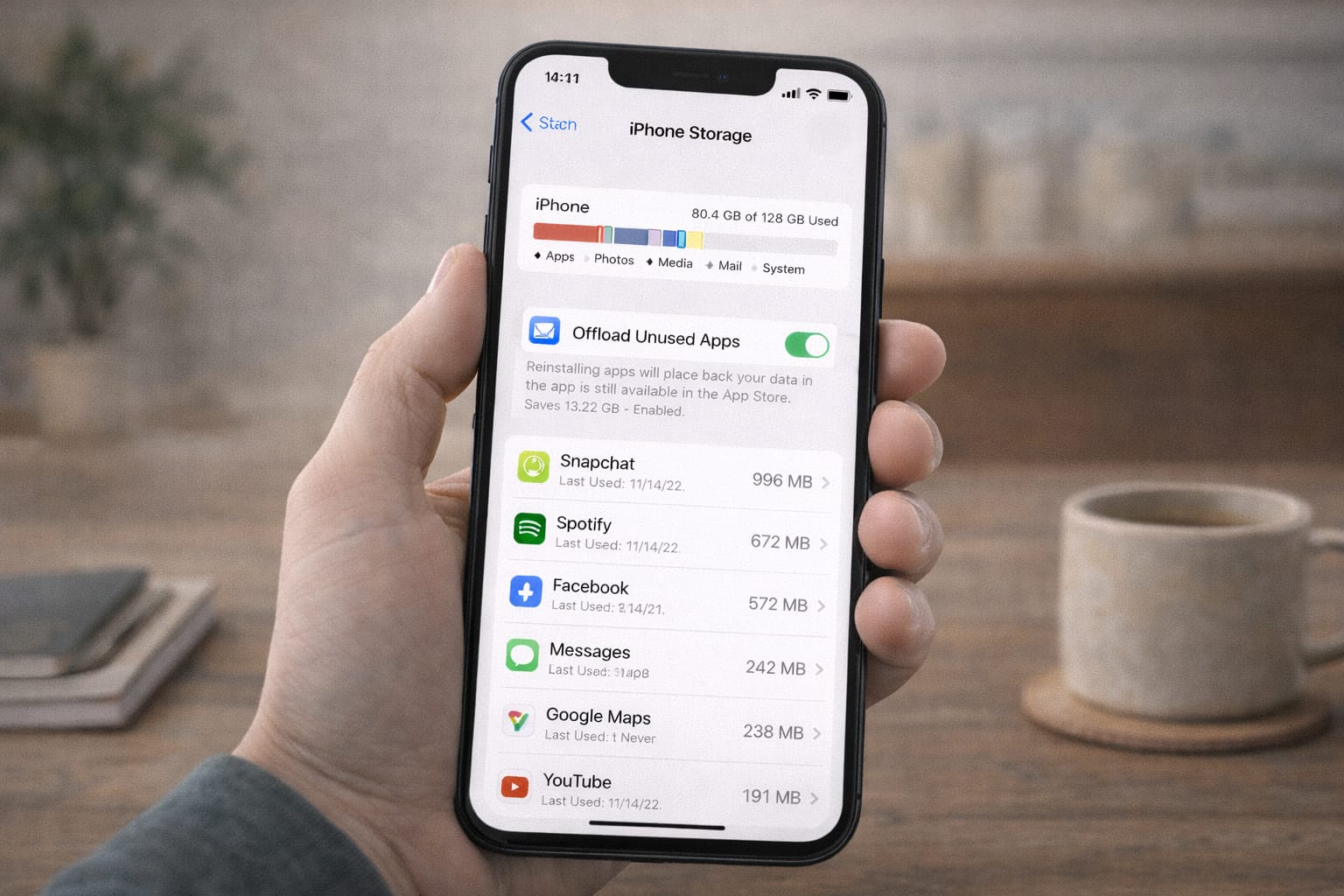
- Settings → General → iPhone Storage.
- Enable Offload Unused Apps.
- iOS automatically frees space from unused apps.
Alternative Fix (If Main Methods Don’t Work)
If your phone still says storage full, try these additional methods:
- Transfer files to a computer or external USB OTG
- Upload large videos to Google Drive
- Clear system update files you no longer need
- Reset the Downloads folder manually
- Move WhatsApp backup to cloud instead of local storage
These methods help when your internal storage is completely stuck.
How to Contact Official Support
If the issue started after an update or you can’t find what is filling storage, you can contact:
- Google Support: for Android storage issues
- Apple Support: for iPhone “Other Storage” problems
- Your phone brand support (Samsung, Xiaomi, Vivo)
Look for the “Help Center” or “Contact Support” inside your phone’s settings or the official website.
Conclusion
Running out of storage is normal for almost every smartphone. With these simple steps — clearing cache, deleting unused files, managing WhatsApp media, and using cloud backup — you can easily fix the phone storage full problem at home. Start with cache cleaning, then remove large files if needed.
Frequently Asked Questions
Q1. Why does my phone show full storage even after deleting files?
This usually happens because of hidden cache files, WhatsApp media folders, or system files that aren’t removed when you delete regular files. Clearing app cache and restarting your phone often helps free up space.
Q2. Can I fix low storage without deleting personal files?
Yes. You can safely free up space by clearing cache, offloading unused apps, backing up photos to Google Photos, or using cloud storage options.
Q3. Is it possible to fix storage issues without reinstalling apps?
Yes. Clearing cache, deleting downloaded files, and removing temporary data usually solves storage problems without needing to reinstall any apps.