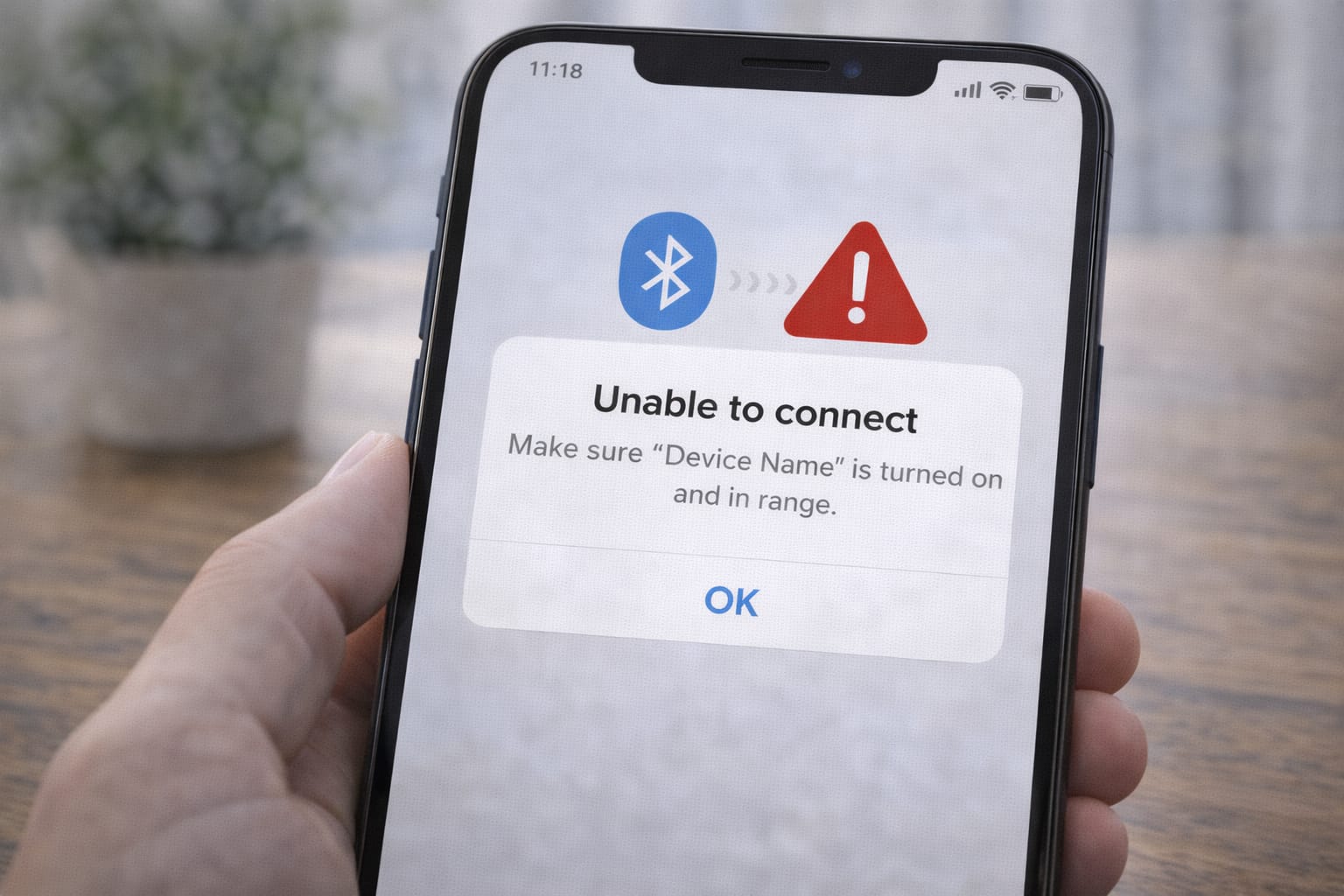
If your Bluetooth device is not pairing with your phone or laptop, you’re not alone. Many users face this issue when connecting earbuds, speakers, smartwatches, or wireless accessories. This beginner guide explains why Bluetooth pairing fails and how you can fix it step-by-step at home without any tools or technical skills.
Why Is Bluetooth Not Pairing?
Bluetooth pairing issues usually happen due to simple settings or device conflicts. Based on user reports, here are common reasons:
- Bluetooth is turned on but not discoverable
- Device already paired with another phone
- Too much distance or signal interference
- Low battery on the Bluetooth device
- Outdated system software
- Cache or temporary files blocking the connection
Each of these can cause pairing errors, but they are easy to fix with the steps below.
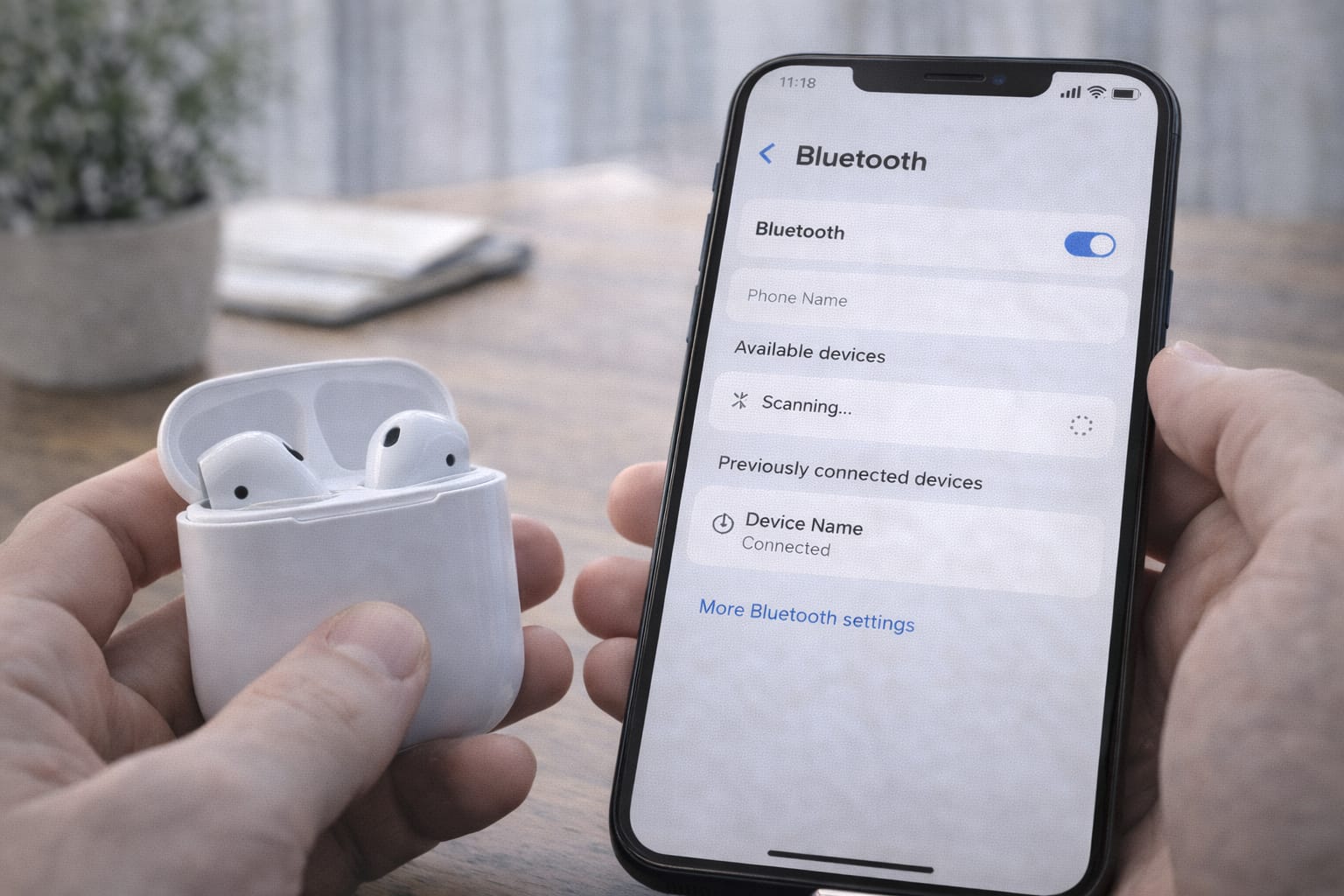
Step-by-Step Fixes for Bluetooth Not Pairing
Turn Bluetooth Off and On Again
Sometimes Bluetooth gets stuck. Restarting it refreshes the connection.
Steps:
- Open Settings → Bluetooth
- Turn it Off, wait 10 seconds, turn On
- Try pairing again
Remove Old Paired Devices
If your earbuds or watch are paired with someone else’s phone, they won’t connect to yours.
Steps:
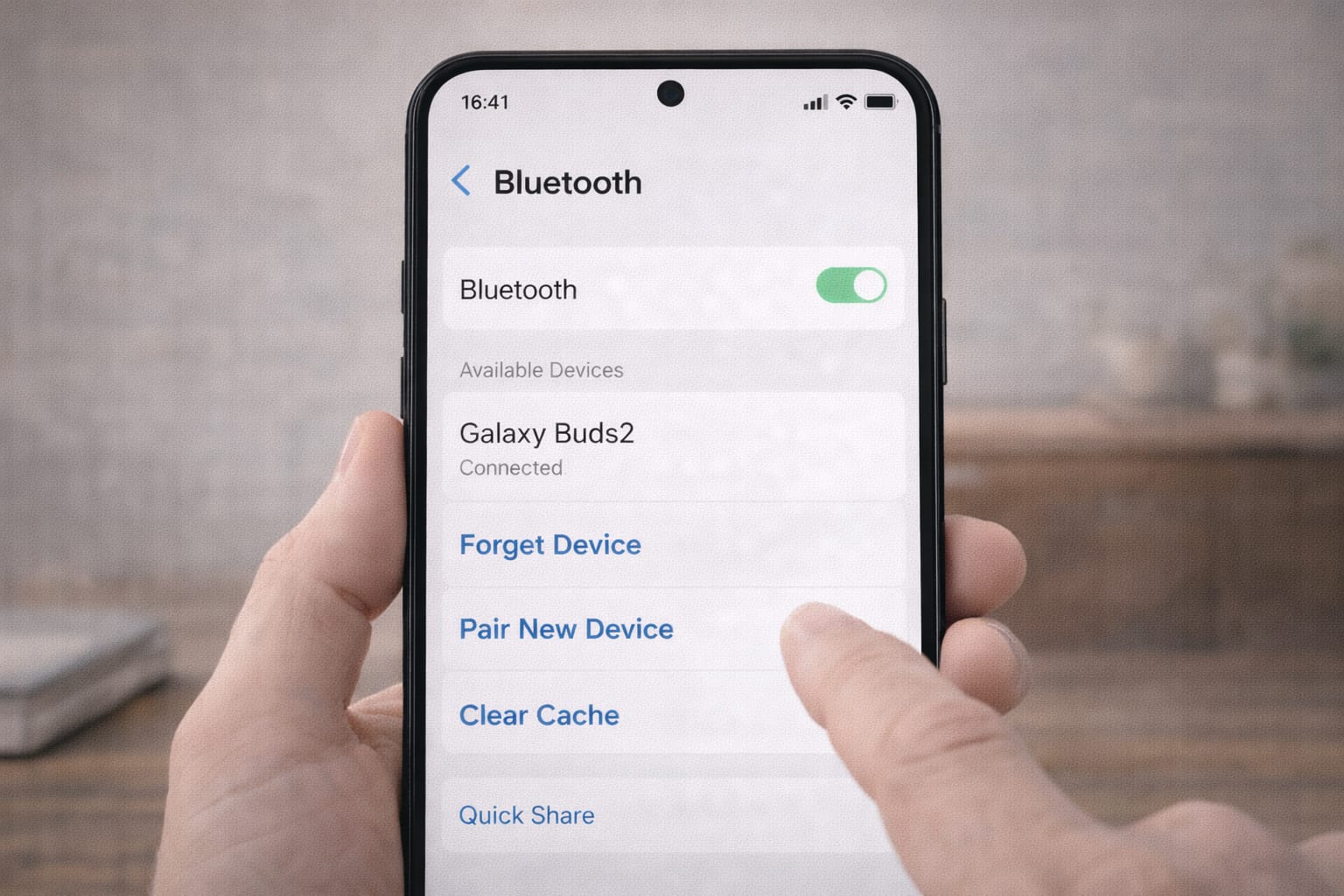
- Go to Bluetooth Settings
- Tap on old devices → Forget
- Reconnect your new device
Check Distance & Obstacles
Bluetooth works best within 1–3 meters. Walls, bags, or other electronic devices may block pairing.
Restart Both Devices
A simple reboot clears temporary errors.
Steps:
- Restart your phone
- Restart your Bluetooth device using the power button
Charge the Bluetooth Device
Many devices stop pairing when battery is below 10%.
Clear Bluetooth Cache (Android Only)
This method is commonly used when Bluetooth keeps disconnecting.
Steps:
- Open Settings
- Go to Apps → Bluetooth → Storage
- Tap Clear Cache
- Restart your phone
Update Phone Software
Outdated software may cause pairing glitches.
Steps:
- Go to Settings → System Update
- Download and install updates
Reset Bluetooth Settings (Last Option)
This resets only network settings, not your files.
Steps:
- Open Settings
- Tap System → Reset Options
- Choose Reset Wi-Fi, Bluetooth & Mobile Settings
Alternative Fix (If None of the Above Work)
If pairing still fails, try these additional methods:
- Pair the device from another phone to check if it works
- Use the Bluetooth pairing button correctly (many devices require holding for 5–10 seconds)
- Check for physical damage to the charger or earbud case
- Try pairing using the web or PC Bluetooth manager if using a laptop
- Reset the Bluetooth accessory to factory mode (see the device manual)
If this method does not work, move to official support.
How to Contact Official Support
If you think your device might be faulty, here’s how to seek help:
- Android users: Open Settings → Help & Support
- iPhone users: Visit Apple’s Support section
- Bluetooth earbuds brands: Visit the brand’s Help Center
- Laptop Bluetooth issues: Use Windows or macOS Troubleshoot tools
They may guide you to perform advanced diagnostics or device replacement.
Conclusion
Bluetooth pairing issues are usually caused by simple settings, old connections, or low battery. By following the steps in this guide—restart, forget old devices, clear cache, and update—you can solve most problems in a few minutes. Start with the easiest steps first and move to the advanced ones only if needed.
Frequently Asked Questions
Q1. Why is my Bluetooth device not showing up?
This usually happens if the device is already paired with another phone or is not in pairing mode. Turn the device off, then press and hold the pairing button for at least 5 seconds, and try again.
Q2. Can I fix Bluetooth without resetting my device?
Yes. Many people fix Bluetooth issues by restarting Bluetooth, forgetting previously paired devices, clearing the Bluetooth cache, or simply rebooting the phone.
Q3. Why does my Bluetooth keep disconnecting?
This may happen due to low battery levels, excessive distance between devices, outdated software, or interference from other wireless devices nearby.
Q4. Can I connect Bluetooth without an app?
Yes. Most Bluetooth devices can be paired directly through the phone’s Bluetooth settings without installing any additional apps.