Many people still print documents just to sign them — but you don’t need to anymore. You can sign any PDF, form, or document digitally from your phone or computer. This beginner guide explains simple methods to sign documents without printing, scanning, or using special equipment.
Why Is This Problem Happening? (Why People Still Print Documents for Signature)
Most users print documents because they think signing must be done physically. But today’s tools allow digital signatures easily.
Common reasons include:
- Not knowing where the “Add Signature” option is
- PDF locked or not editable
- Using older apps without signature features
- File not opening properly
- Document uploaded but signature missing
Step-by-Step Fixes to Sign Documents Digitally Without Printing
Here are simple ways to sign a PDF or document using your phone or computer:
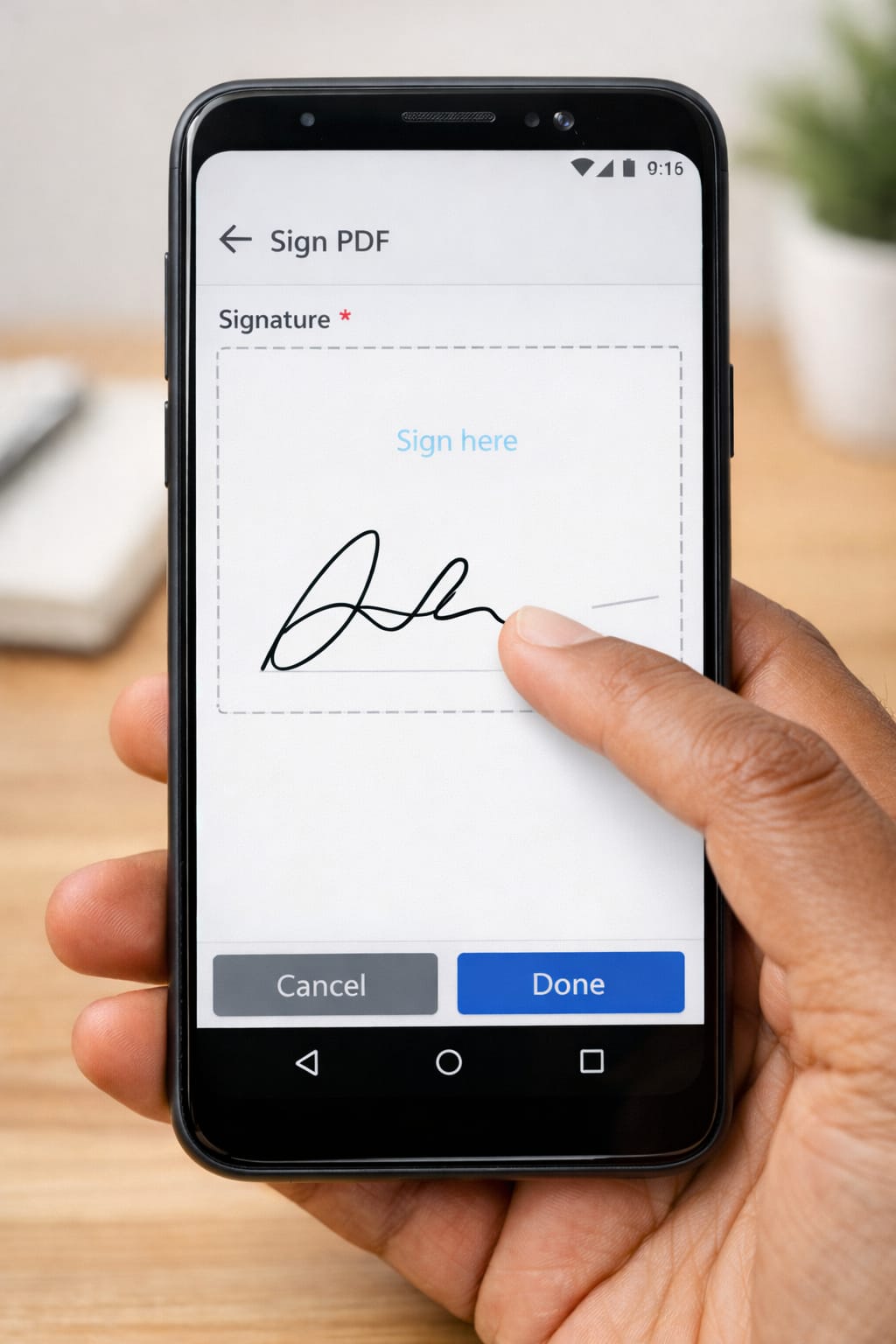
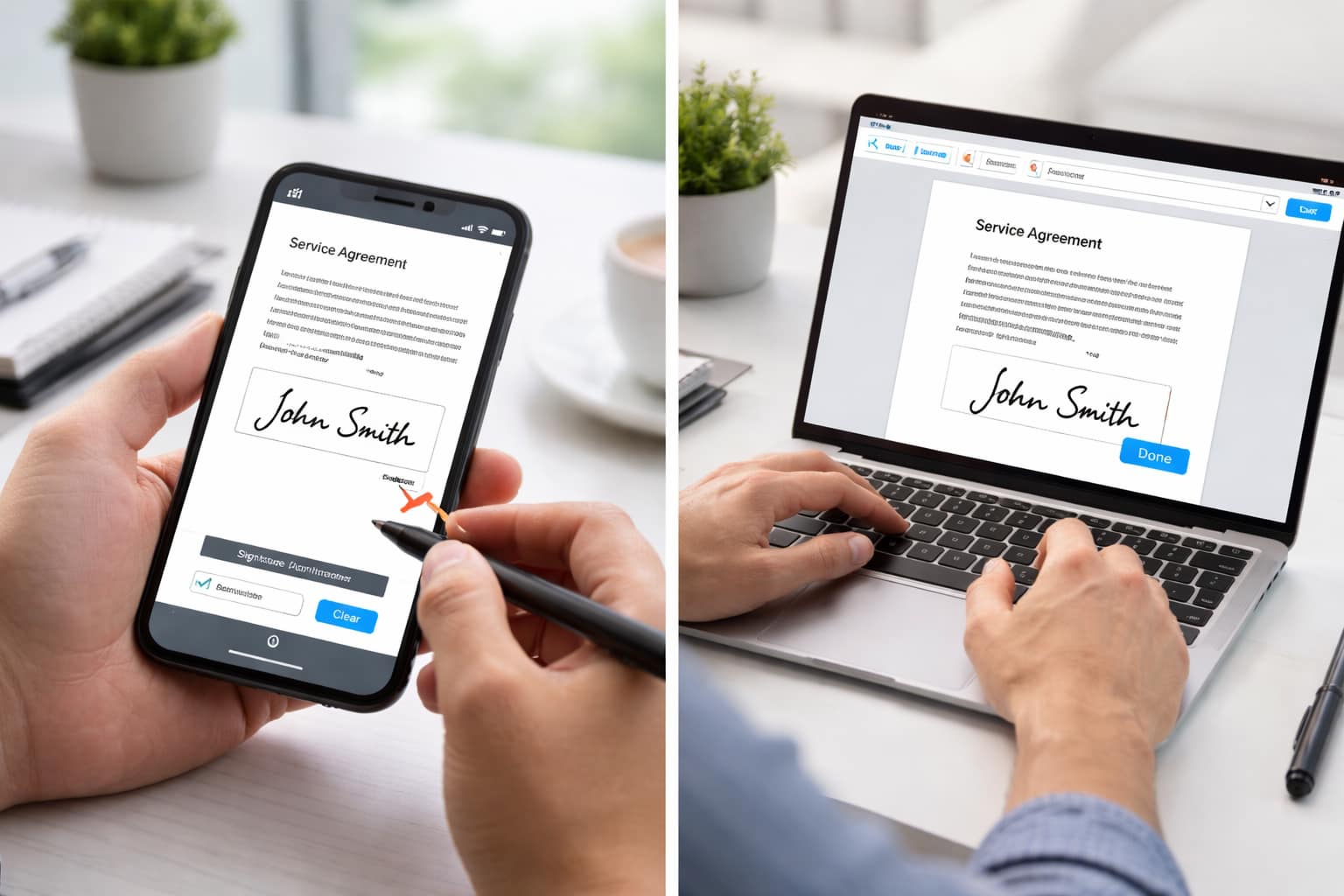
Method 1: Sign Documents on Mobile (Android / iPhone)
Most commonly used method by beginners.
- Open your PDF using Google Drive, Adobe Fill & Sign, or Files app (iPhone).
- Tap Edit → Fill & Sign or Add Signature.
- Draw your signature with your finger.
- Place it on the document and adjust size.
- Save the file as PDF and upload/send it.
If this method does not work, try opening the file in a different PDF app.
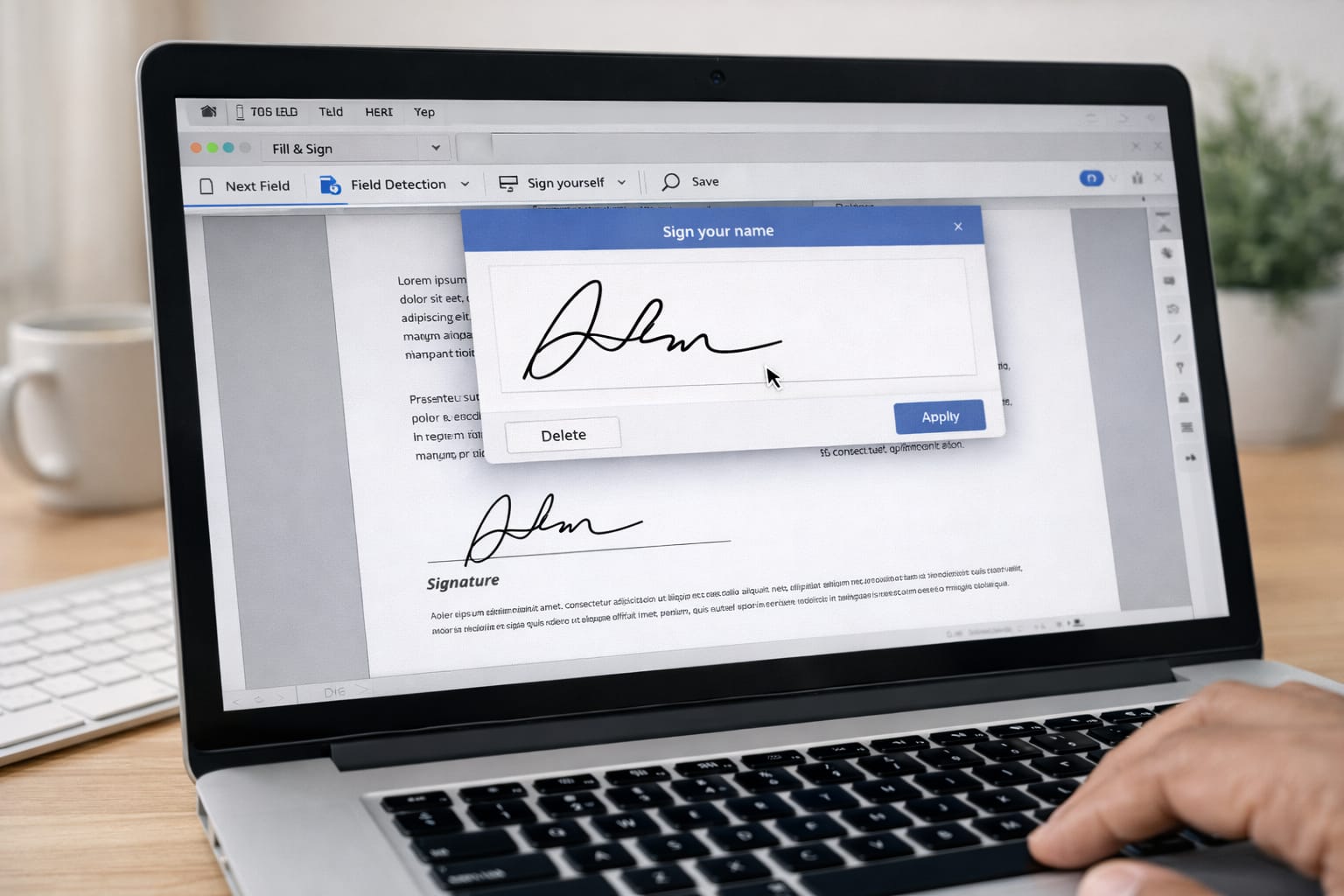
Method 2: Sign Documents on Laptop (Windows/Mac)
- Open the PDF using Adobe Reader, Edge PDF Viewer, or Preview (Mac).
- Click Fill & Sign or Add Signature.
- Type, draw, or upload an image of your signature.
- Place the signature and save your file.
- Re-upload the signed PDF where required.
Shortcut Tip: Microsoft Edge has a built-in “Draw” tool for quick signatures.
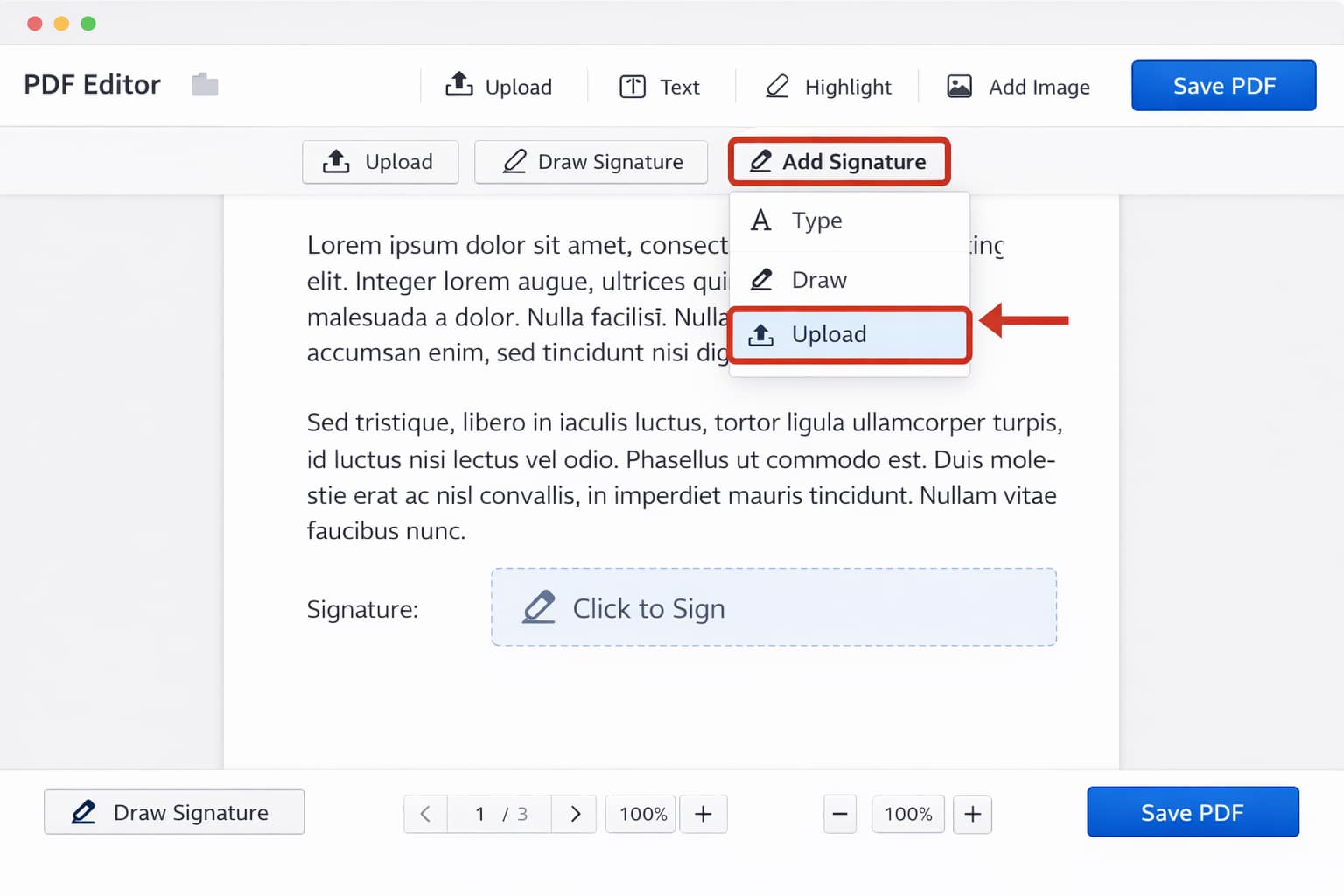
Method 3: Use Online Tools (No Software Required)
Commonly used online tools include:
- Web-based PDF editors
- Online signature generators
- Browser-based form signing platforms
Steps:
- Upload your PDF.
- Choose Add Signature.
- Draw, type, or upload signature image.
- Download the signed PDF.
If the file doesn’t upload, compress it and try again.
Alternative Fix (If Main Methods Don’t Work)
If you still cannot sign your document, try these:
- Use web version instead of app (online PDF editors are more flexible).
- Convert your PDF to editable PDF and then sign it.
- Remove password protection using the file owner’s permission.
- Re-download the document in a supported format.
If nothing works, request the sender to provide a “fillable PDF” version.
How to Contact Official Support (PDF/Document Apps)
If you face upload, signature, or access issues, you can use the official support options available in apps like:
- Google Drive Help Center (for PDF editing)
- Adobe Help Center (Fill & Sign issues)
- Microsoft Help (Edge/PC tools)
Just search “<platform> Help Center” in your browser.
Conclusion
Signing documents digitally is simple and saves time, paper, and effort. Whether you’re on a phone or computer, you can quickly create a signature, place it on any PDF, and submit it online. These beginner-friendly steps work for most forms, applications, and official submissions.
Frequently Asked Questions
Q1. Why is my signature not appearing on the PDF?
This usually happens because the PDF viewer you’re using does not support editing. Try opening the file with tools like Google Drive, Adobe Fill & Sign, or another online PDF editor.
Q2. Can I sign a PDF without using an email or phone number?
Yes. Most PDF tools allow you to sign documents offline or without creating an account or providing contact details.
Q3. Is it possible to sign a PDF without installing any app?
Yes. You can use online PDF editors that let you upload the document, add your signature, and download the signed file directly—no app installation required.
Q4. Can I use my finger to sign documents on my phone?
Yes. Almost all mobile PDF editors support drawing your signature using your finger on the screen.