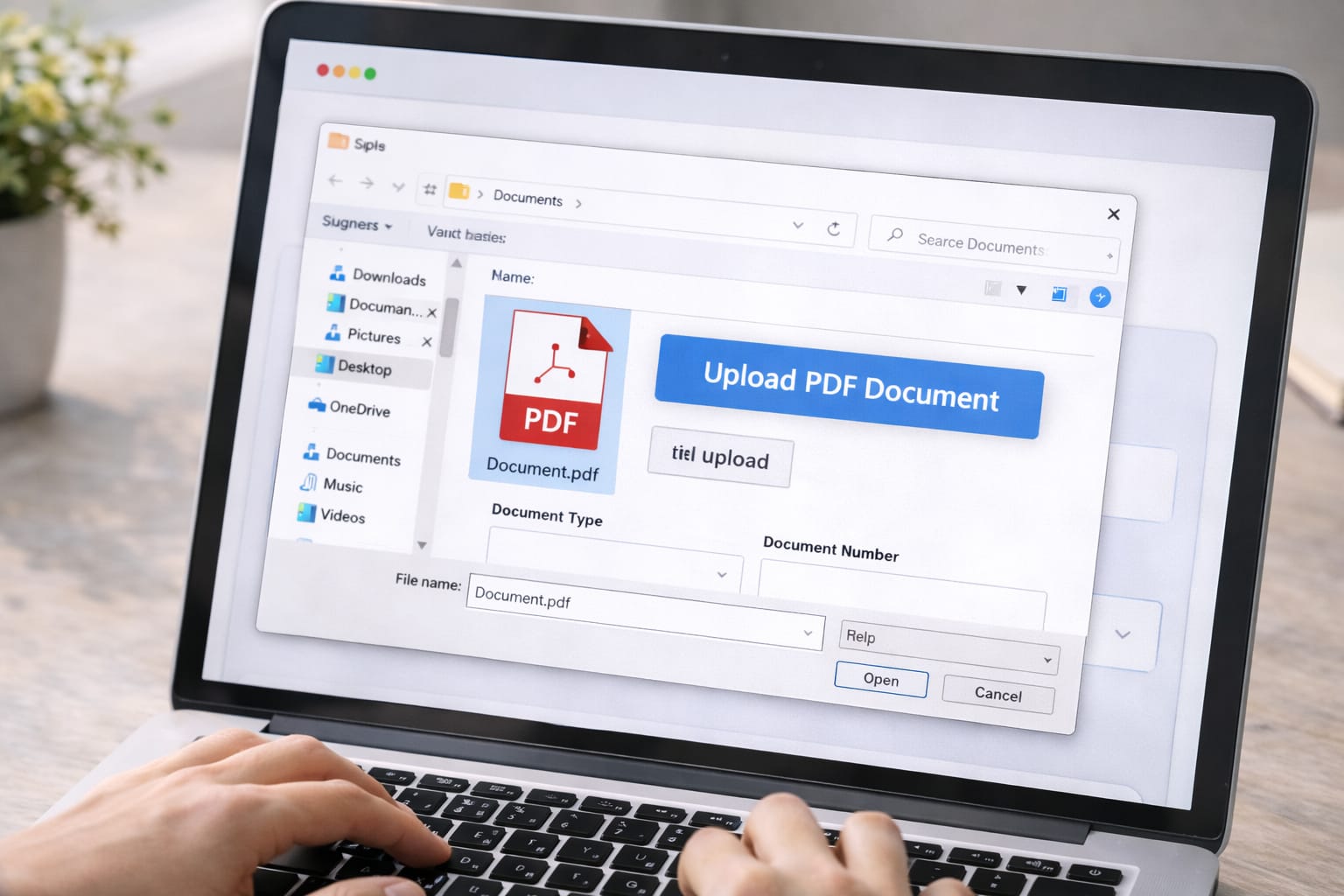
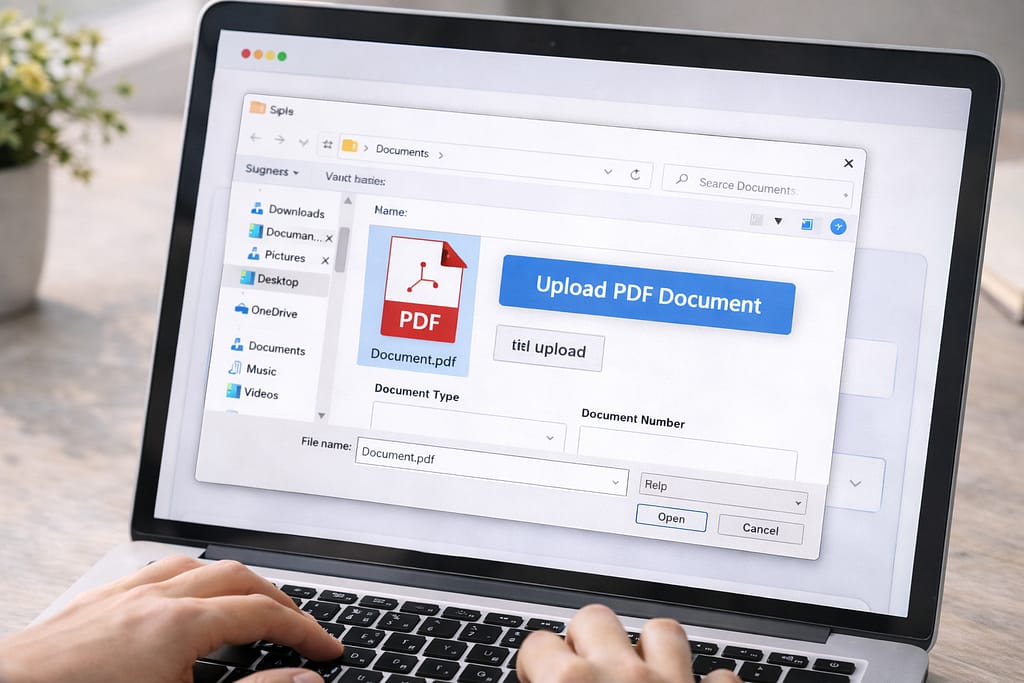
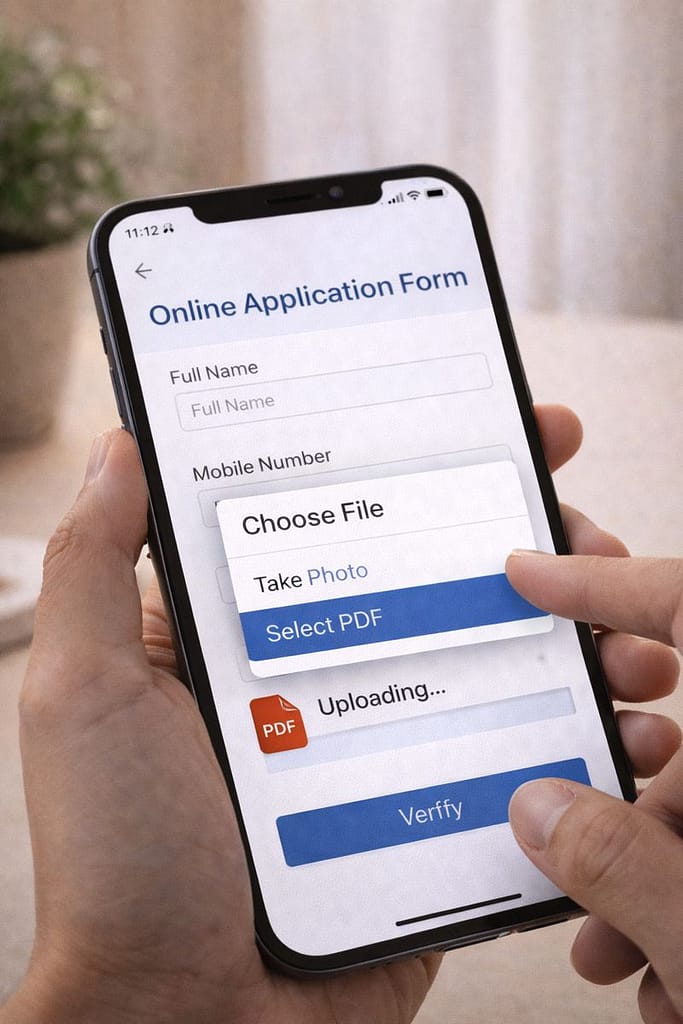
Many users struggle to upload PDF documents in online forms—whether it’s for job applications, government forms, ID verification, or school portals. This guide explains why PDF upload problems happen and provides simple step-by-step fixes even beginners can follow.
Why This Problem Happens?
PDF upload issues usually happen because the file is too large, the wrong format is selected, or the browser/app is outdated. Sometimes the server does not support certain PDF versions. Based on user reports, poor internet and unsupported file names also cause upload failures.
Common Causes
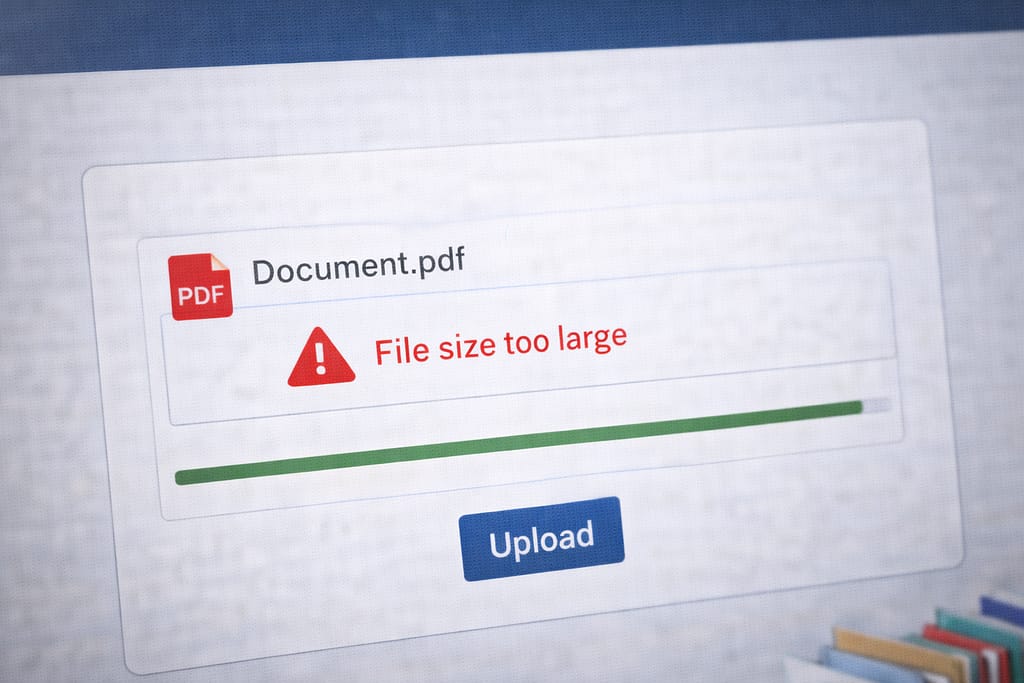
- PDF file size is larger than allowed (e.g., 1–2 MB limit)
- Unsupported file types (.docx instead of .pdf)
- Slow or unstable internet
- Corrupted PDF file
- Space or special characters in file name
- Browser or device storage issues
Step-by-Step Fixes for Uploading PDF in Online Forms
To fix PDF upload issues, first ensure your file meets size and format requirements. Then rename the file, clear browser cache, and try uploading again. If the form still rejects your PDF, convert it to a lower version or use another browser. Follow the steps below.
✅ 1. Check the Allowed File Size
Most portals only accept 1 MB – 2 MB PDF files.
➤ If your PDF is too large:
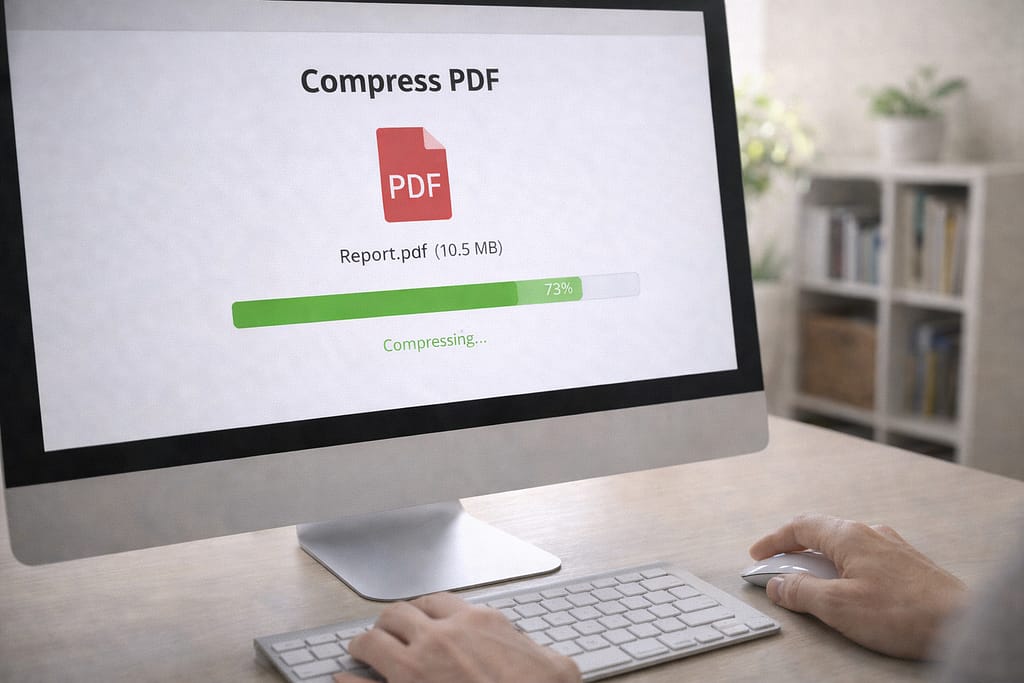
- Use an online compressor tool
- Choose “Medium compression” to maintain good quality
✅ 2. Rename Your PDF Properly
Online forms may reject PDFs with special characters.
Use this format:
AadharCard.pdf Marksheet_10th.pdf Resume.pdf
Avoid:
❌ doc!!2024#.pdf
❌ my file new .pdf
✅ 3. Convert the Document to PDF (If Not Already)
If you’re uploading images or Word files:
- Use “Save as PDF” (Windows / Mac)
- Use “Print → Save as PDF”
- Try free online converters (commonly used method)
✅ 4. Clear Browser Cache and Cookies
Sometimes the upload button stops responding.
Steps:
- Open browser settings
- Tap Clear browsing data
- Restart browser
- Open the form again
✅ 5. Use a Different Browser or Device
According to user reports, Chrome, Firefox, and Edge handle form uploads differently.
If the file doesn’t upload on mobile:
➤ Try laptop/desktop.
If not working on Chrome:
➤ Try Firefox.
✅ 6. Reduce PDF Version (If Portal Rejects It)
Older government portals often ask for PDF version 1.4 or lower.
Use any online PDF converter and choose “Save as PDF (old version)”.
Alternative Fix (If Main Methods Don’t Work)
(40–60 word AEO answer)
If standard methods fail, try uploading through the desktop version of the website, disable browser extensions, or re-download the original document and convert it again. You can also use the “Upload from File Manager” option instead of drag-and-drop.
More Alternatives
- Use incognito mode
- Disable ad-blocker
- Switch to a stable WiFi connection
- Upload via Google Drive chooser (if allowed)
How to Contact Official Support (If Upload Still Fails)
You can access the official help or support page directly from the form portal. Look for:
- Help / Support / Contact Us buttons
- Website-specific FAQ section
- Live chat (common on government & banking sites)
You may also visit:
- Google Help Center
- Form portal’s technical support page
- Browser support page (Chrome / Firefox)
Conclusion
Uploading a PDF to online forms becomes easy once you follow the correct steps—check size, rename the file, ensure correct PDF format, clear browser cache, and try another browser if needed. Most users solve the issue with these simple fixes.
Frequently Asked Questions
Q1. Why is the upload button not responding?
This usually happens due to browser cache issues or unsupported file names. Try clearing your browser cache and renaming the PDF file before uploading again.
Q2. Can I upload a PDF without using an app?
Yes, you can upload the PDF directly through a web browser. No app is required.
Q3. My PDF is compressed but still not uploading—why?
The file may be corrupted or saved in a newer or incompatible PDF version. Try exporting or saving the PDF again and then upload it.
Q4. Can I upload scanned images instead of PDFs?
Only if the form supports image formats like .jpg or .png. If not, you’ll need to convert the scanned images into a PDF before uploading.