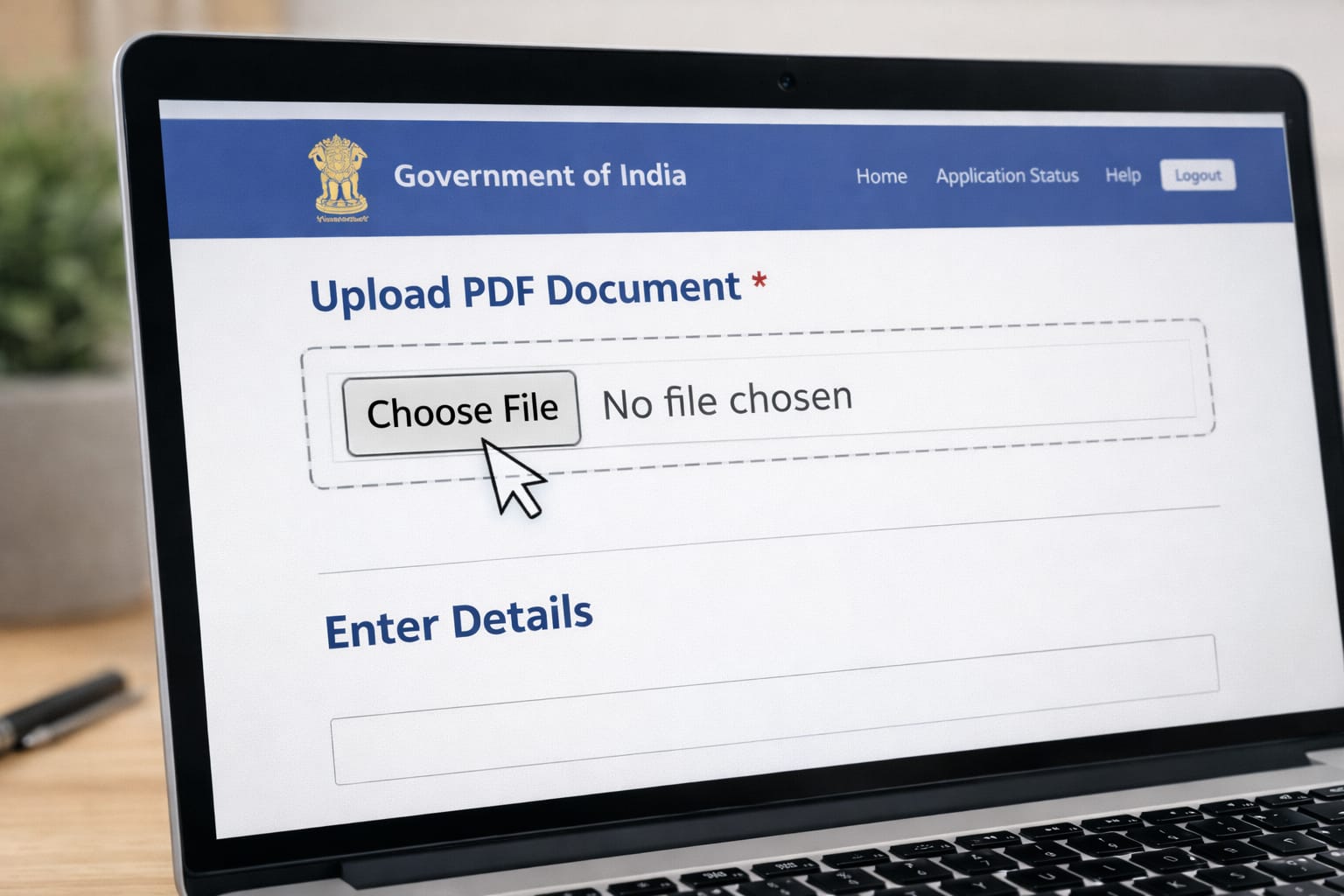
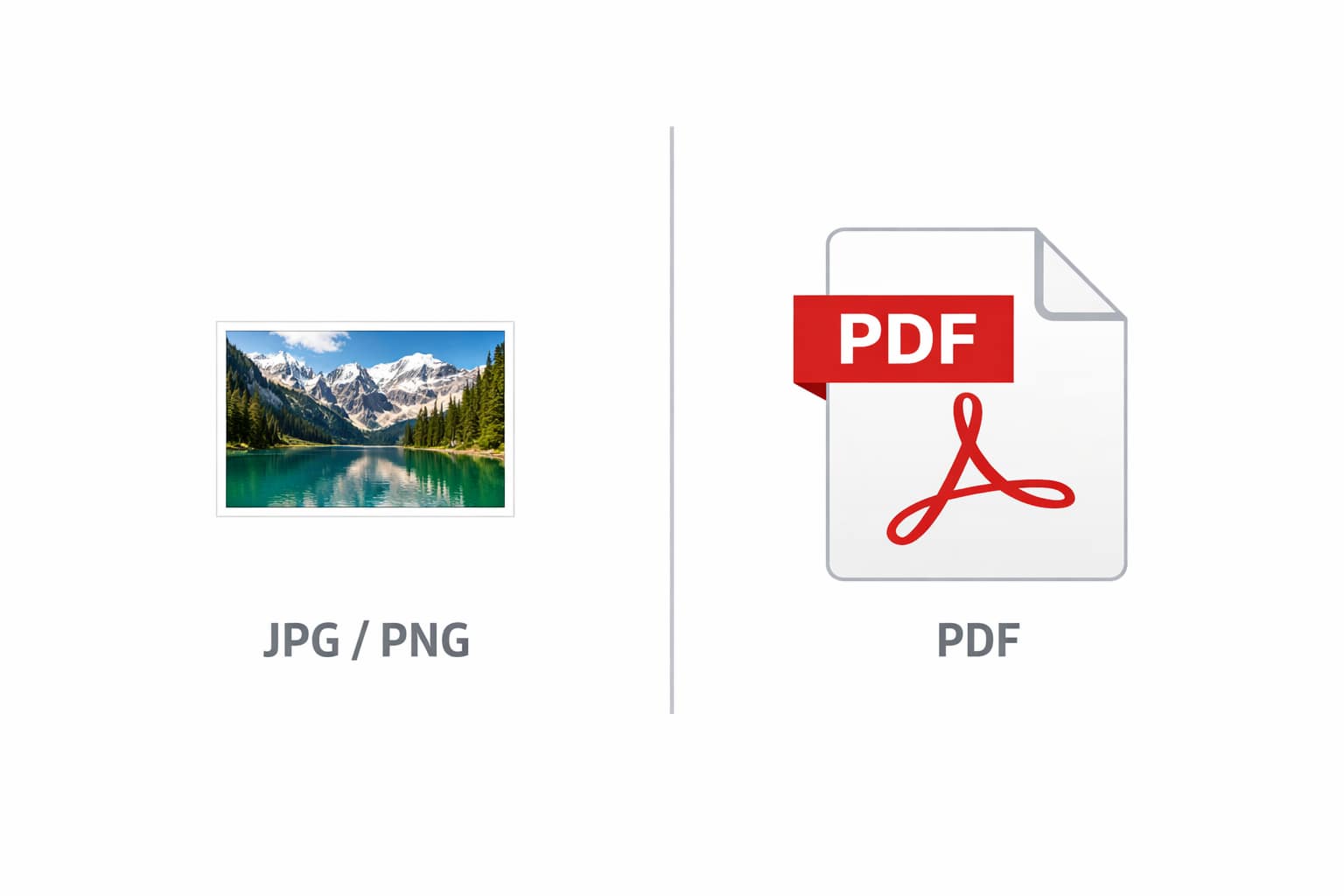
Most government forms accept only PDF files, even when you have your documents saved as photos (JPG or PNG). This confuses many beginners who try uploading images but receive errors. This guide explains how to convert any photo into a PDF easily using simple steps on your phone or computer.
Why This Problem Happens?
Many users face upload errors because most government portals only accept PDF format, not JPG/PNG images.
Other common reasons include:
- The photo size is too large for the form.
- Wrong file format selected during upload.
- Browser or device cache issues.
- The online form doesn’t detect mobile photo formats.
These issues usually require converting your picture into a proper PDF.
Step-by-Step Fixes to Convert Photo into PDF for Form Submission
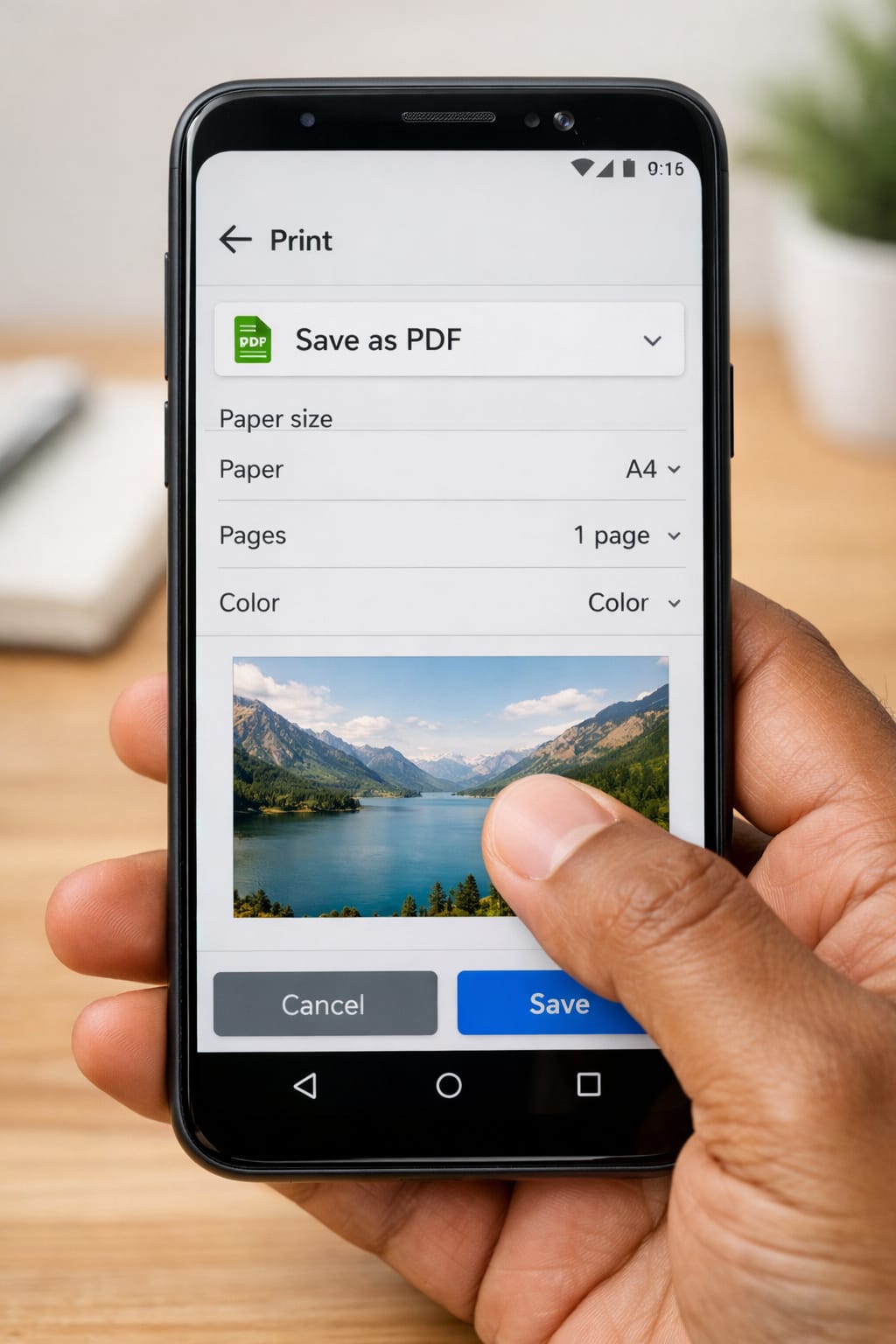
✔ Method 1: Convert Photo to PDF on Android (Without App)
- Open Google Files on your phone.
- Select the photo you want to convert.
- Tap Share → Print.
- Choose Save as PDF from the dropdown.
- Save the file and upload it to your online form.
➤ This method is based on commonly used Android tools and works on most phones.
✔ Method 2: Convert Photo to PDF on iPhone
- Open the Photos app.
- Select the image → Click Share.
- Choose Print.
- Pinch-out the preview to turn it into a PDF.
- Tap Share → Save to Files.
➤ Useful for submitting PDF documents in government portals.
✔ Method 3: Convert Photo to PDF on Computer
- Right-click the image.
- Select Print.
- In “Printer,” choose Save as PDF.
- Adjust the layout (A4 recommended).
- Save and upload.
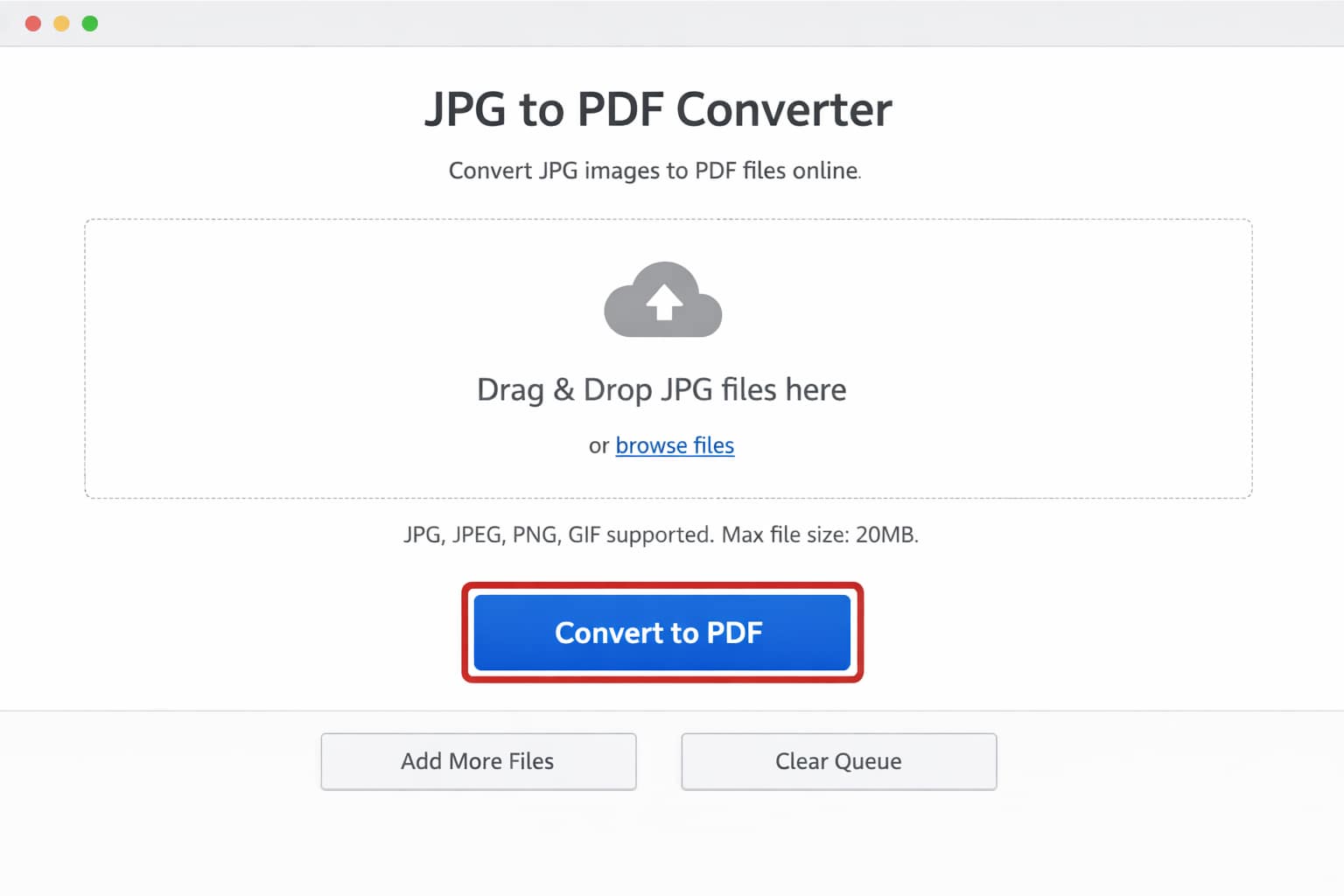
✔ Method 4: Convert Photo to PDF Online (Any Device)
Use trusted online tools such as:
- JPG to PDF converter
- Image to PDF tool
- PDF compressor (if needed)
Steps:
- Upload your photo.
- Click Convert to PDF.
- Download the file.
- Submit it in your online form.
➤ If this method doesn’t work, try clearing browser cache or switching to Chrome.
Alternative Fix (If Main Methods Don’t Work)
If your PDF is still not accepted:
- Reduce the PDF size using an online compress PDF tool.
- Rename the file using simple characters (Example: IDProof.pdf).
- Try converting again from a different browser or device.
- Upload using desktop mode on your phone browser.
These steps help when forms reject PDFs due to size, format, or filename issues.
How to Contact Official Support
If your government form still doesn’t accept the PDF:
- Visit the form portal’s Help Center or FAQ section.
- Look for “Document Upload Issues” handling.
- Use the provided support email or ticket form on the website.
- Some portals offer a helpline number for technical assistance.
No external URLs are included here, but you can find these help sections directly on official websites.
Conclusion
Converting a photo into a PDF for government form submission is simple when you know the right tools. Whether you use your phone, computer, or an online converter, these steps make the process fast and beginner-friendly.
Frequently Asked Questions
Q1. Why is my PDF still not uploading?
Sometimes the PDF file size is too large, or the form accepts only specific dimensions or limits. Try compressing or resizing the PDF and upload it again.
Q2. Can I convert photos to PDF without any app?
Yes. Both Android and iPhone devices have built-in options using Print → Save as PDF. Computers also support exporting files to PDF without installing extra software.
Q3. Can I combine multiple photos into one PDF?
Yes, you can combine several photos into a single PDF using online tools or built-in mobile print options that allow selecting multiple images before exporting.
Q4. Why does the form say “Invalid File Format”?
This usually means the file is still in JPG or PNG format. Make sure the file is properly converted and the extension ends with .pdf before uploading.